Documentation
Aplies documentation.
Set it up, run it, check it.
Aplies is a Chrome extension, the Aplies Agent, that searches LinkedIn for the jobs you choose, fills each application from your CV and submits it. This page covers every step, from install to the record of each application, including where it stops and asks you.
On this page
01
Get started
What Aplies is, what you need, and how to connect it.
What is Aplies?
Aplies is a Chrome extension, the Aplies Agent, that applies to jobs for you from Chrome on a desktop computer. It searches LinkedIn for the job titles and places you choose, scores every job against what you are looking for, fills each application from your CV and submits it.
It works with an Aplies account on aplies.com. The account holds your credits, your plan and a record of every application, and the Agent cannot apply without a connected account that has credits.
When it isn't sure of an answer, it asks you. It never asks for your LinkedIn password, it never solves a security check, and you pay only for the applications it submits.
| Item | Detail |
|---|---|
| Browser | Chrome on a desktop computer |
| Signed in to LinkedIn in that Chrome | |
| Account | An Aplies account, connected to the Agent |
| CV | A PDF, Word (.docx) or plain-text (.txt) file, up to 8 MB |
Install the Agent
Sign in on aplies.com and open the Install page. Press “Add to Chrome”: the Agent installs from the Chrome Web Store in one click, and Chrome keeps it up to date by itself.
Then pin it so it is one click away: open the puzzle-piece menu at the top right of Chrome and press the pin next to “Aplies Agent”.
Connect your account
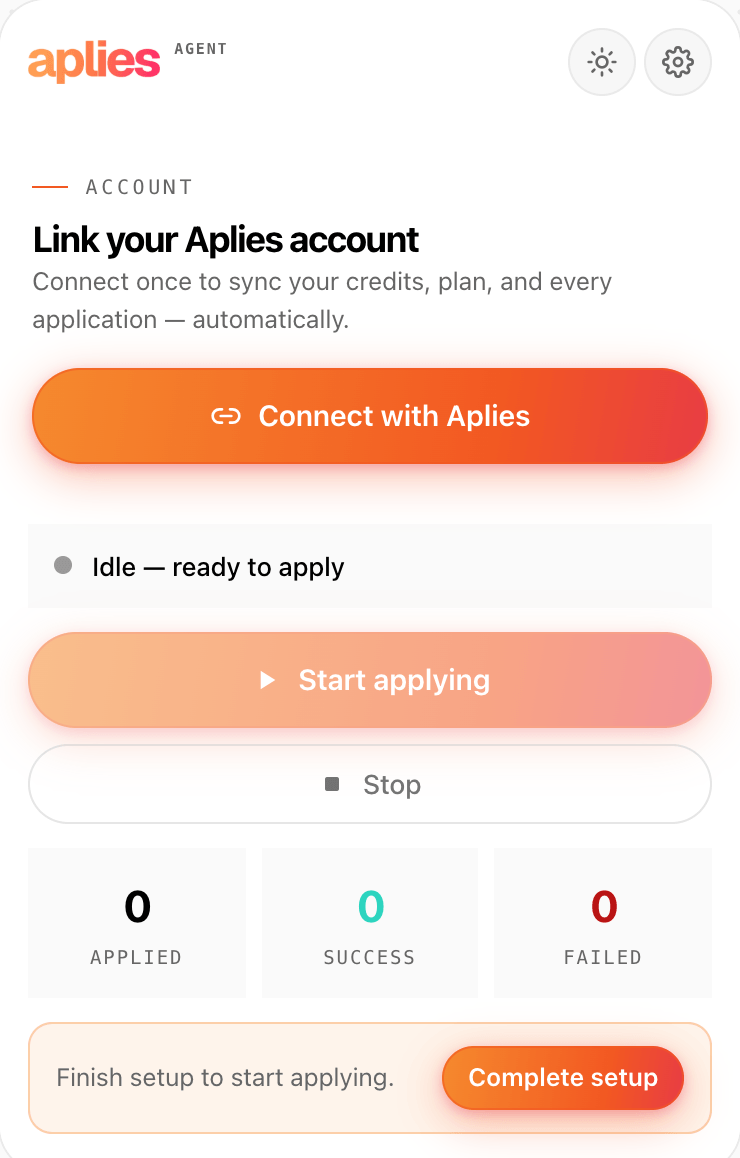
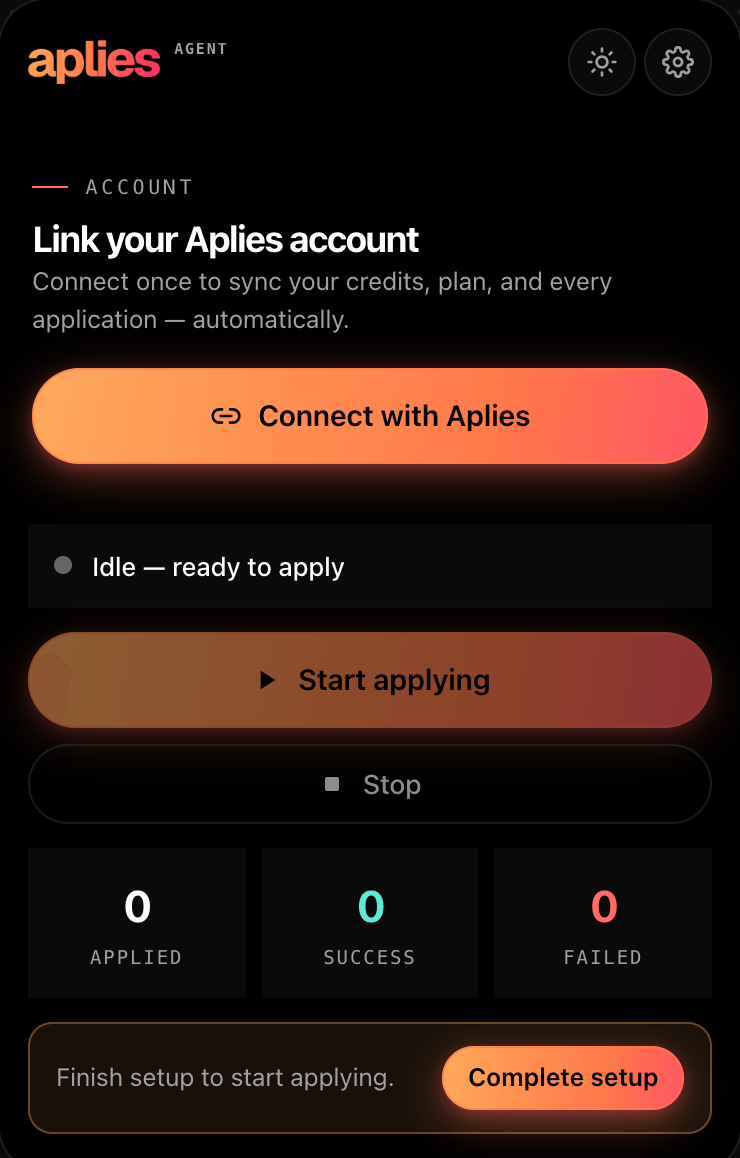
Open the Agent and press “Connect with Aplies”. A tab opens on aplies.com; approve the connection there and the Agent picks it up by itself.
Prefer to do it by hand? Choose “Paste a token manually instead” and paste the connection token from Settings → Extension on aplies.com.
Connecting gives the Agent your credits, its AI and a record of every application on your account. Until it is connected, the Agent can't apply.
02
Set up the Agent
Five steps you go through once. Everything in them can be changed later.
The setup wizard
Setup has five steps: Welcome, CV, Jobs, Salary and Finish. You go through it once; “Setup” at the bottom of the Agent reopens it whenever you want to change something.
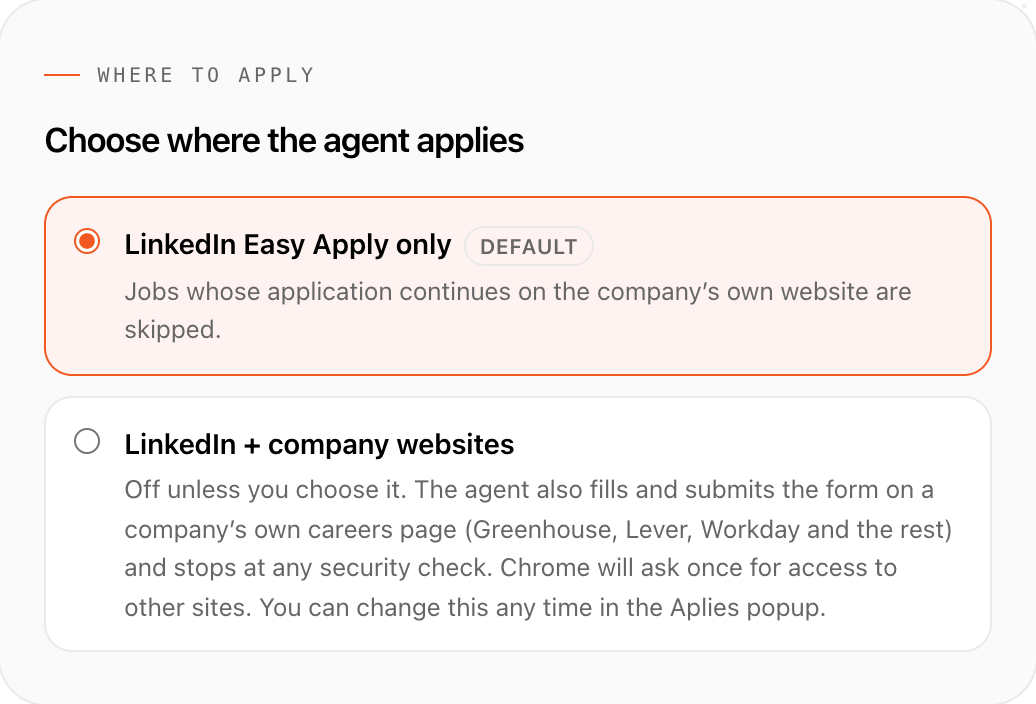
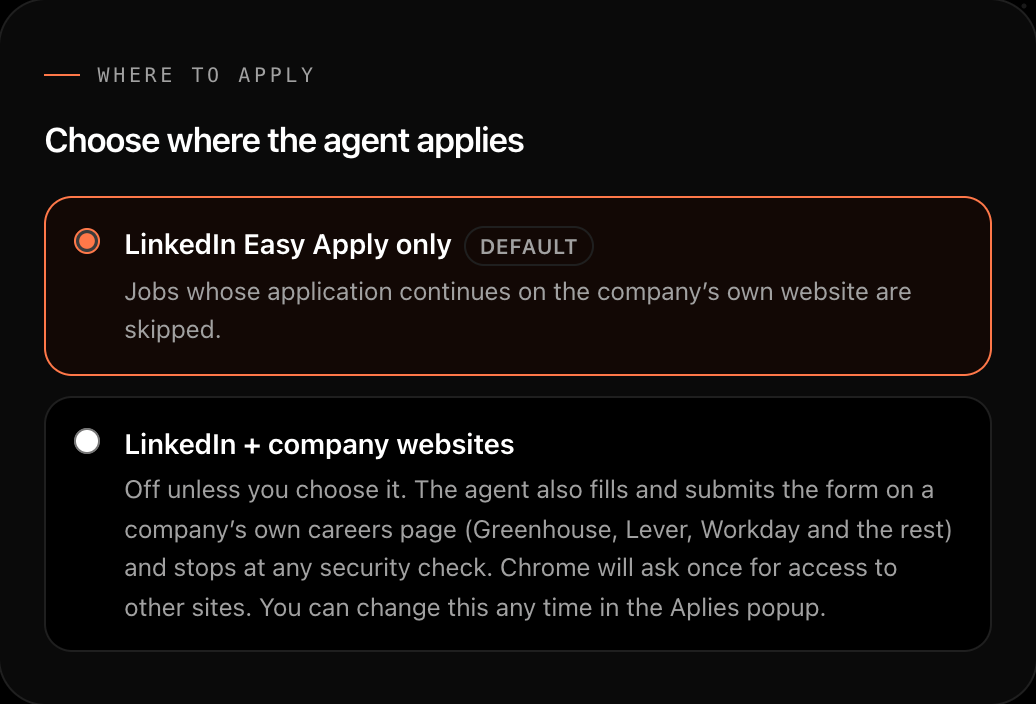
On Welcome you connect your account, choose “Where to apply” and give the Agent access in Chrome. “LinkedIn Easy Apply only” is preselected. “LinkedIn + company websites” also lets it apply on employers' own careers pages; it stays off unless you choose it.
“Grant access” asks Chrome once. LinkedIn access is required. Access to other sites is asked for only if you chose company websites.
Add your CV
On the CV step, add your CV as a PDF, Word (.docx) or plain-text (.txt) file, up to 8 MB. An older .doc file can be attached to applications but not read: save it again as PDF or .docx. A scanned CV with no text in it can't be read either; the Agent keeps the file and gives you a box to paste the text instead.
What happens to it: the text is pulled out of the file on your computer, then sent to Aplies' AI service to pick out your details. The file itself is never uploaded to Aplies. It is kept in the Agent on your computer, and it goes only to the employer forms that ask for it.
Check what it read
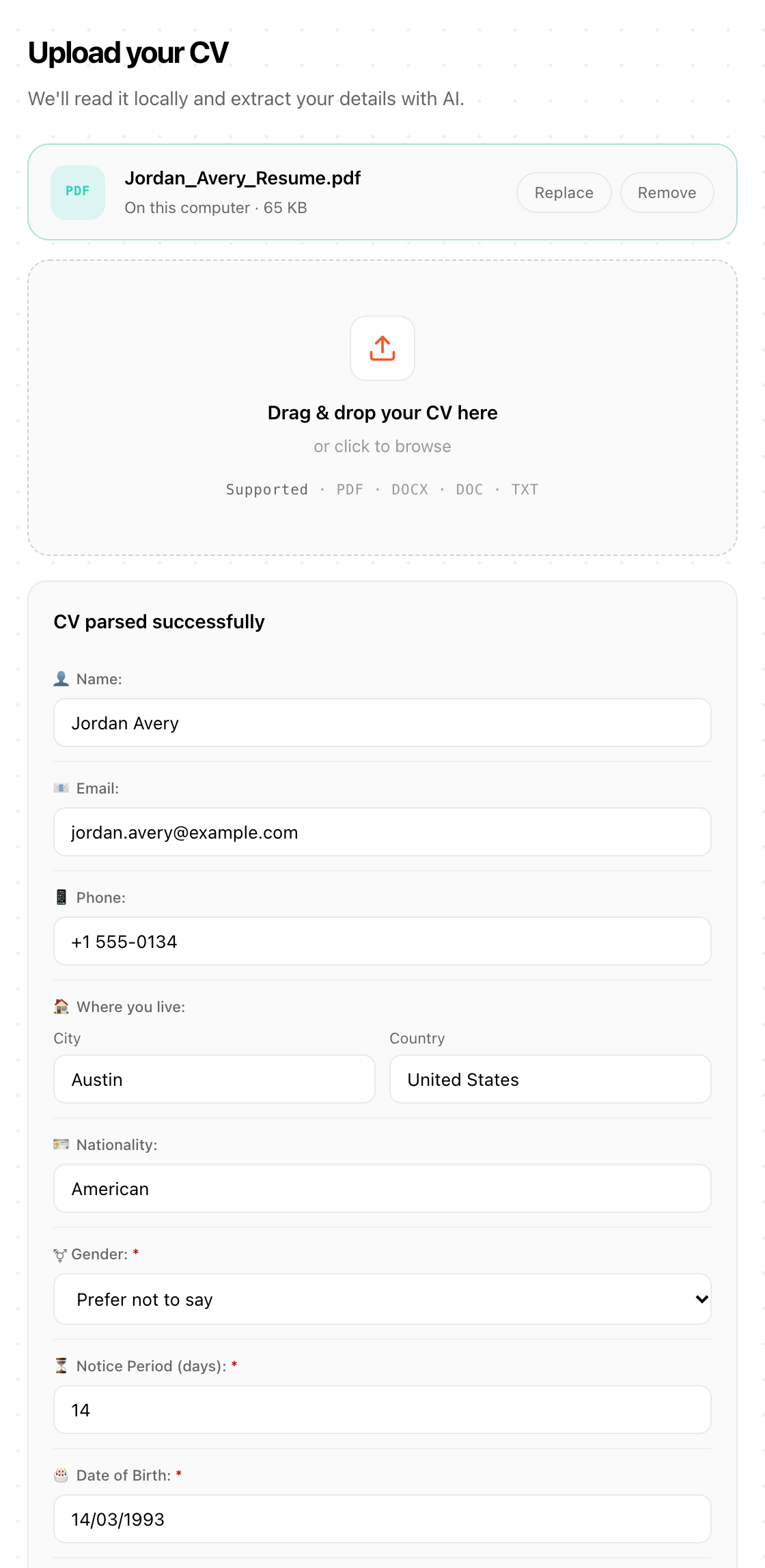
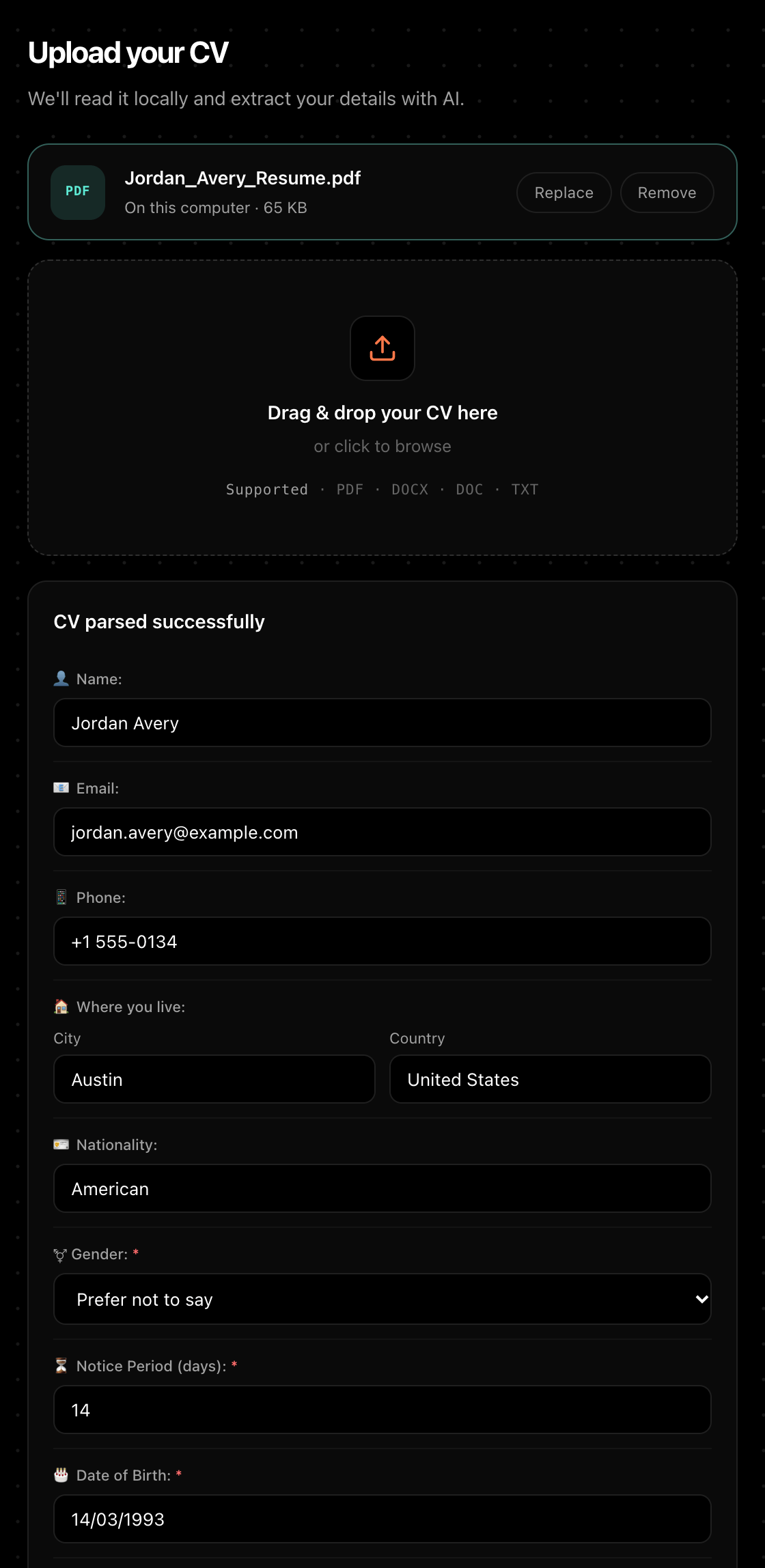
Once your CV is read, the same step shows what the Agent took from it as fields you can edit: your name, email and phone, where you live, nationality, gender, notice period, date of birth, your experience, skills, languages, links and summary. Below them is the full text it extracted, so you can see exactly what it read.
Date of birth, gender, notice period and a phone number are required before you can continue. “Prefer not to say” is a valid answer for gender.
Good to know
Take a minute over these fields. The Agent fills applications from them, and the personal facts here are the ones it never makes up.
Other documents
Some company career sites ask for a cover letter, a portfolio or another document as well as the CV. Add them under “Other documents” on the CV step, and say what each one is.
The Agent attaches one only when a form asks for that document by name. If a form requires a document you haven't saved, that application comes back to you. Like the CV, these files are not uploaded to Aplies.
Job titles, places and filters
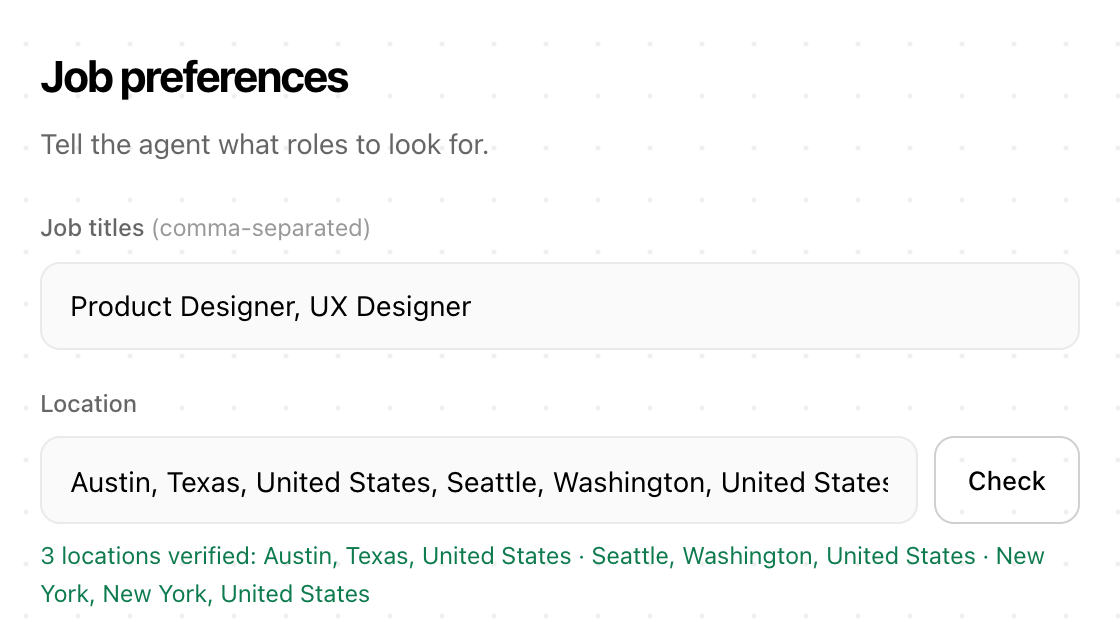
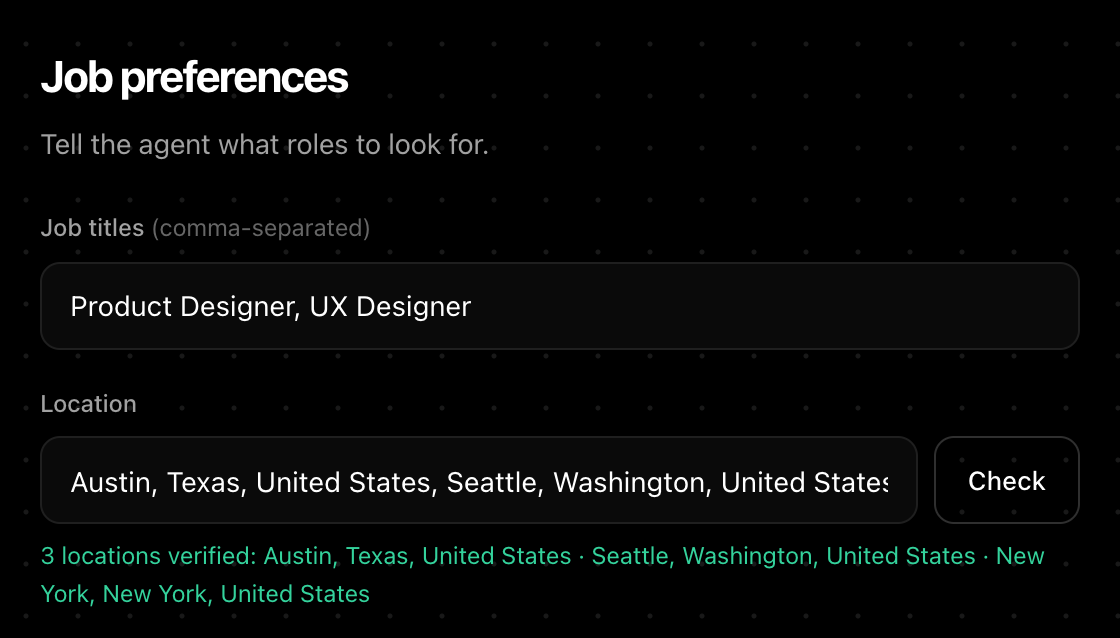
On the Jobs step, enter the job titles you want as a comma-separated list, as many as you like. Each title becomes its own LinkedIn search.
Add the places you want to work in, also as a list, and press “Check”: each place is confirmed as a full place name before setup continues.
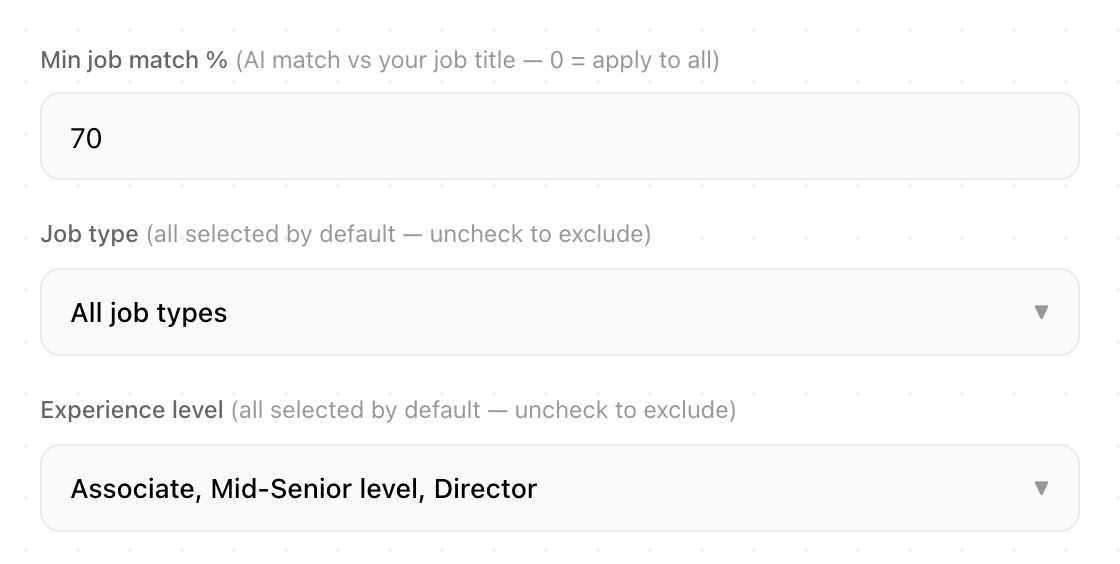
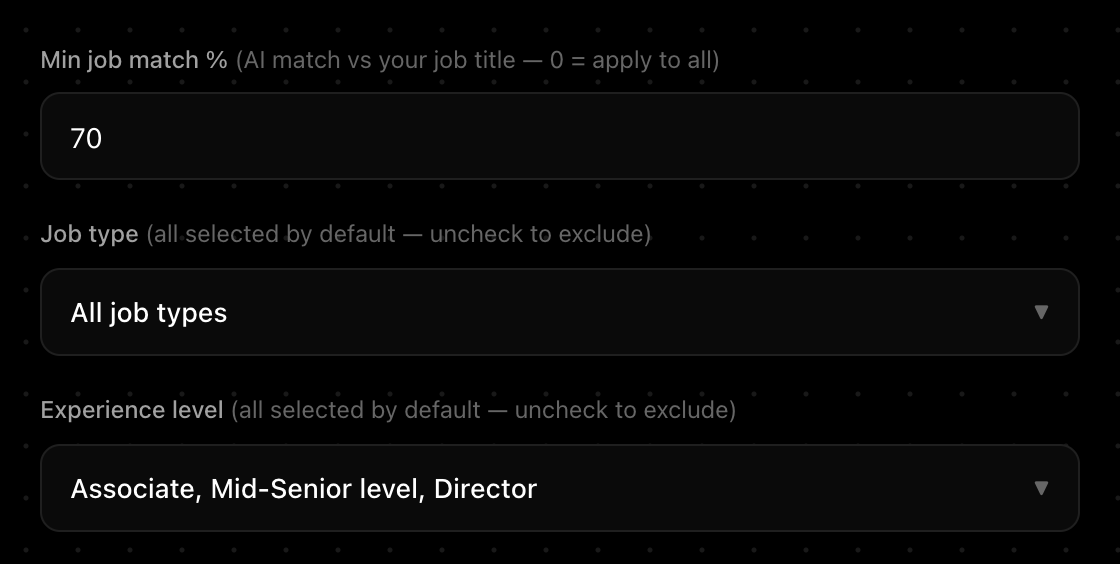
Narrow the search with “Job type” (On-site, Hybrid, Remote) and “Experience level” (Internship to Executive). Everything is selected by default, which means no filter.
The same step holds “Min job match %” and your hourly and daily limits. Both are explained under Running.
Salary
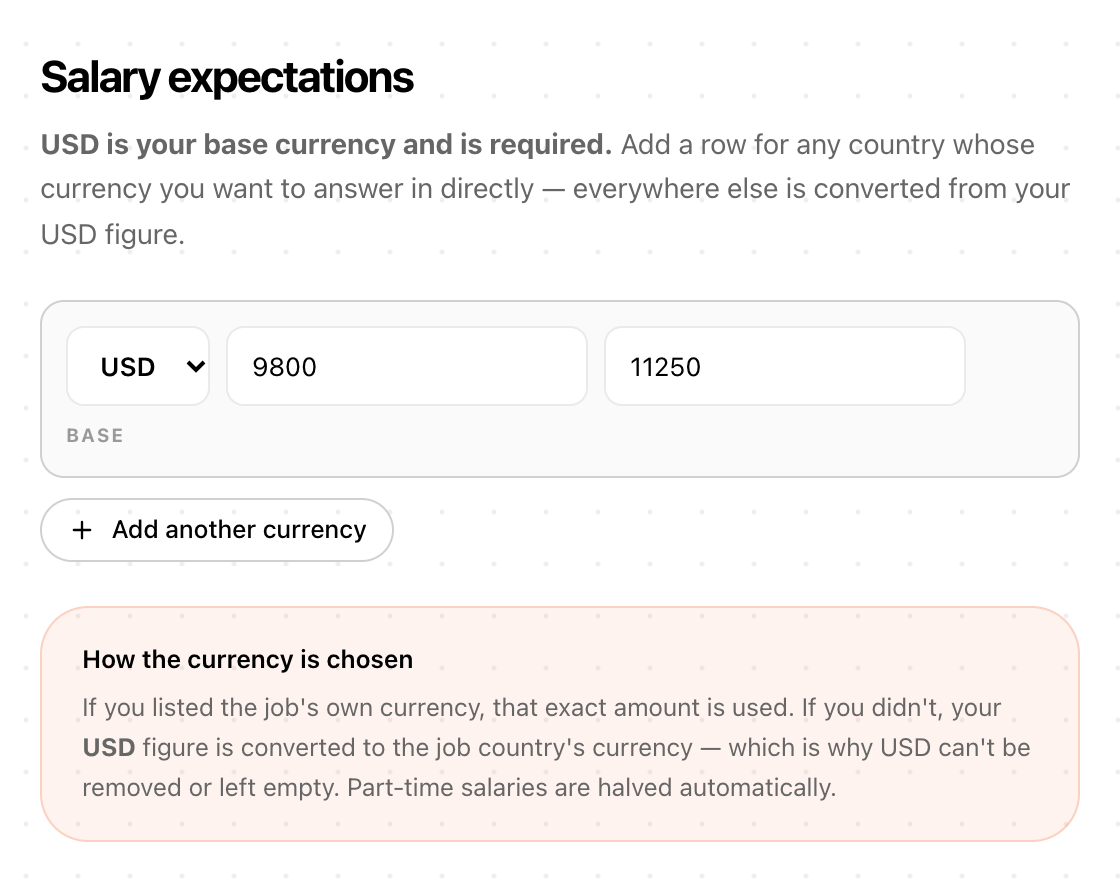
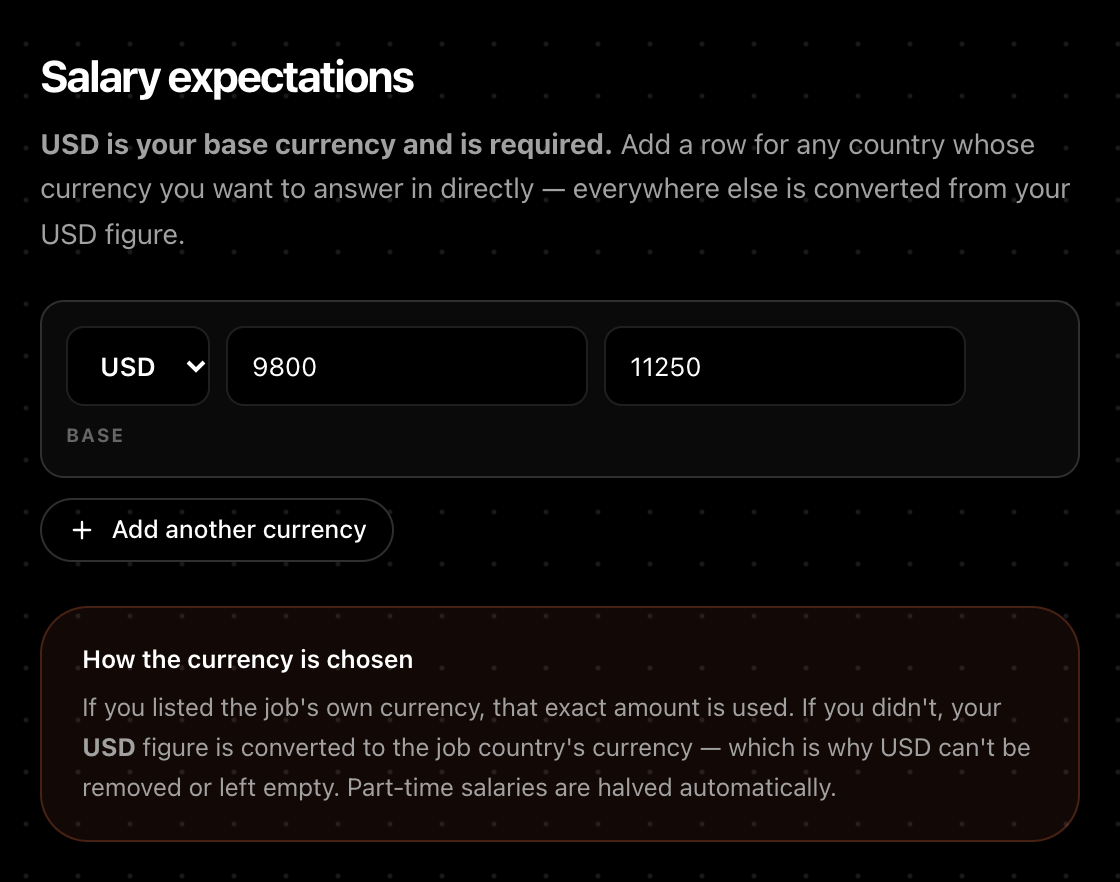
On the Salary step you enter your current and expected salary in US dollars. Both are required: US dollars is the base every other figure comes from.
Press “Add another currency” to give your own figures in other currencies. When a job asks in a currency you listed, the Agent works from your figure in that currency. Otherwise the Agent converts your US-dollar figure with a conversion table built into it, and halves it for part-time roles.
Questions it can't read safely, such as an hourly or daily pay question or an unusual format, go to the AI with your figures, or come back to you. Check the salary answers in your report now and then.
03
Running
What happens after you press Start, and what ends a run.
Start a run
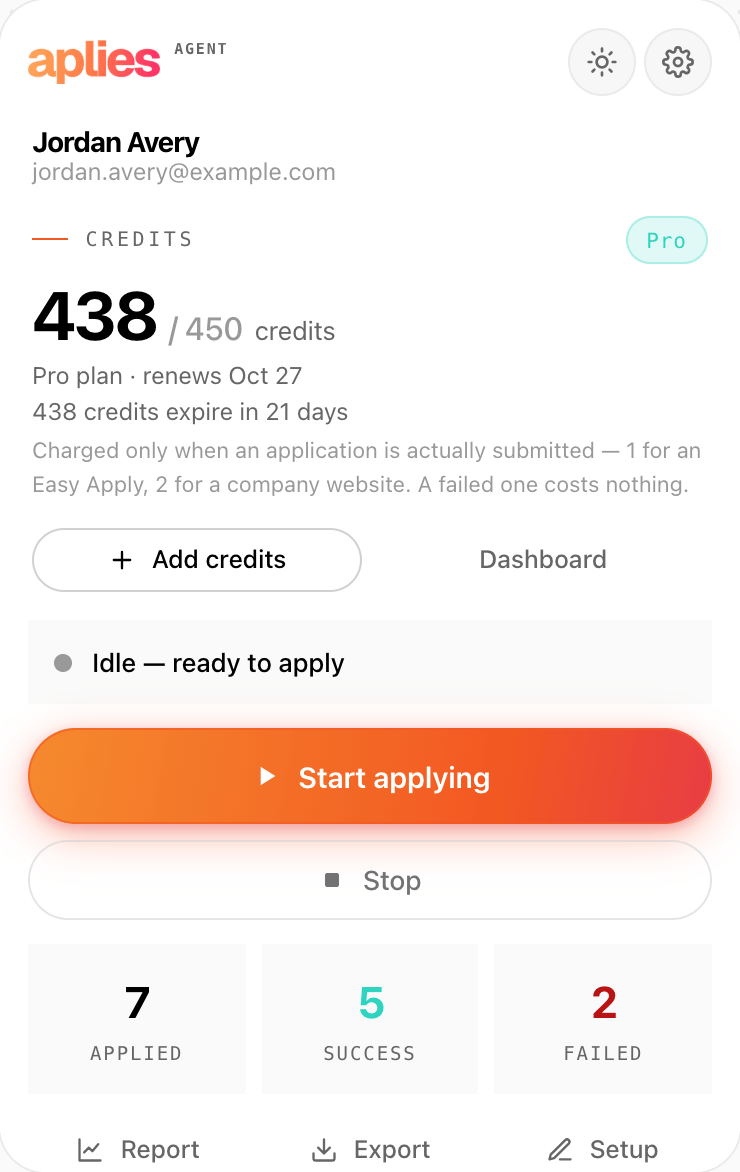
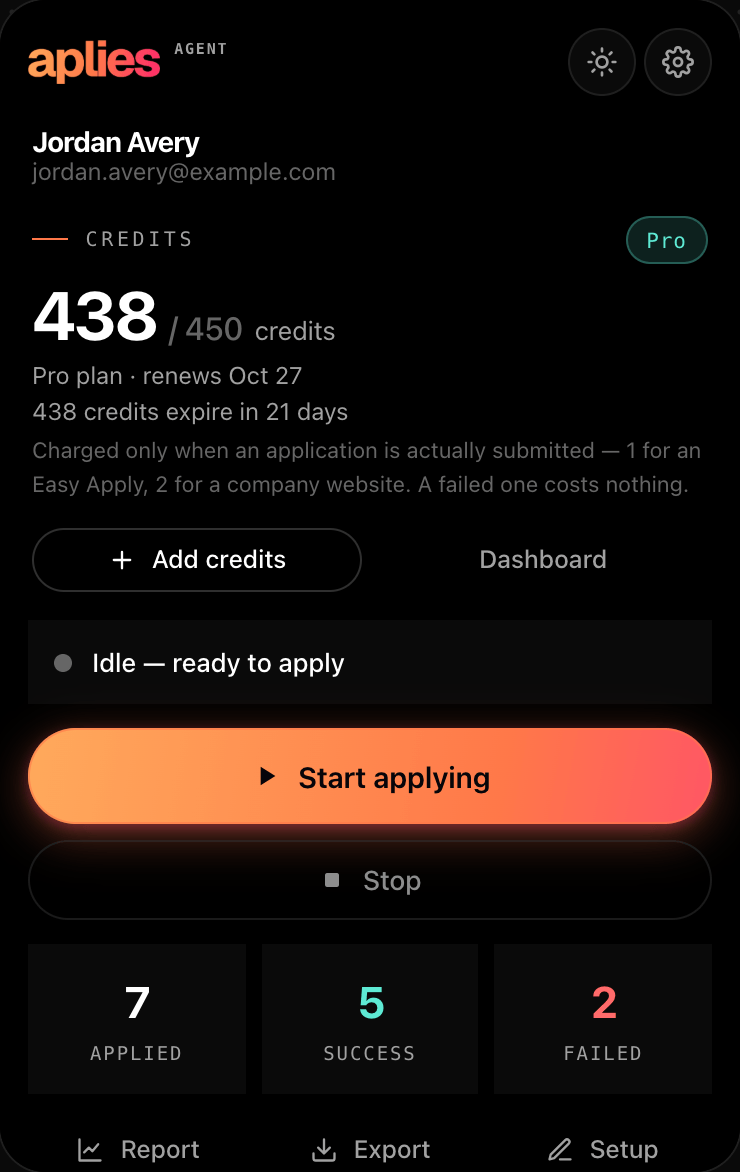
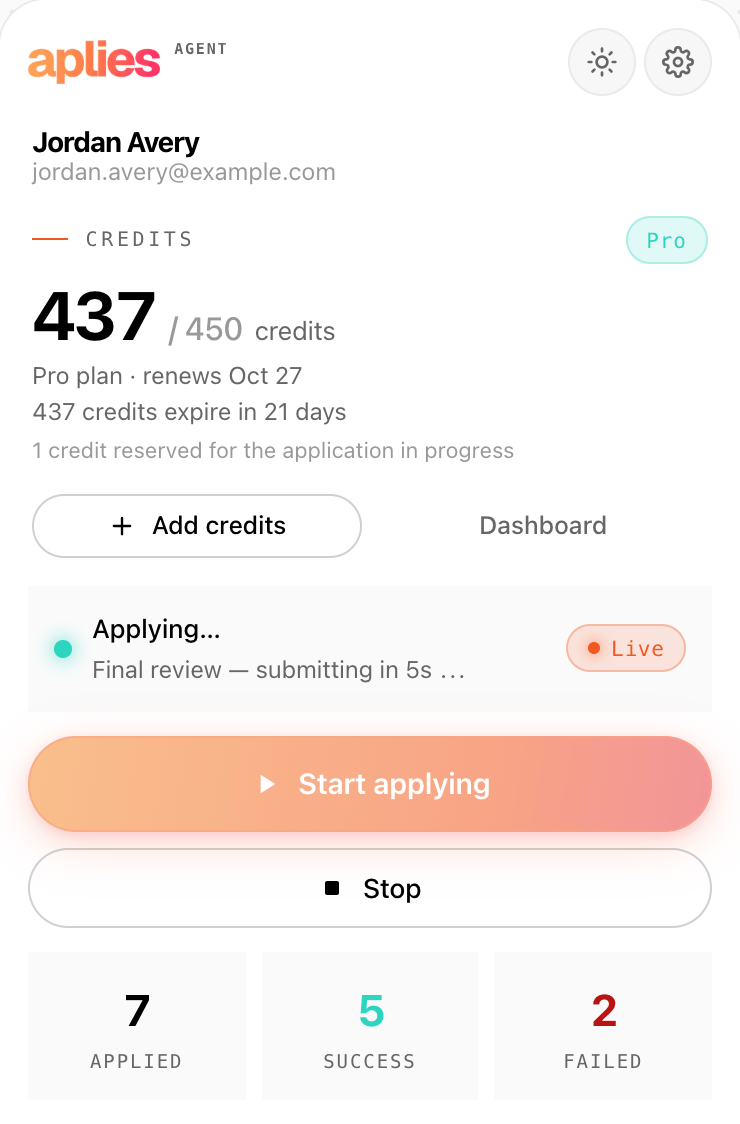
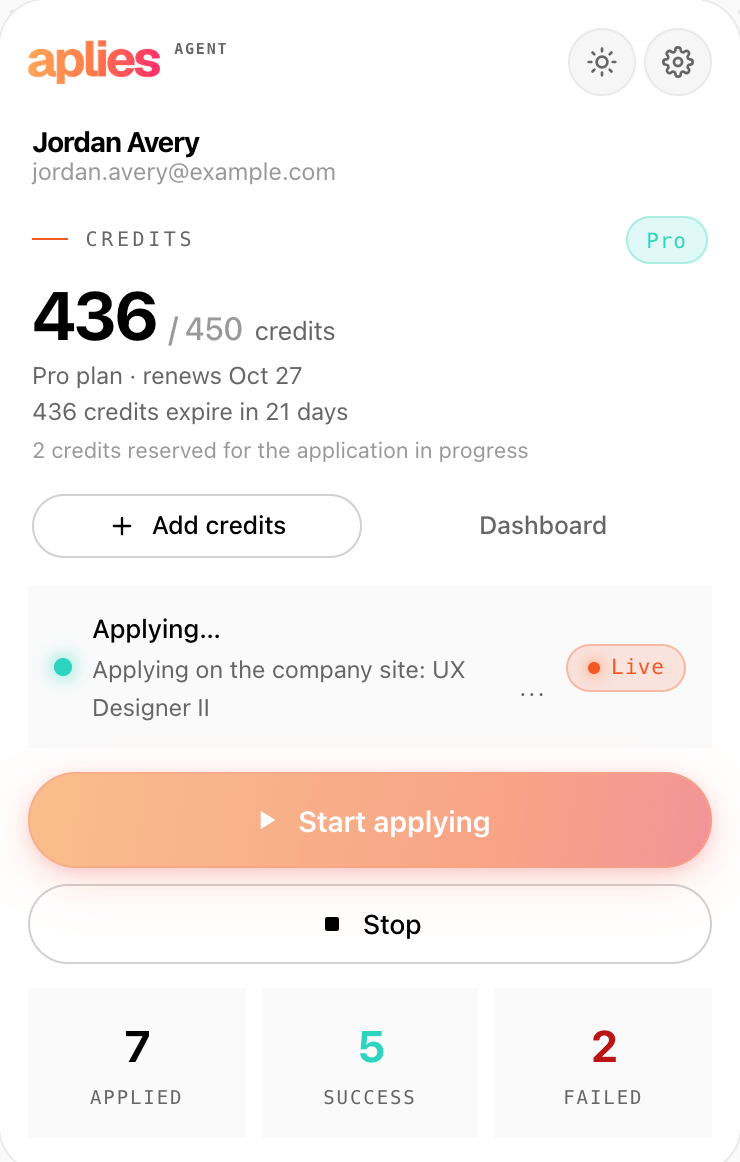
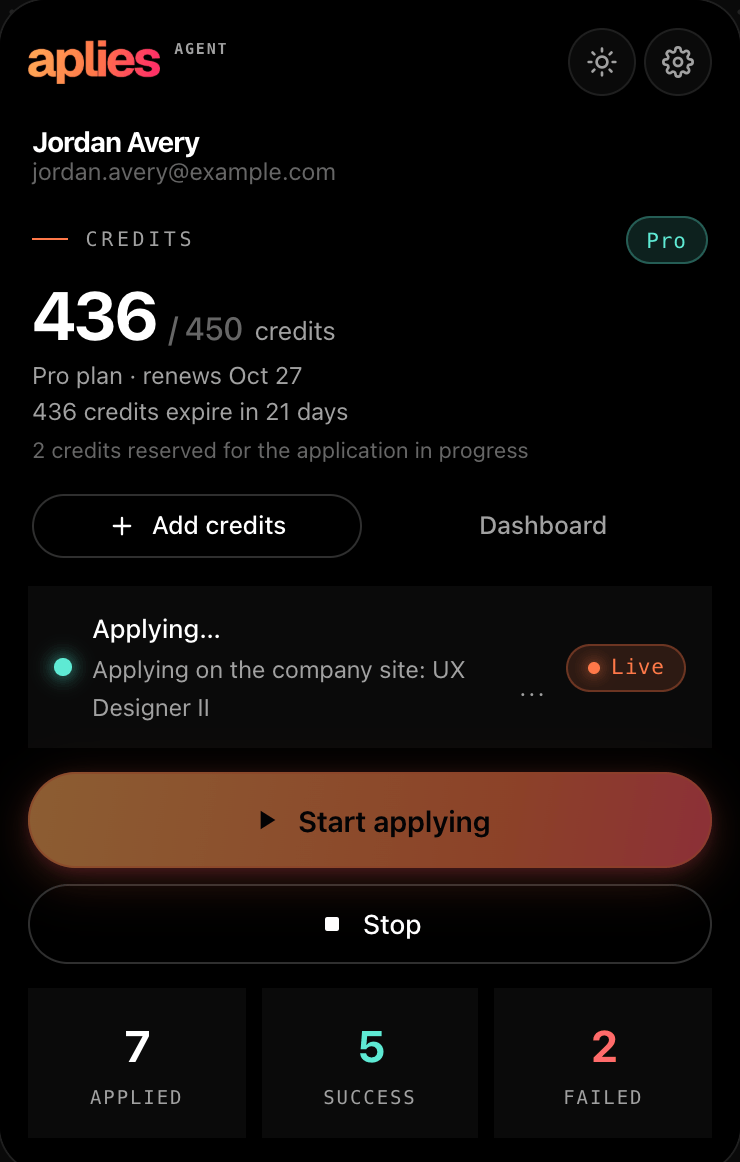
Press “Start applying” in the Agent. It opens its own LinkedIn tab in the background and works there. You don't need to open LinkedIn first, but you do need to be signed in to LinkedIn in this Chrome.
The Agent shows what it is doing as it goes, and “Stop” ends the run at any moment. If Chrome hasn't given it LinkedIn access yet, press Start again and choose Allow.
How it searches
It searches LinkedIn only. For each place in your list, it searches every job title, newest first: jobs posted in the last 24 hours, then the past week, then any time.
With company websites off, it searches only jobs that have Easy Apply. With them on, it searches every job, and applies through Easy Apply where a job has it and on the company site where it doesn't.
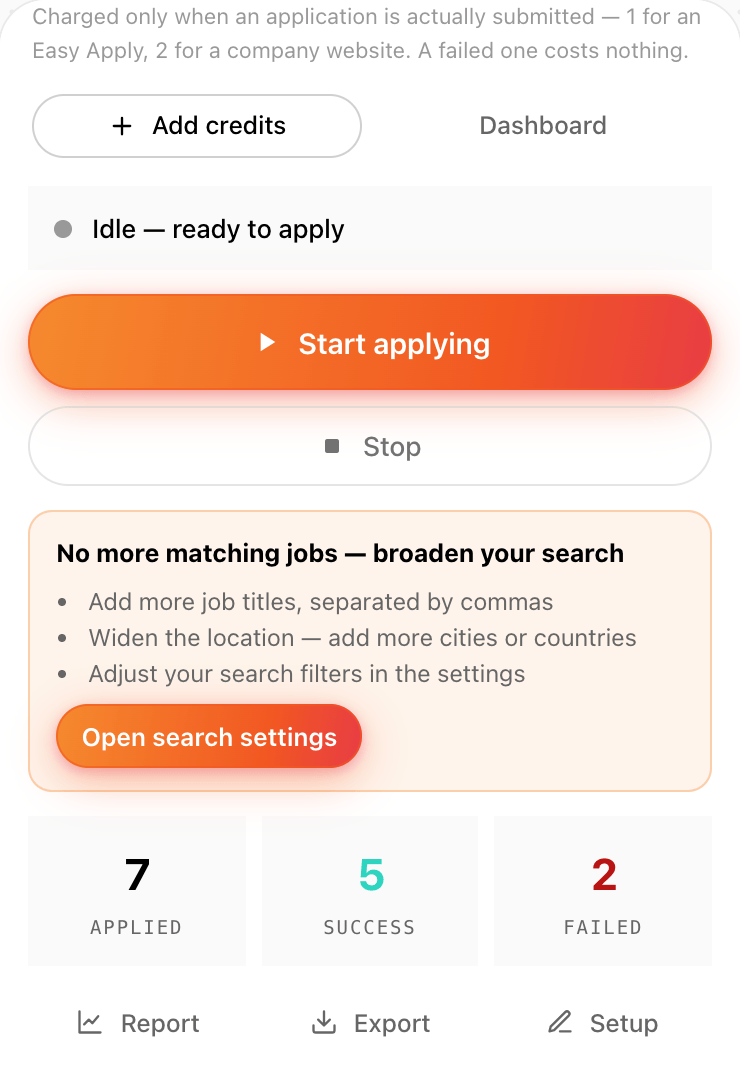
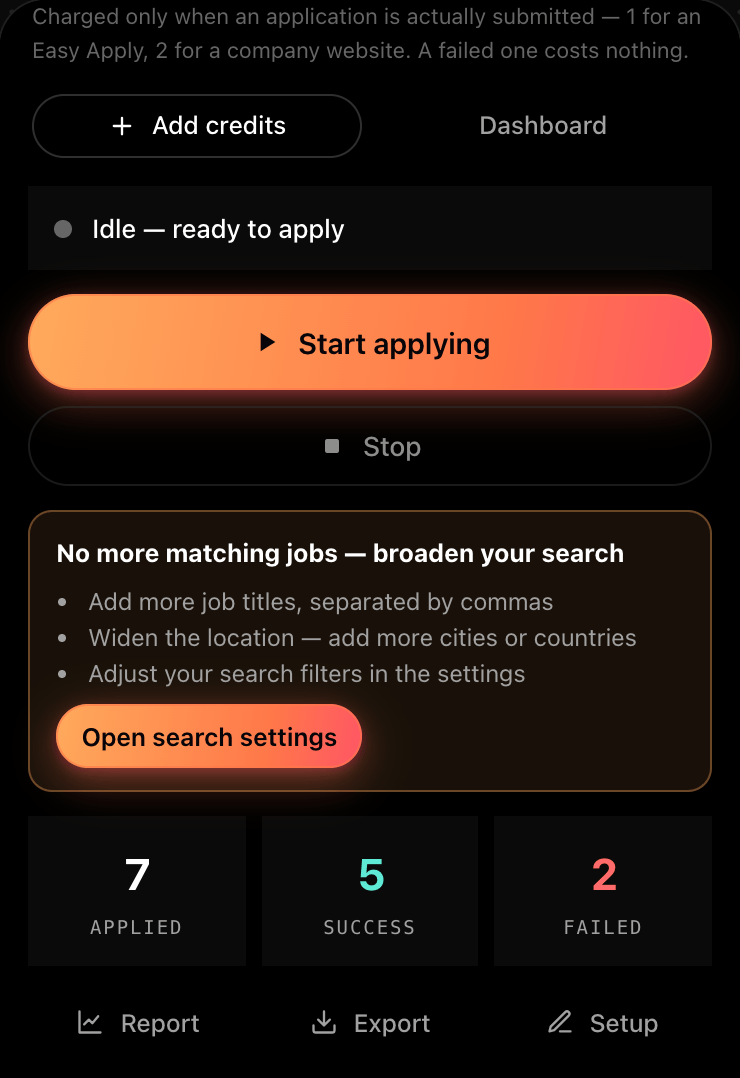
When every title, time window and place has been searched, the run ends and the Agent says so, “No more matching jobs — broaden your search”, with ways to widen it: more titles, more places, or looser filters.
The match score
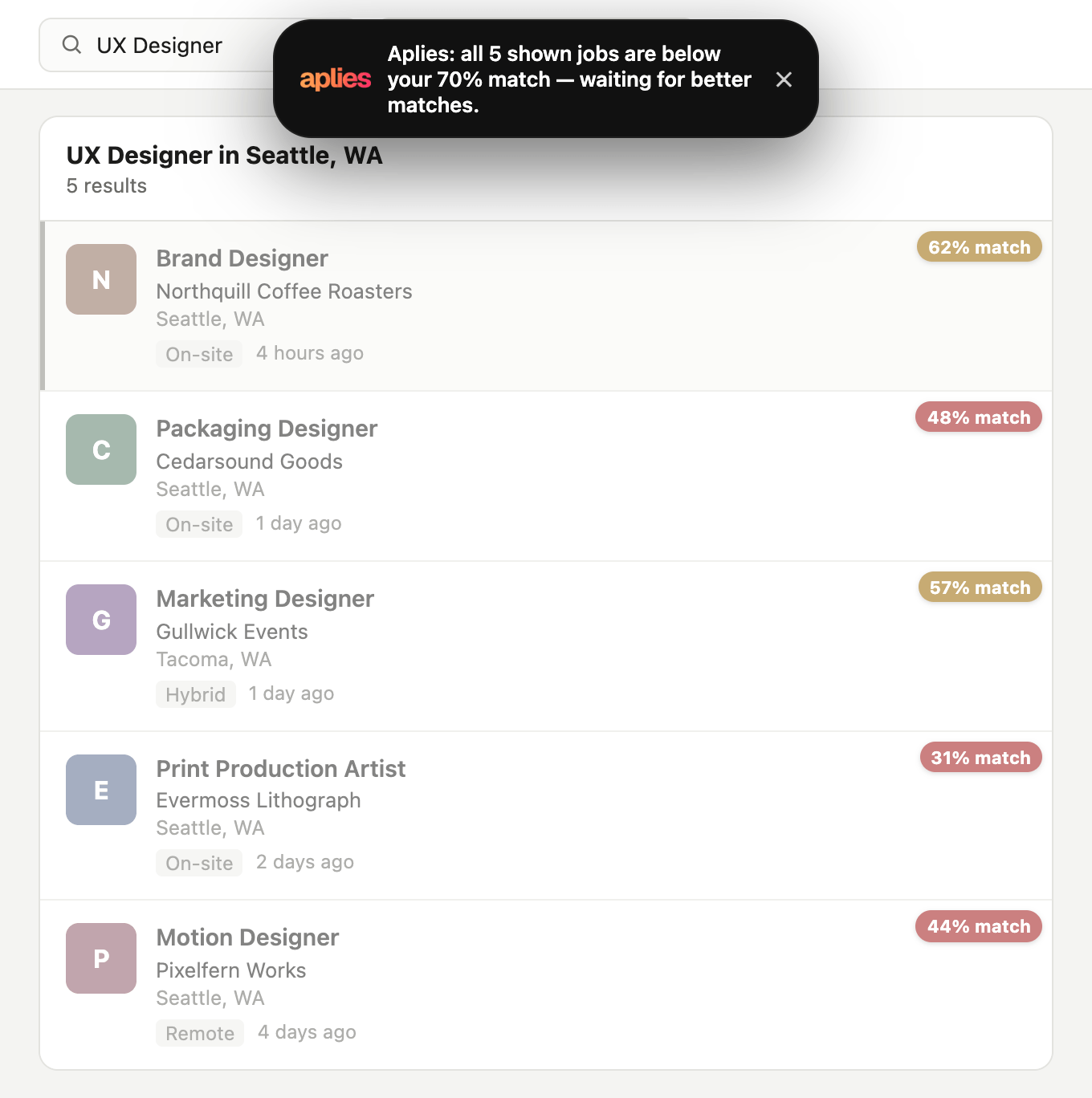
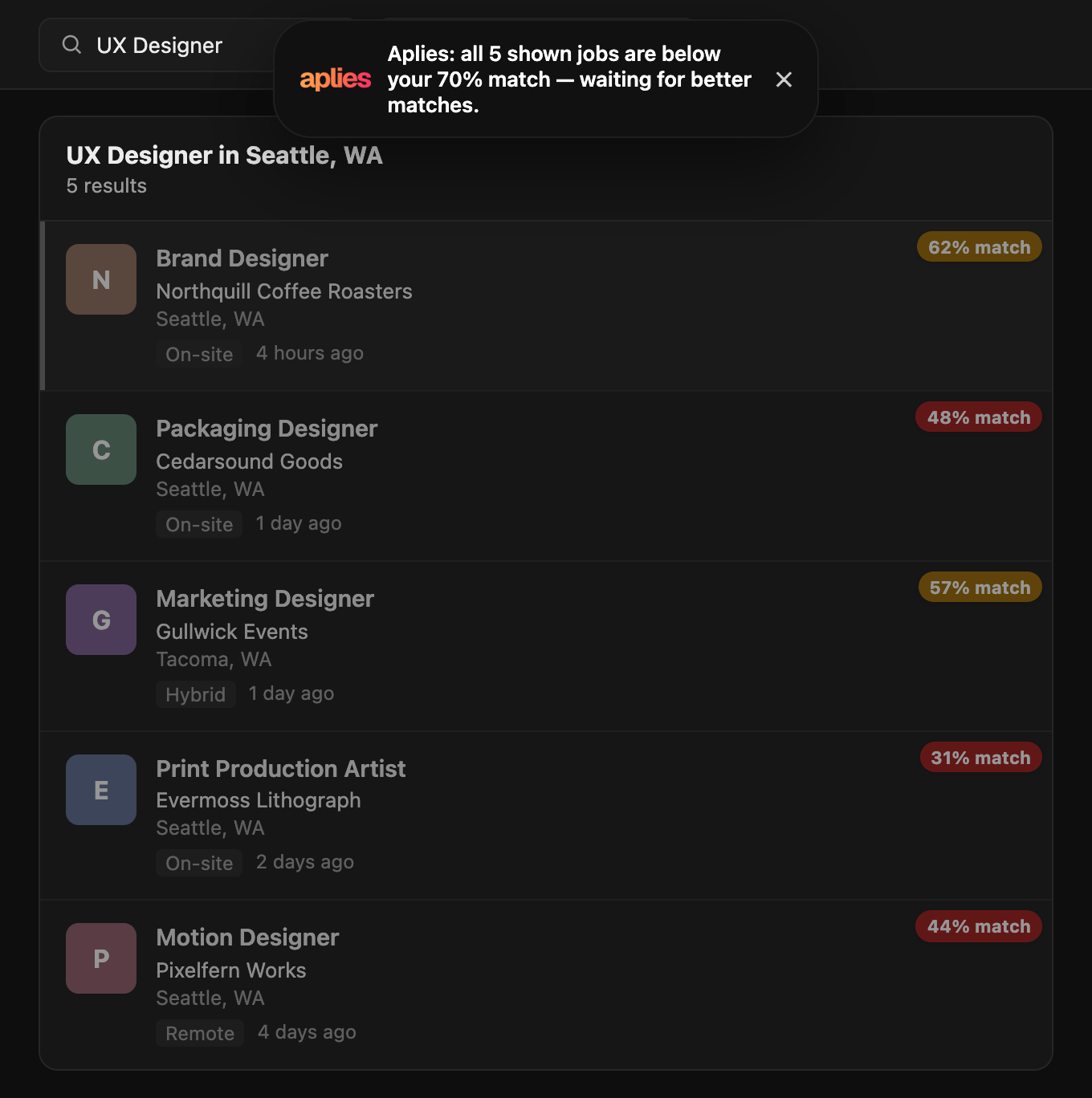
Every job card gets an AI match score out of 100. Most of it is how well the job fits the title you are searching for; the rest is how well it fits your CV.
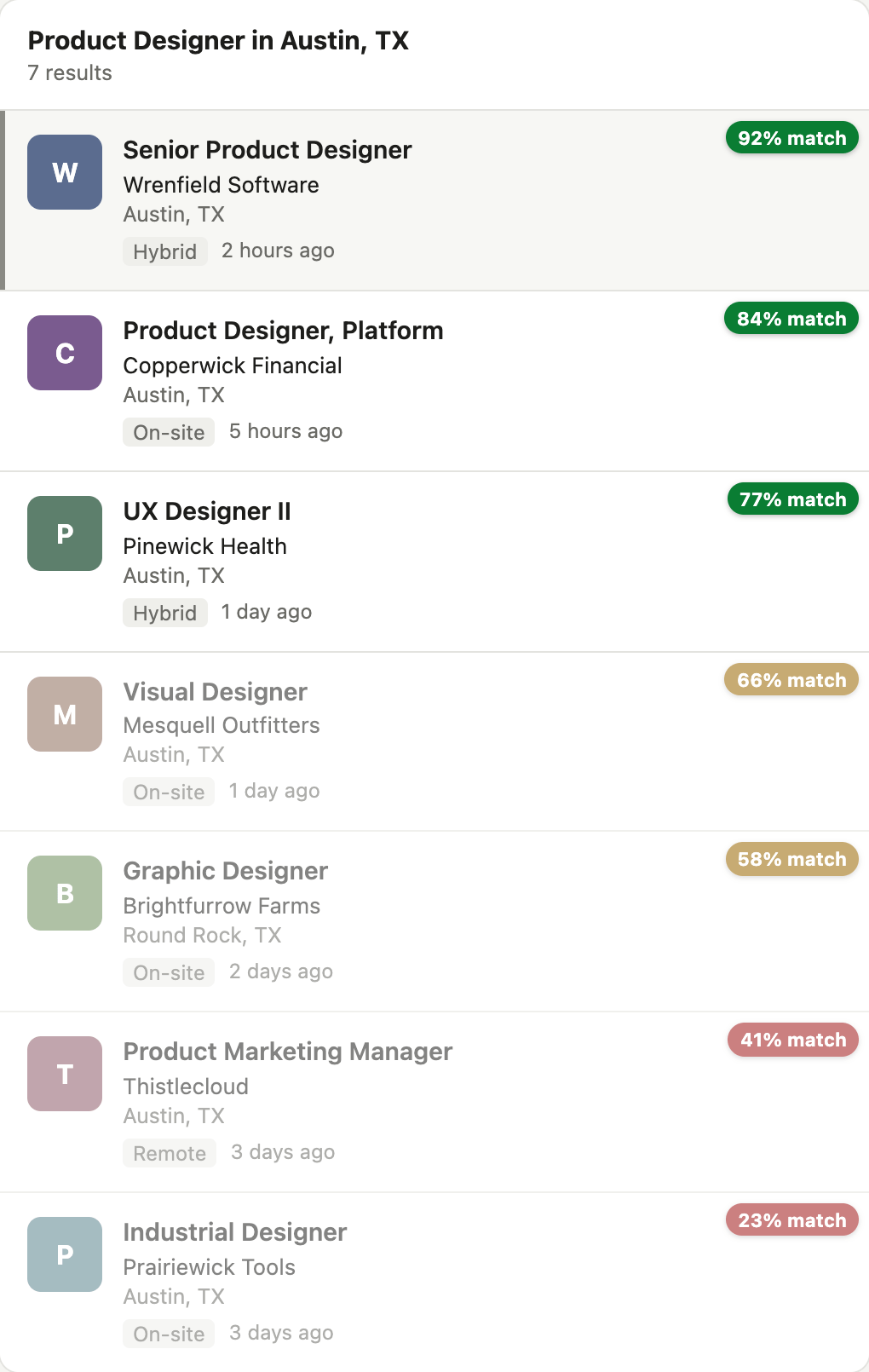
You choose the minimum: “Min job match %” in setup, or “Minimum job match %” in Settings → General. It is 60 by default and goes from 0 to 100; 0 applies to every job. Only jobs at or above it are opened. Jobs below it are never opened and never cost anything, and lowering the minimum makes them eligible again.
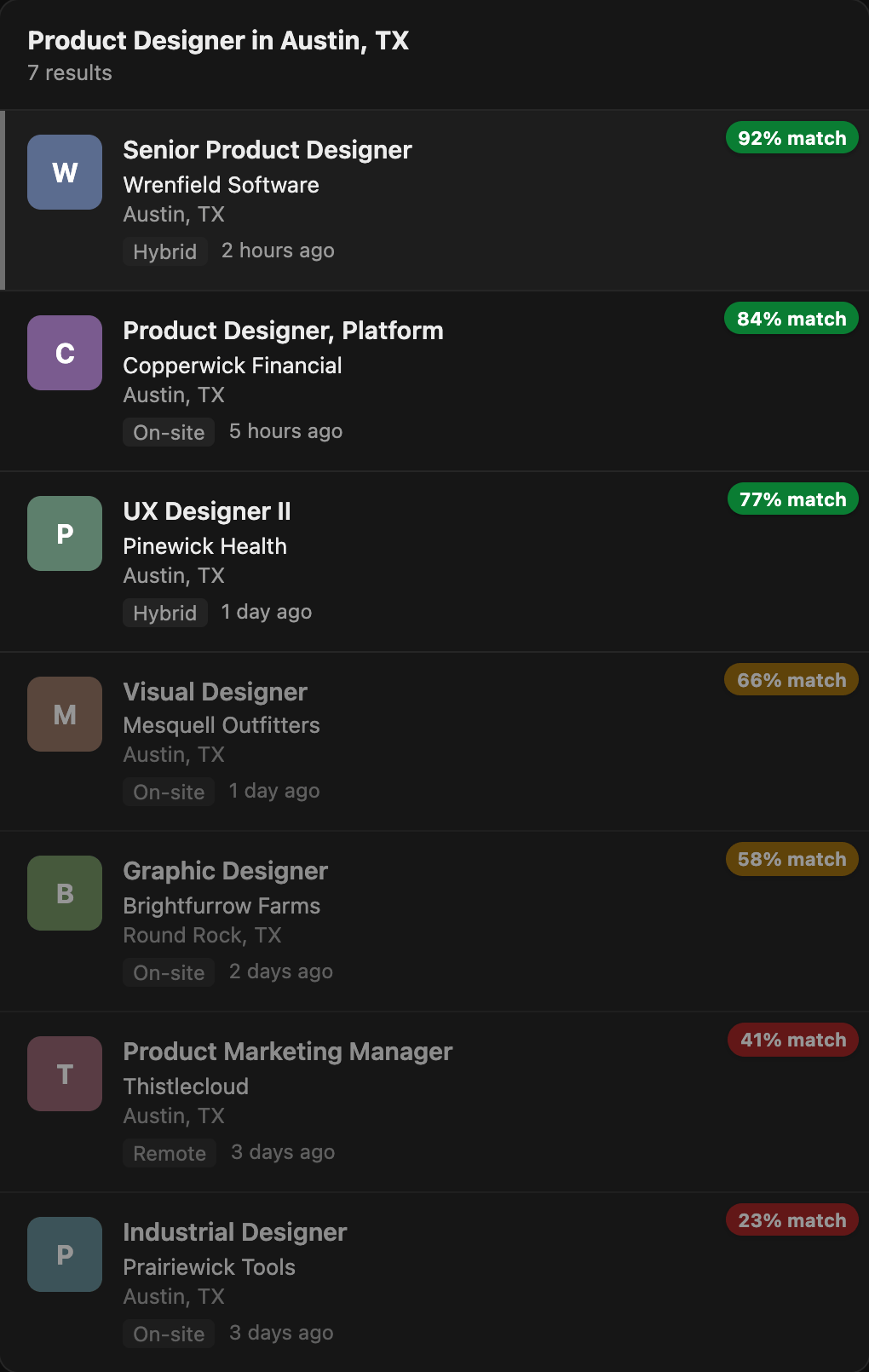
On LinkedIn job pages, each card shows a “NN% match” pill: green at or above your minimum, amber just below it, red further below, and cards under your minimum are dimmed. The pills also appear while you browse LinkedIn yourself. Scores need the Agent to be connected to your account.
How it fills an Easy Apply
It works through LinkedIn's Easy Apply form step by step, up to 10 steps: contact details, your CV, screening questions, review, submit.
On the CV step it picks your CV if LinkedIn already holds it, matched by file name. If not, it uses a résumé LinkedIn already has, and uploads your file only when LinkedIn has none, so keep the résumés saved on your LinkedIn account current.
On the review step it unticks “Follow <company>”. Then it submits on its own after a short pause. There is no step where it waits for your approval; press “Stop” if you want it to stop.
If the form rejects an answer, the Agent reads the form's error, corrects the answer and tries again, at most twice. If it is still refused, it stops that application and records the form's reason in your report.
Pace and account safety
The Agent never asks for or stores your LinkedIn password. It works inside the LinkedIn session you are already signed into.
It works at a human pace: random pauses, typing character by character, short breaks, and long sessions ended on its own. It uses one LinkedIn tab, in the background; an application on a company site gets its own background tab, closed afterwards.
It stays under an hourly limit you set and a daily ceiling it never passes. Both are counted on a rolling clock, so neither resets on the hour or at midnight, and they are the same on every plan. You can lower them with “Max apps / hour” and “Max apps / day” in setup, or in Settings → General. At the hourly limit it waits for room; at the daily ceiling the run ends.
It never solves a security check. On LinkedIn, a CAPTCHA or verification stops the run. A LinkedIn warning, such as an account restriction, an unusual-activity notice, its Easy Apply limit, or a sign-in or two-step check, ends the run, and the Agent waits for you to press Start again.
Good to know
LinkedIn's User Agreement restricts automated tools, so using one is your decision. Aplies keeps a human pace and stops when LinkedIn pushes back; nobody can promise LinkedIn won't act on an account.
Run on a schedule
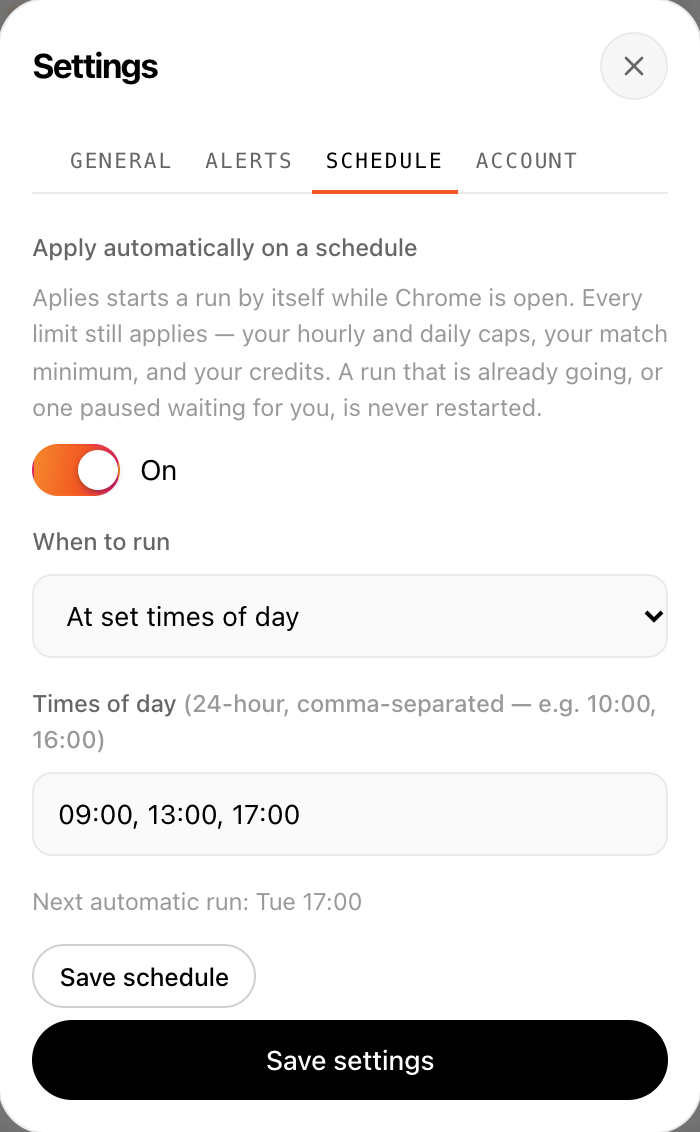
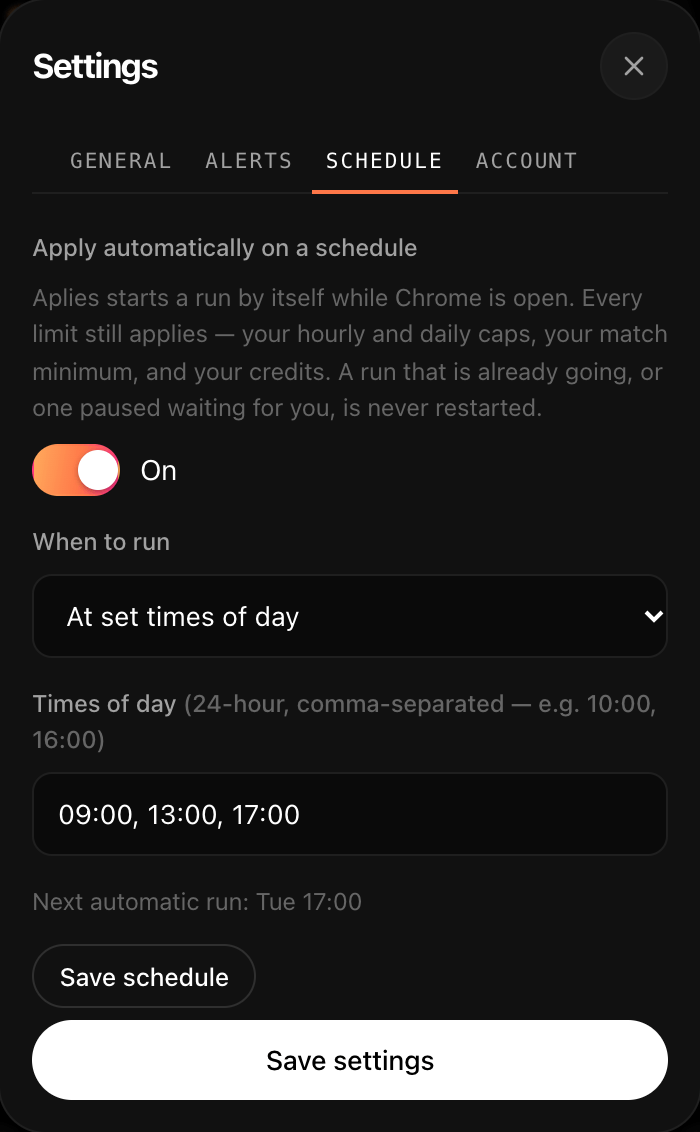
In Settings → Schedule, switch on “Apply automatically on a schedule” and choose “When to run”: “Every few hours” (every 1 to 24 hours) or “At set times of day”, in 24-hour time, for example 10:00, 16:00. Press “Save schedule”, and the tab shows the next automatic run.
The schedule is off by default and works only while Chrome is open; nothing runs while Chrome is closed. A scheduled run doesn't start while the last run is waiting for you (a sign-in, a security check, a LinkedIn warning), and it holds after a daily limit. Every limit and credit rule still applies.
Why a run stops
A run ends for a reason, and the Agent shows it. The usual ones:
- You pressed “Stop”.
- Every title, time window and place has been searched.
- Your credits ran out. Add credits on aplies.com, then press Start.
- It reached the daily limit.
- LinkedIn showed a security check or a warning. Deal with it on LinkedIn, then press Start.
- The Agent's link to your account ended. Reconnect with “Connect with Aplies”.
- A long session ended. The Agent ends long sessions on its own.
Jobs below your minimum never stop a run. When nothing on a page clears it, the Agent moves on to more results and the next search.
04
Asking and answers
How it answers screening questions, when it asks you, and what it never makes up.
When it isn't sure, it asks
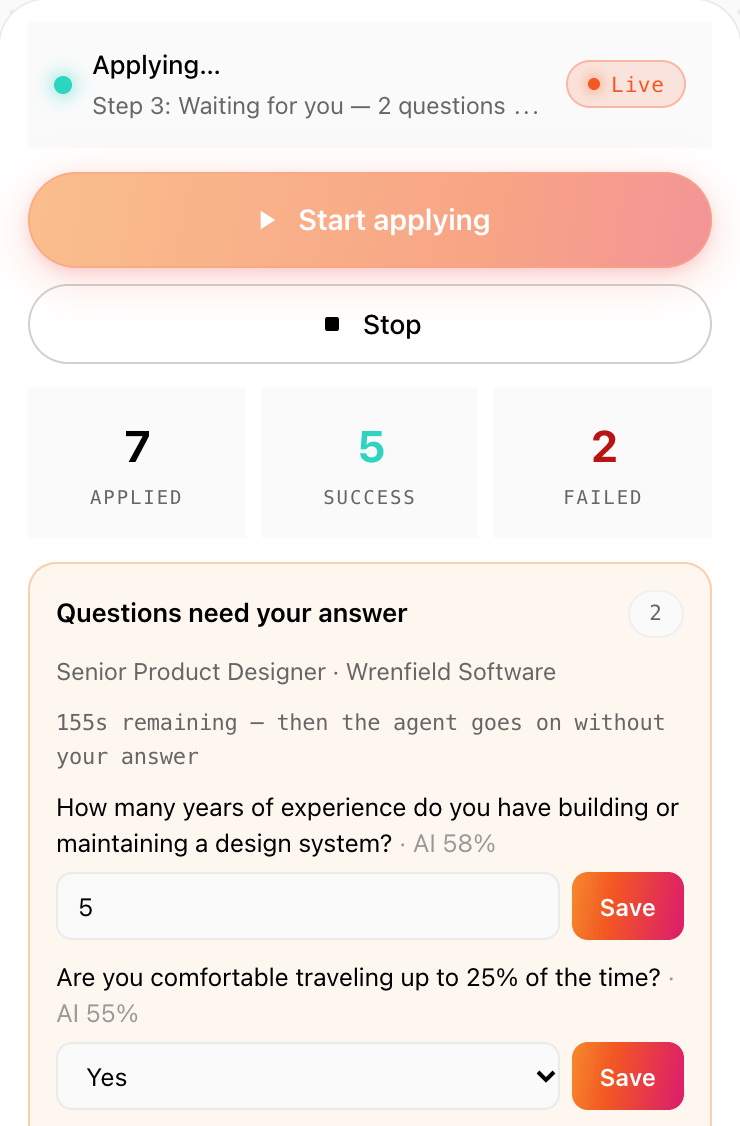
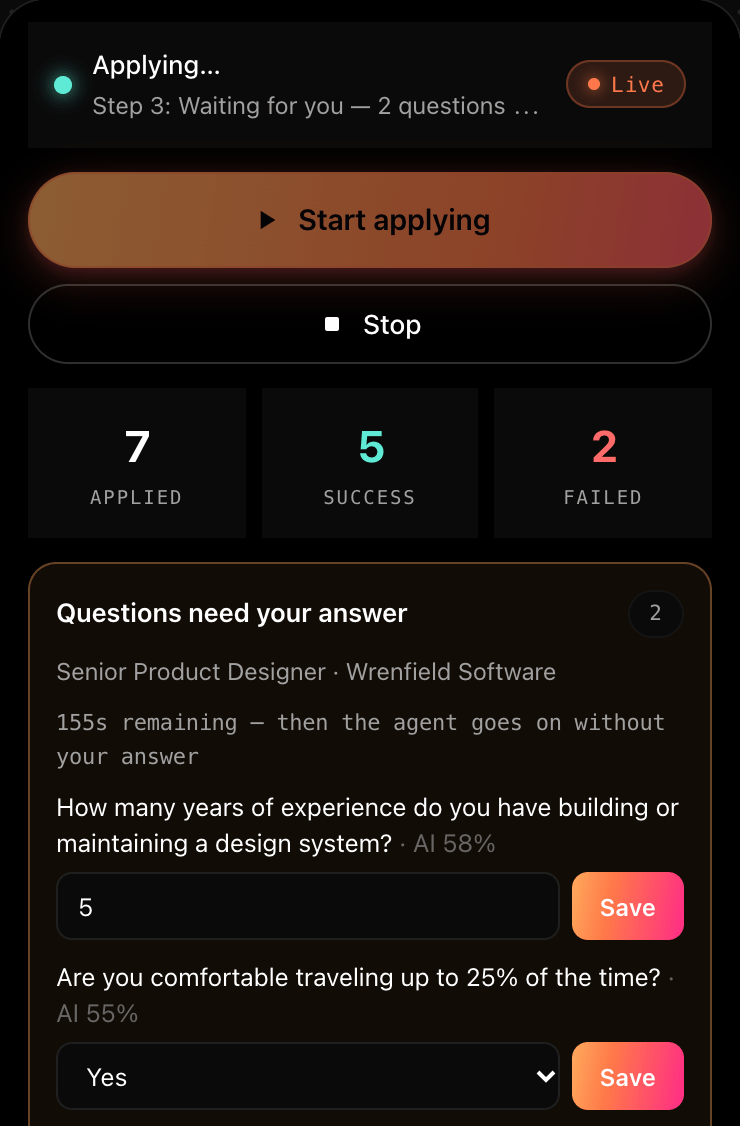
Every AI answer carries a confidence; a required LinkedIn box still empty at submit can get a plain default such as “1”. At 80% or more, it is filled in. Below 80%, it asks you: on LinkedIn for any unsure answer; on company sites for unsure required questions, while unsure optional fields are left as they are.
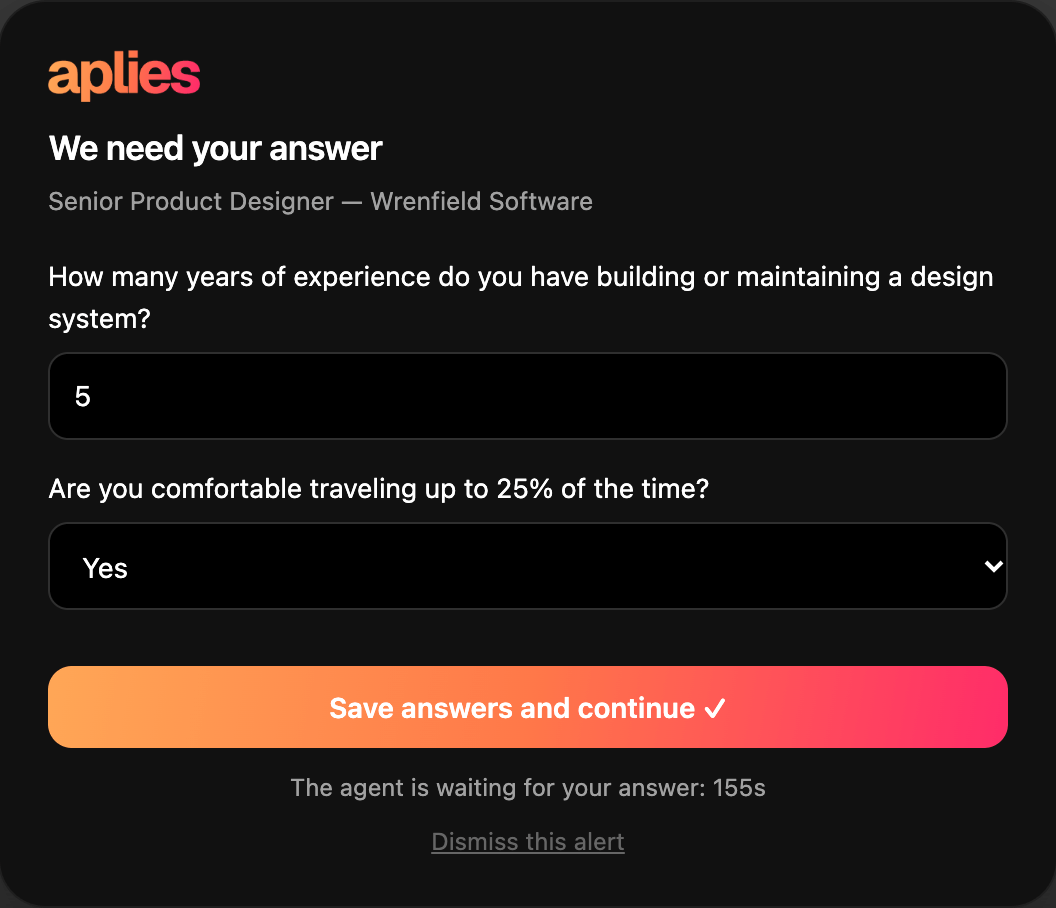
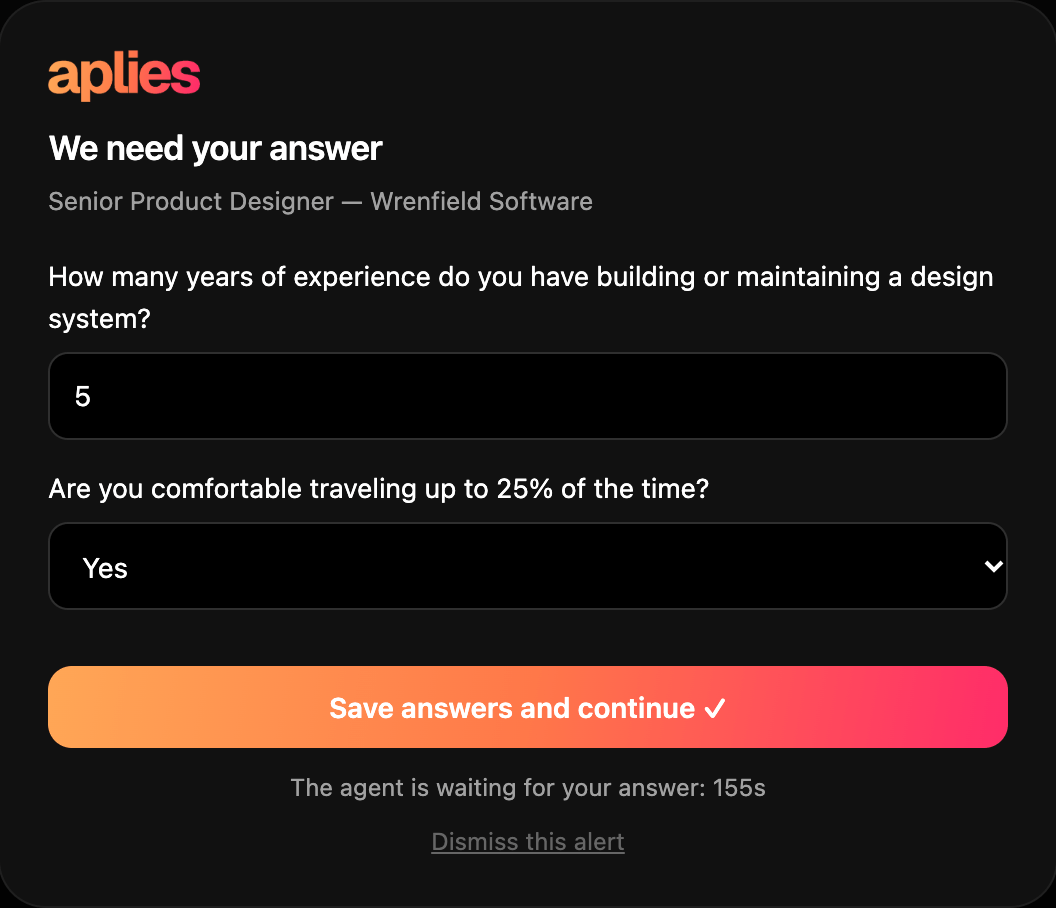
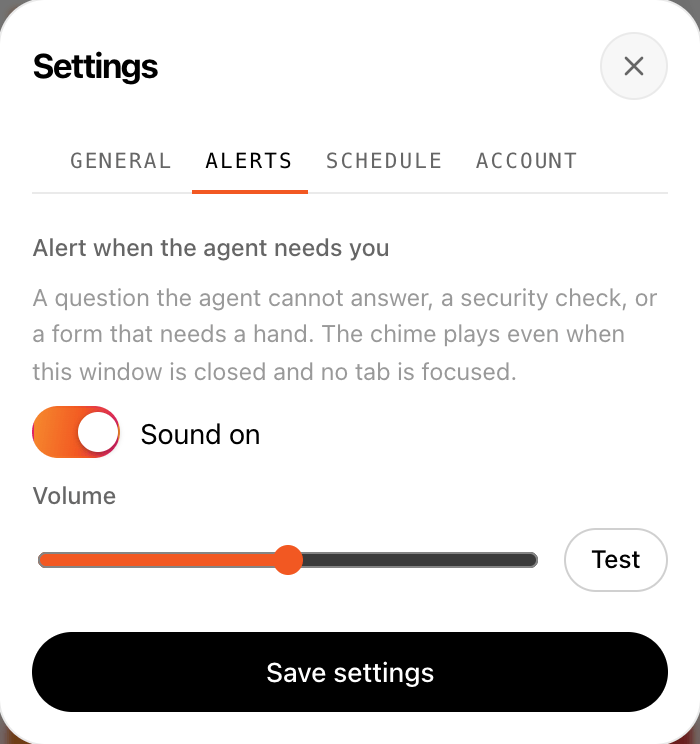
It asks in four ways at once: a chime (on by default, set in Settings → Alerts), a Chrome notification, a count on the Agent's toolbar icon, and a card on the page, “We need your answer”, with its suggested answer filled in where it has one. Answer, then press “Save answers and continue ✓”. You can also answer in the Agent, under “Questions need your answer”.
“Dismiss this alert” only hides the card; the Agent keeps waiting for your answer.
If you don't answer
You have up to three minutes. If you are away, because the screen is locked or there has been no input for a minute, the Agent stops waiting sooner.
If no answer comes, ordinary questions go out with the Agent's own best answer. If a personal fact or a blank required answer is still open, that job is dropped: not submitted, not charged. On LinkedIn it is tried again on a later run; on a company site, the tab is left open for you to finish.
An answer you type after the time is up is still saved for the next form that asks.
Saved answers
Every answer you type is saved and reused the next time a form asks the same question, on LinkedIn and on company sites, so you aren't asked twice. While the Agent is connected, your saved answers are backed up to your account.
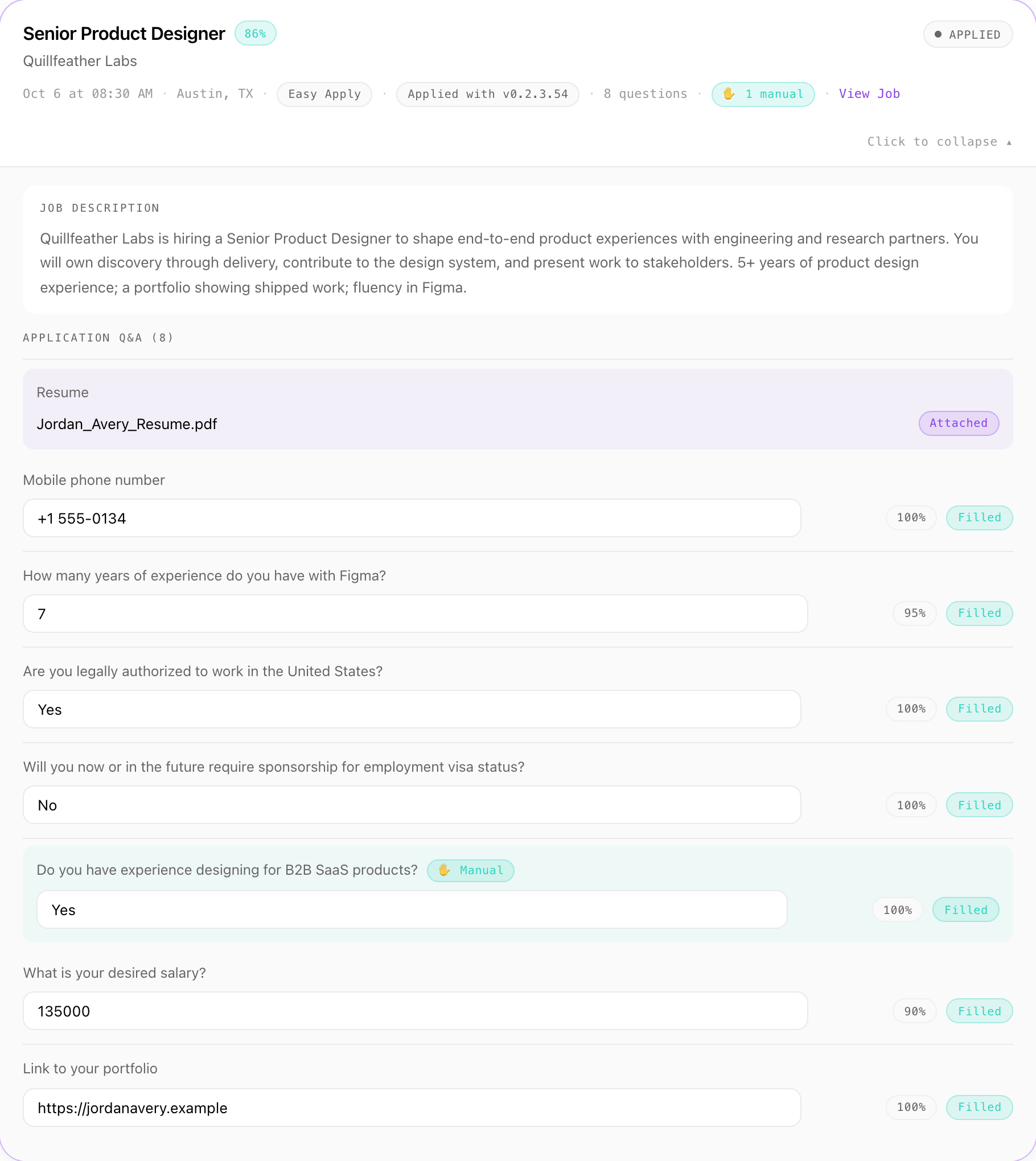
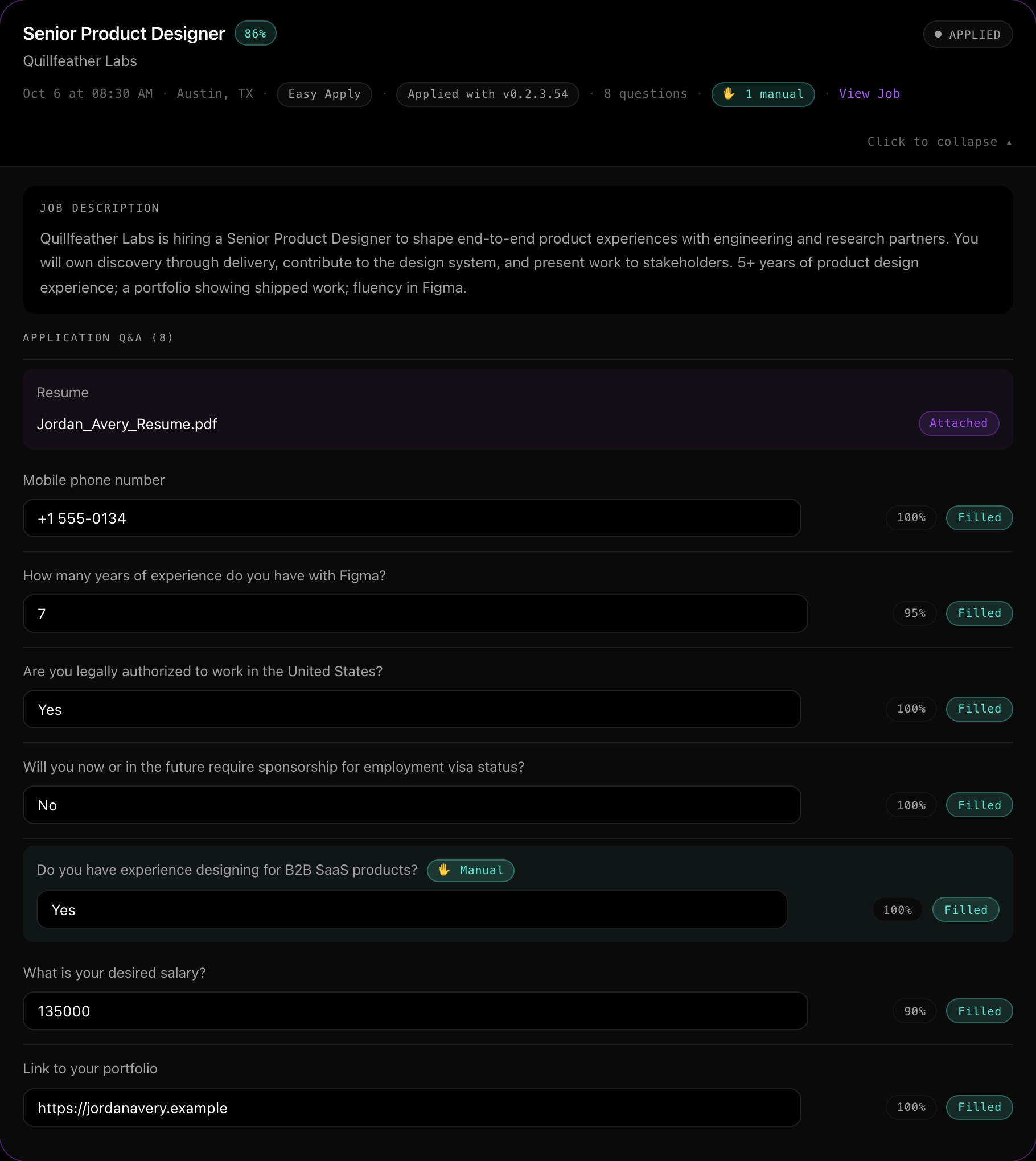
To change one, open the Application Report, correct the answer on that application, and the corrected version is what the Agent uses next time. Answers the Agent filled in on its own after a time-out are not saved for reuse.
Personal facts it never makes up
Your date of birth, gender, nationality, phone and notice period come from your setup. If a form needs one of these and the Agent isn't confident, it asks you. If you don't answer, it drops that job rather than guess.
Gender is never guessed from your name; the Agent uses what you set. Questions about race, ethnicity, veteran status, disability or sexual orientation get the form's “decline to answer” option, or are left blank.
It only uses links that are in your CV or profile; it never builds a profile address from your name. It avoids answering “0 years” to an experience question.
On yes/no questions about skills, qualifications or a driving licence, it answers “Yes” unless your CV says otherwise. That never applies to legal status, immigration, criminal history, clearance or professional licences. The AI is told to answer work-authorisation and sponsorship questions from your nationality and where you live, and to ask you when it is unsure.
Cover letters and summaries
The Agent attaches the cover letter you saved under “Other documents” when a company form asks for it by name. When a form has a text box for a summary or a cover letter, it writes a short professional statement from your CV.
If a form requires a document you haven't saved, that application comes back to you.
05
Company career sites
Optional. When it is on, the Agent follows a job's Apply button to the employer's own careers page.
Turn on company sites
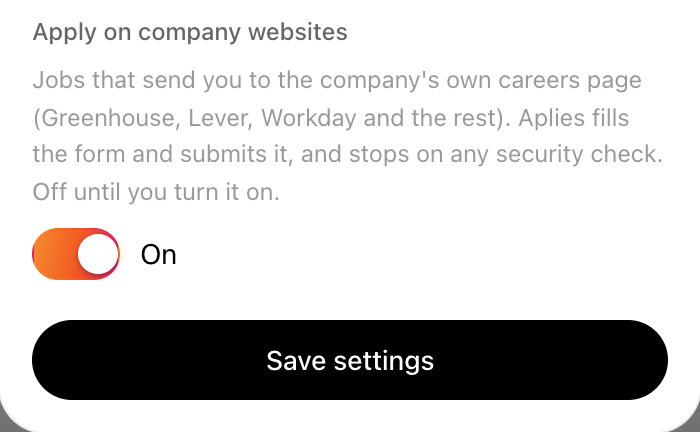
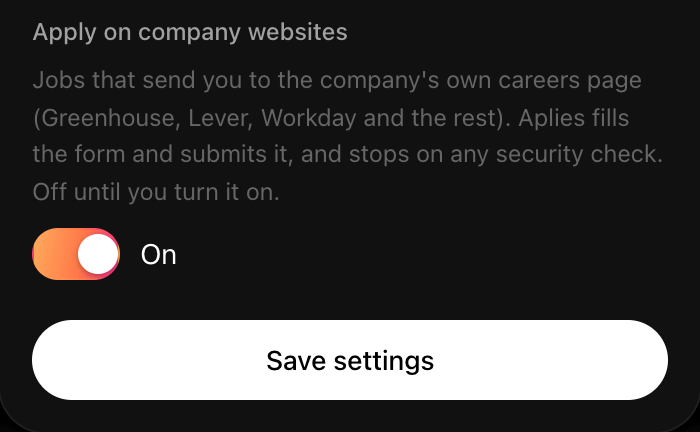
Applying on company websites is off by default. Turn it on in setup by choosing “LinkedIn + company websites”, or later in Settings → General with “Apply on company websites”. Chrome asks you once for access to sites.
It also needs your account connected and your CV file saved on this computer, since the file is what company forms ask for. If something is missing, the Agent says which.
An application on a company site costs 2 credits; an Easy Apply costs 1 credit.
What it does on a careers site
When a LinkedIn job's Apply button leads to the employer's careers page, the Agent follows it in a background tab, uploads your CV, fills the form across up to 10 pages and submits it. The tab closes afterwards.
Greenhouse, Lever, Ashby, SmartRecruiters and Workday have dedicated support. Every other careers site goes through a general engine that finds the application form on the page and fills it.
Unsure required questions are asked on the company page itself, with the same card and the same three minutes. On these forms it also ticks the consent and certification boxes a form presents, such as the privacy policy, the terms, that your information is accurate, or a background check; declines optional marketing sign-ups; and closes cookie notices, choosing Reject when the site offers it.
Sign-in walls, Workday and security checks
The Agent never creates an account or types a password on a company site. At a sign-in wall it stops, leaves the tab open for you and tells you.
Workday almost always needs a candidate account first, so Workday applications usually end this way. Finish them yourself in the tab the Agent leaves open.
A security check on a company site skips that one job, at no charge, and the run continues. Careers pages on plain http are refused.
06
Credits and billing
What an application costs, when a credit is taken, and how plans and credits work.
What an application costs
Good to know
You pay only for applications the Agent submits. If it stops before submitting, it costs nothing.
| Method | Credits |
|---|---|
| LinkedIn Easy Apply | 1 credit |
| Company website | 2 credits |
A credit is reserved just before the Agent submits, and charged when the application goes through. The Agent shows what is reserved while it works.
Anything that stops before submitting costs nothing, however often it happens. A submission that fails with a reason isn't charged either, and retrying the same job never charges twice.
If no result comes back after it submits (say, Chrome was closed), it is charged and marked as unconfirmed, and support can review it. If you press Submit yourself during an application the Agent started, it counts as submitted.
Your balance in the Agent
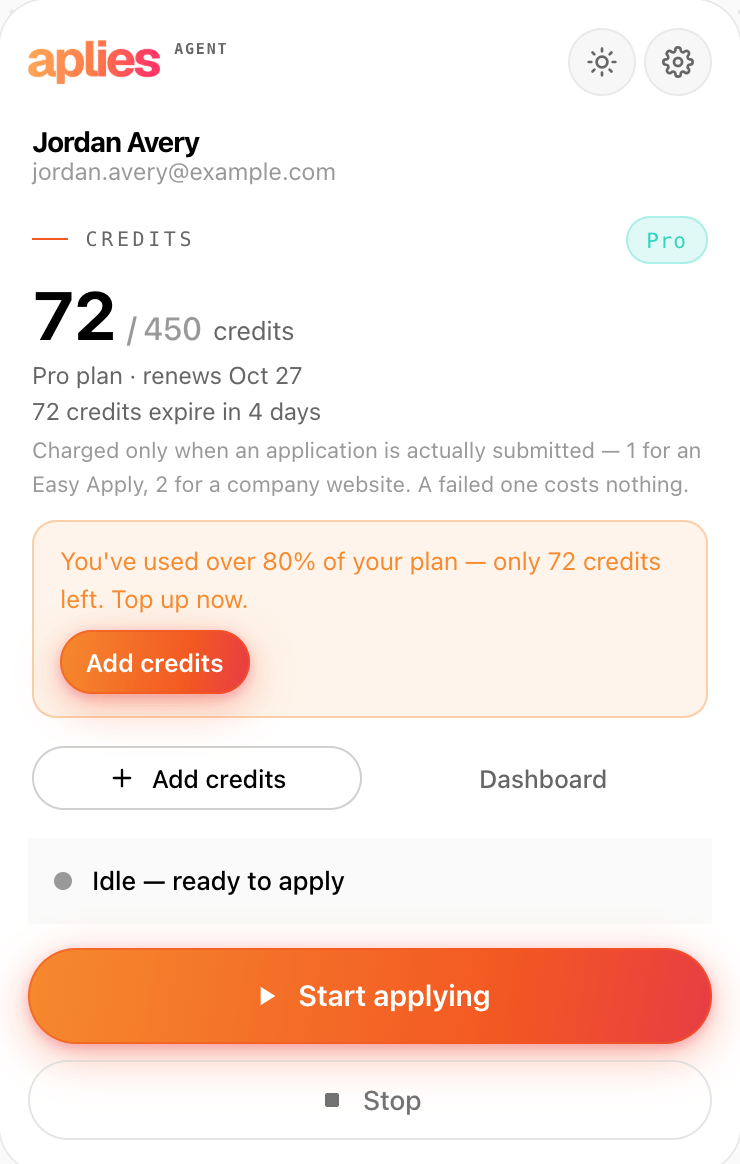
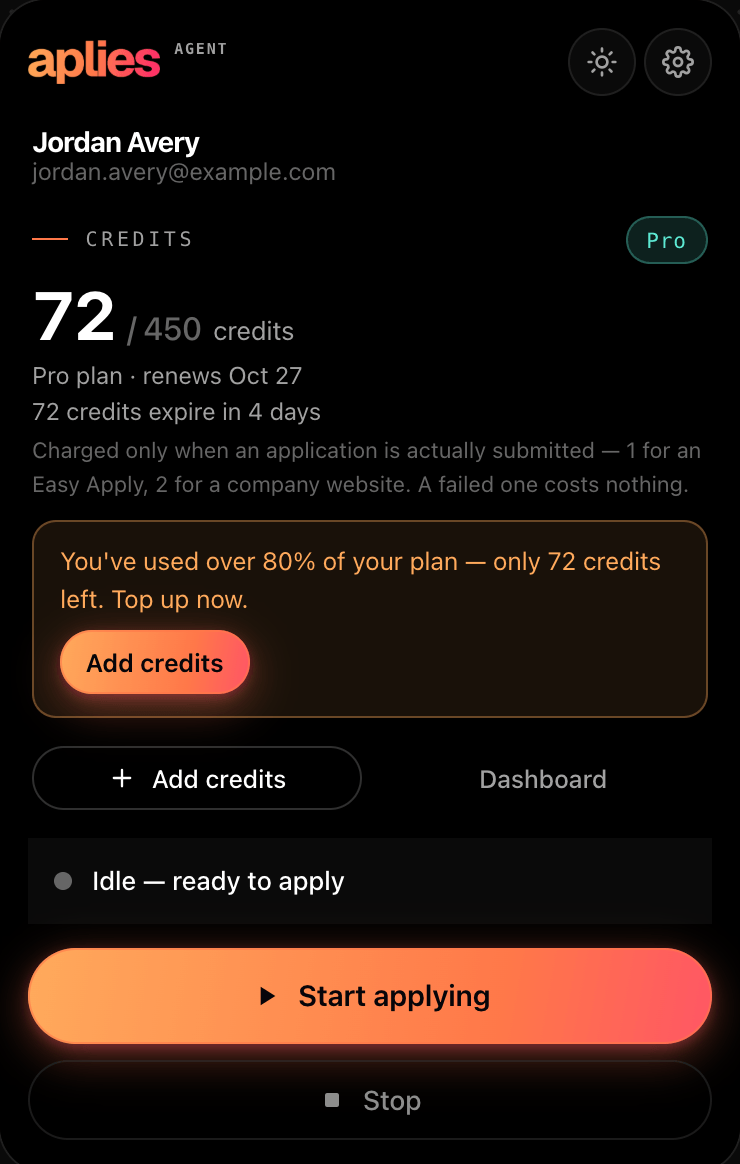
The Agent shows your spendable credits (with your plan's total on a paid plan), what one application costs by method, the credits reserved for an application in progress, and when your soonest credits expire.
It warns you when you have used over 80% of a paid plan's credits, and when you run out, in the Agent and with a Chrome notification. At zero the run pauses: add credits on aplies.com, then press Start.
Free credits
A new account gets 10 free credits, unlocked when you verify a phone number on WhatsApp or Telegram. No card is needed, and nothing is charged when they end.
They last 30 days from the moment you unlock them. One phone number unlocks free credits for one account. Until you verify, the dashboard and the Agent show them as locked, with “Verify my phone”.
Plans
There are five plans. Every plan runs the same Agent at the same pace with the same limits; plans differ in how many credits they give and how long those credits last.
| Plan | Credits a month | Monthly credits last |
|---|---|---|
| Light | 50 | To the end of the paid month |
| Essential | 200 | To the end of the paid month |
| Pro | 450 | To the end of the paid month |
| Executive | 700 | To the end of the paid month, plus 1 extra month |
| Signature | 1,000 | To the end of the paid month, plus 2 extra months |
Pay monthly or yearly. A yearly plan delivers the whole year's credits at once, and its saving is shown on the toggle on the Pricing page. Yearly credits last the twelve months paid for, on every plan.
Cancel any time from Settings → Billing on aplies.com. Your plan keeps working to the end of the period you paid for and isn't renewed; the unused part of that period isn't refunded. The credits you hold keep their own dates.
When credits expire
Every credit has a date, and the soonest-expiring credits are spent first.
On a monthly plan, credits last to the end of the paid month, and longer on Executive and Signature, as the table above shows. Each time unused monthly credits carry over, you keep 90% of them (a 10% carry-over fee), and you are told 3 days before.
When a plan ends, its credits keep their own dates and stay usable. You are warned 7 days before credits expire, and every date is on Settings → Billing.
Add, send and refer
Add credits any time without changing plan: from 30 to 10,000 at once, as a one-off purchase. The more you add, the lower the rate per credit.
Send credits to another Aplies account for a 10% fee, at least 2 credits. Free credits and referral credits can't be sent.
Invite someone and you get 1 credit when they verify their phone, and 4 more when they first subscribe. Both of you need a verified phone. Referral credits last 3 months, and the person you invite gets the standard free credits.
07
Your data
What is kept where, what the AI sees, and how to clear it.
What is stored, and where
- Your CV file: in the Agent on your computer, with a sealed backup copy in your browser so it survives a reinstall. It is not uploaded to Aplies.
- Your profile details, including the text of your CV, and your saved answers: backed up to your Aplies account, encrypted at rest, while the Agent is connected.
- Your applications: in the Agent's Application Report, and on your dashboard on aplies.com.
- Your LinkedIn password: nowhere. The Agent never asks for it.
What the AI sees: your CV's text, and, to score jobs and answer forms, the job, the questions, your profile (including salary and date of birth) and part of your CV. It goes through Aplies' server to Groq and NVIDIA, or to HuggingFace if you added your own token.
The Application Report
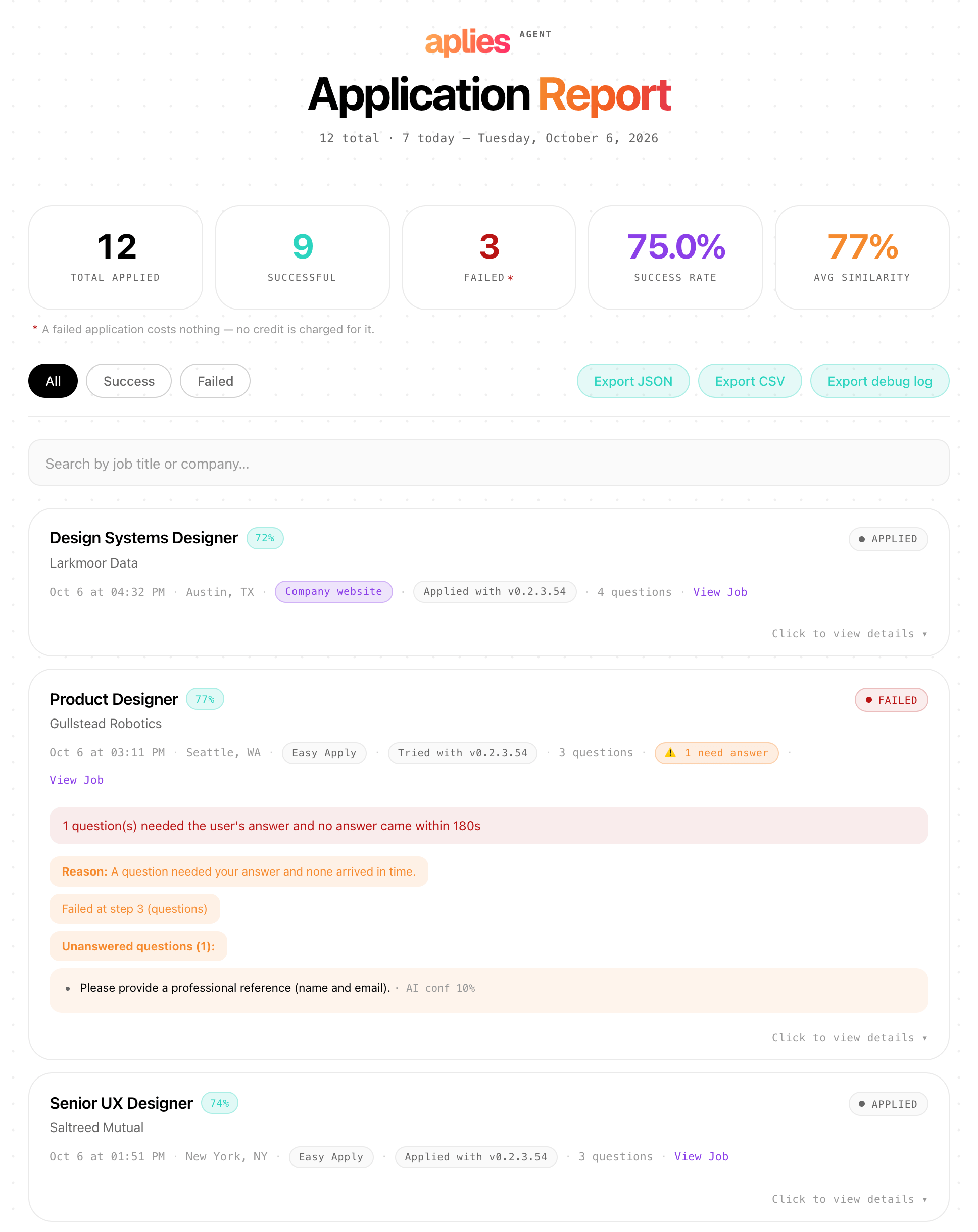
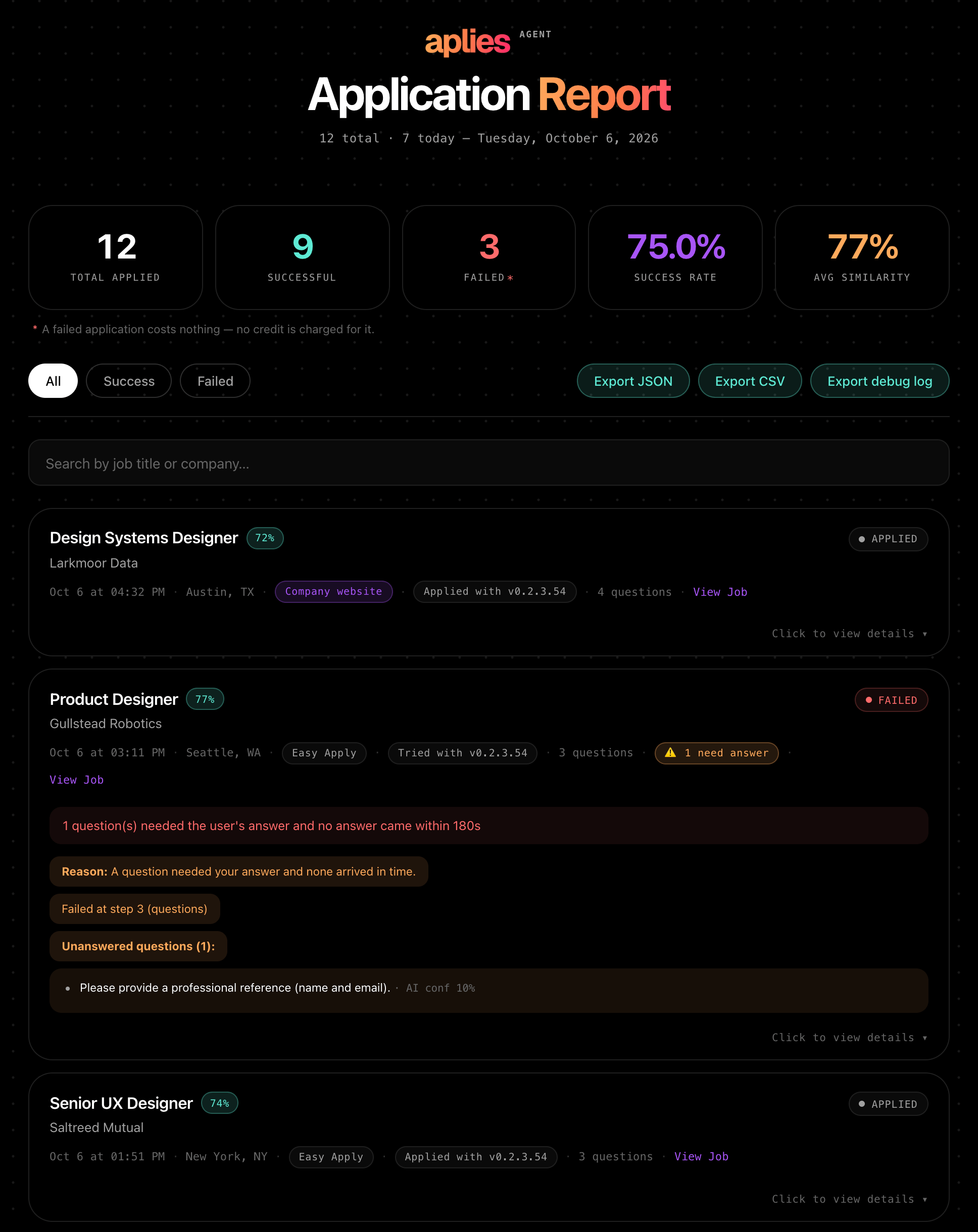
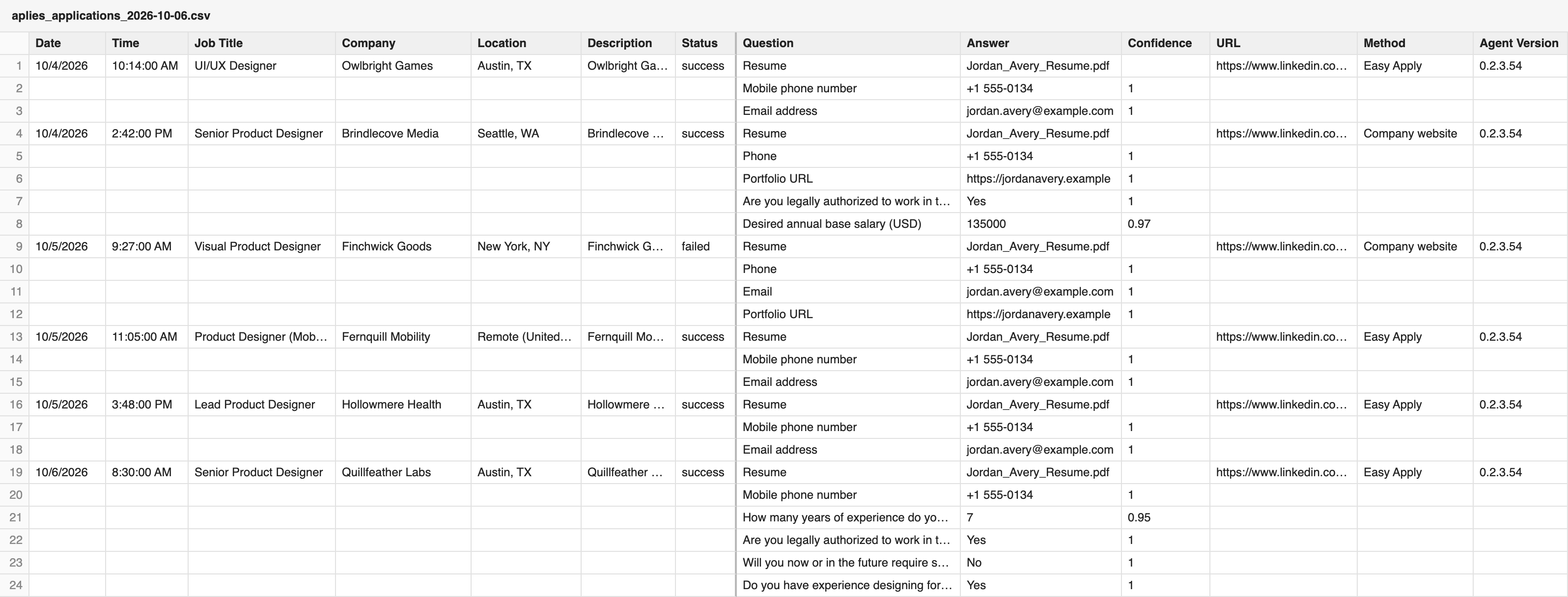
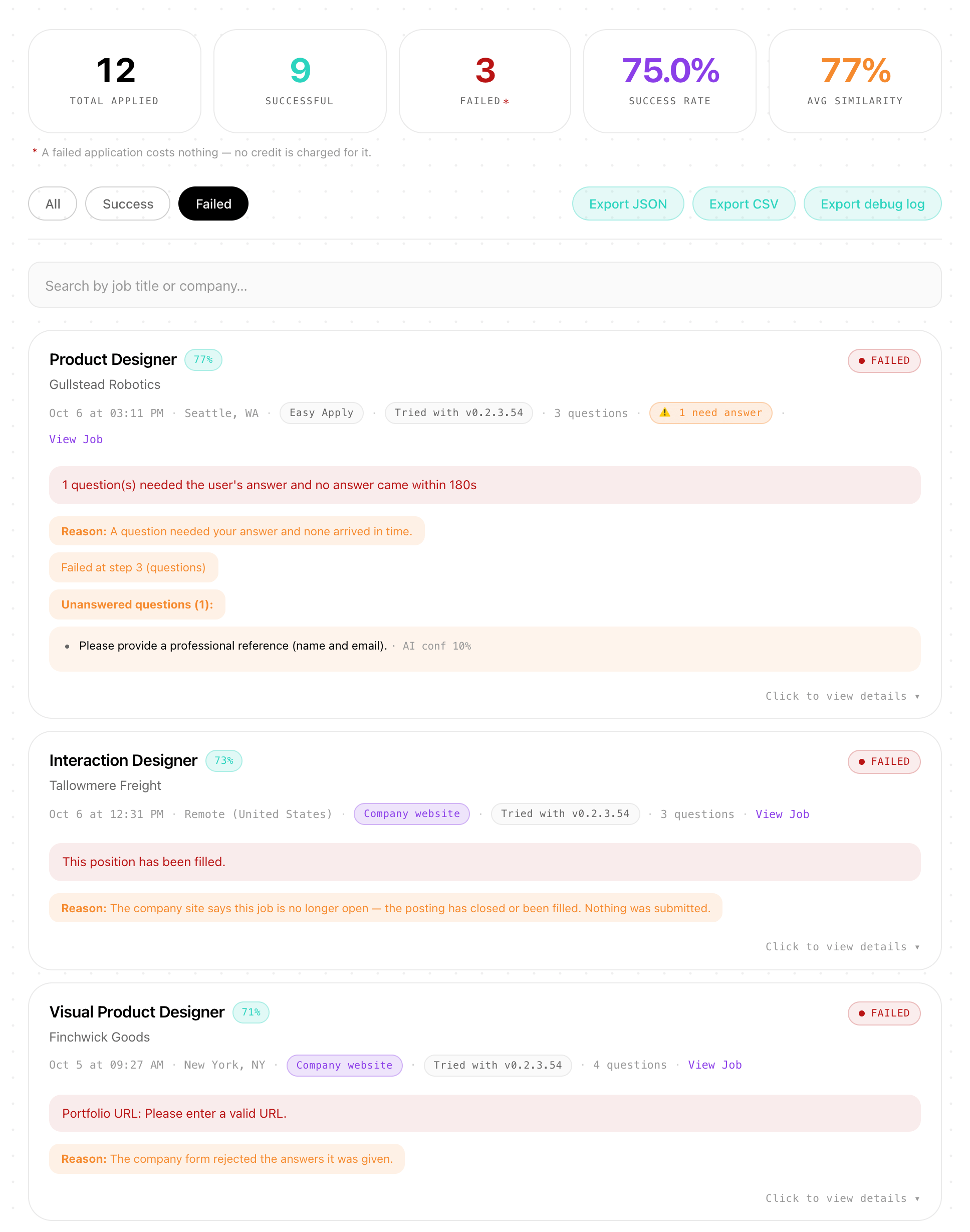
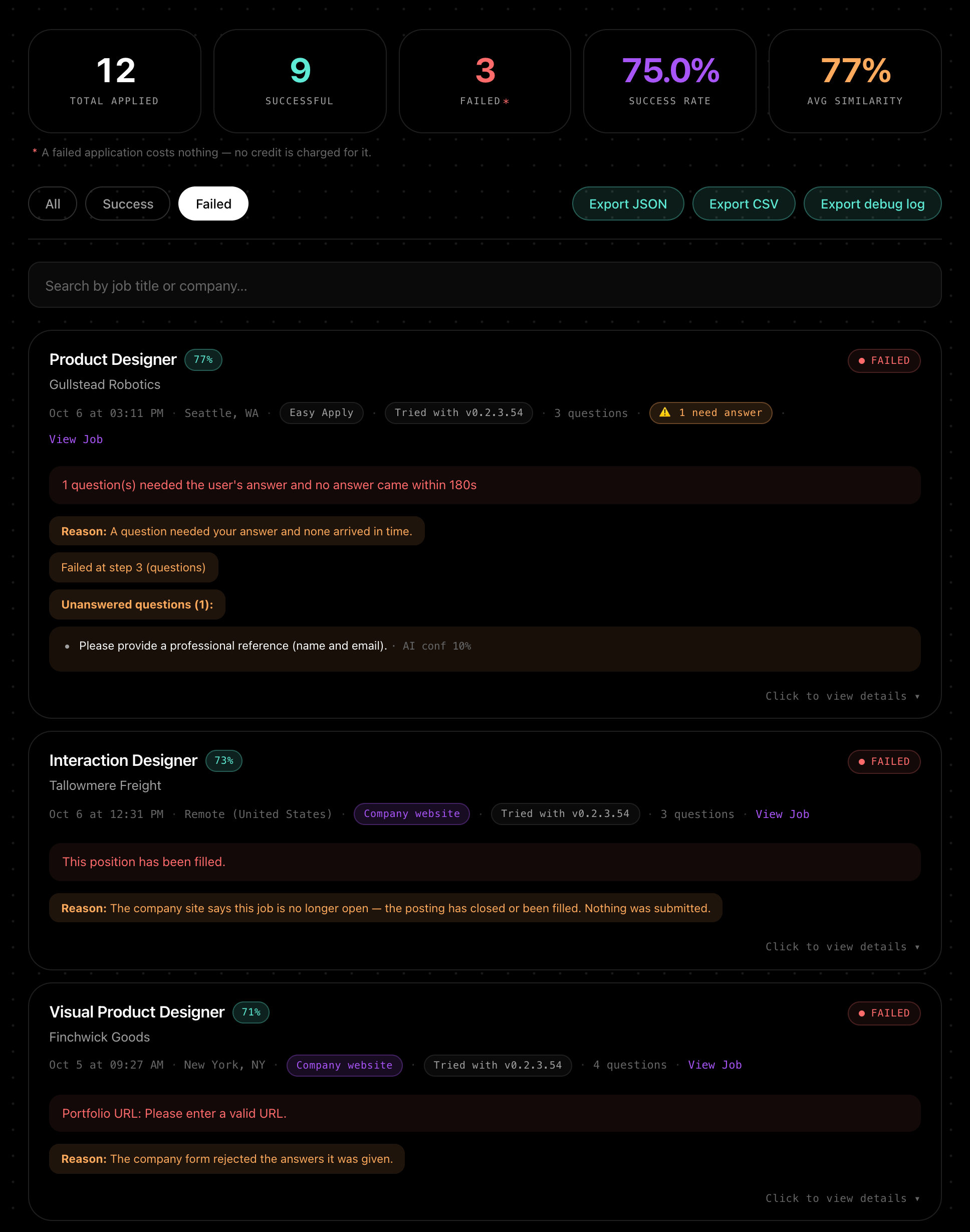
Open “Report” in the Agent to see the Application Report. It keeps every attempt, failures included: the job, the company, the link, every question and the answer given, how confident the Agent was, whether it went through Easy Apply or a company website, the Agent version, and, for a failed one, the reason it stopped.
You can correct an answer there, and it is saved for next time. After a reinstall, the Agent refills the report from your account.
Export your record
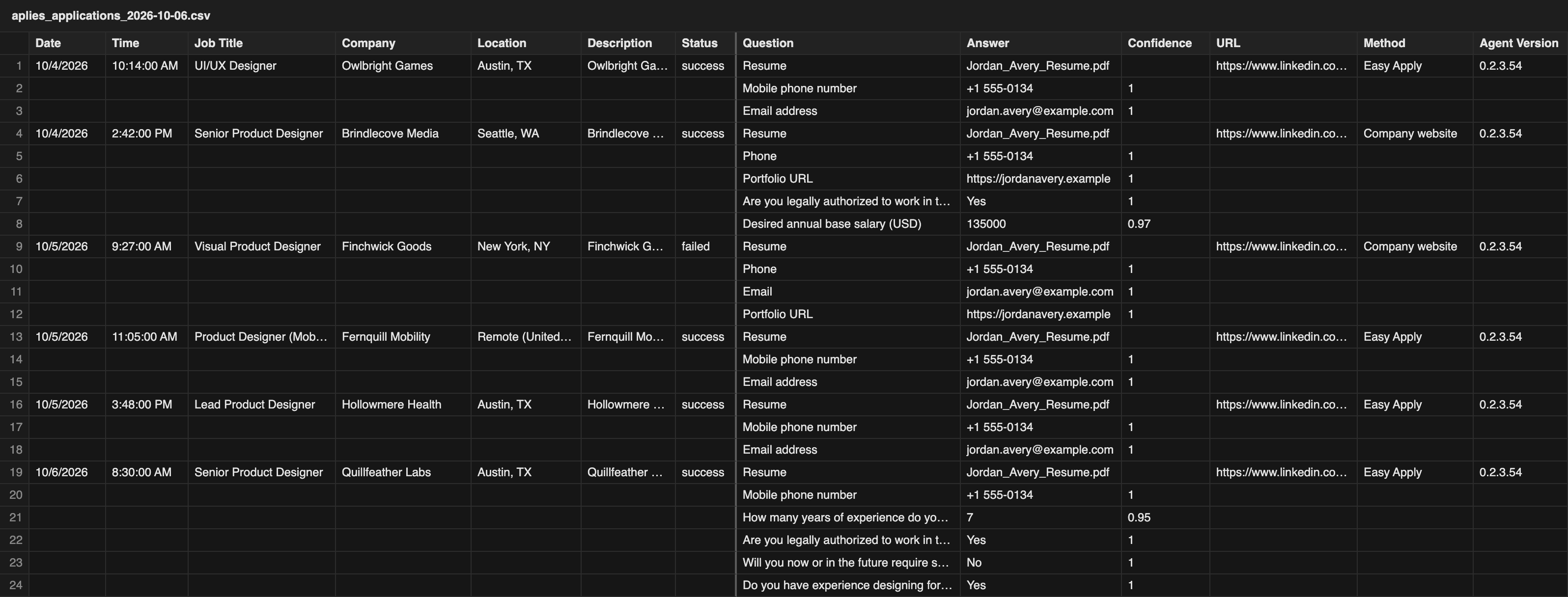
“Export” in the Agent saves your record as a CSV file that opens in any spreadsheet: one row per question, with the date, the job, the company, the status, the question, the answer, its confidence, the link, the method and the Agent version. You can also save a full JSON backup.
Whether a credit was charged isn't in the export; it is on your dashboard.
Your dashboard
Your dashboard on aplies.com lists your applications with the job, the company, the method, the outcome, the credits charged, and the questions and answers. The answers are read-only there; correct them in the Agent's report.
Applications that stopped before submitting are in the Agent's report only. Clearing the Agent's history doesn't remove anything from your dashboard.
Clear or delete your data
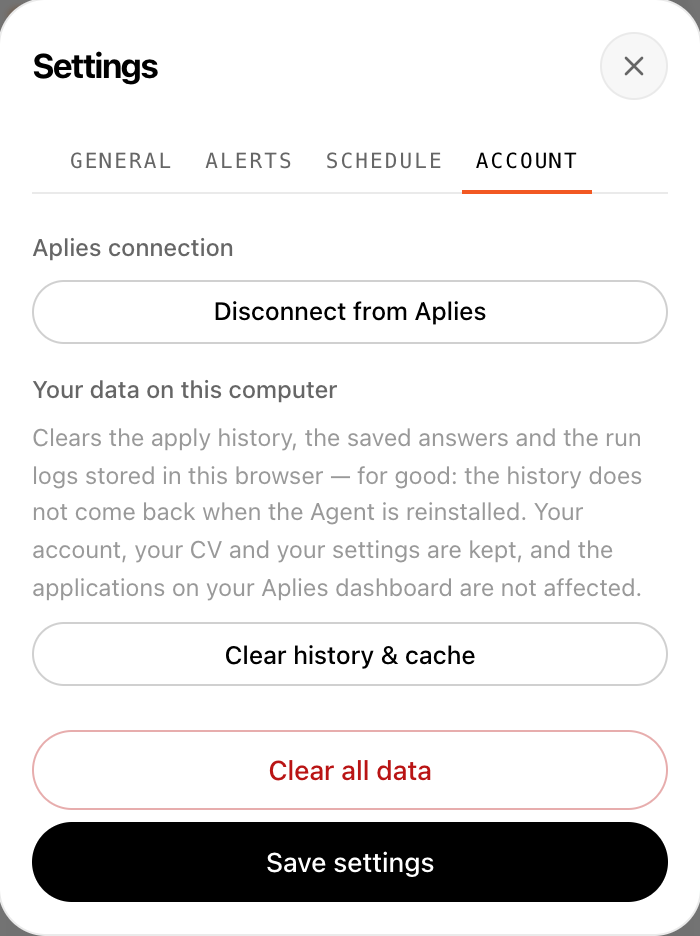
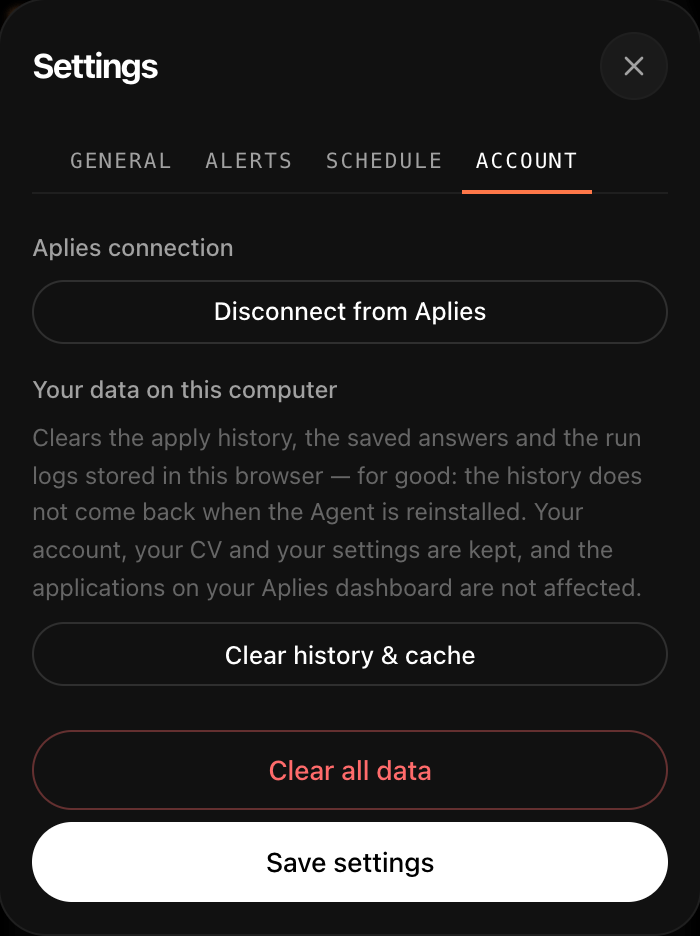
In the Agent, Settings → Account has three buttons. “Clear history & cache” removes the apply history, saved answers and run logs from this browser; the history won't return after a reinstall. Your account, CV and settings stay. “Clear all data” clears what the Agent keeps on this computer and signs this browser out. “Disconnect from Aplies” unlinks this browser from your account.
On aplies.com, you can delete your account from Settings → Security. What happens to your data after that is set out in the Privacy Policy.
08
Troubleshooting
The common snags, and what to do about each.
Start doesn't begin a run
- Finish setup first. Until you do, the Agent says “Finish setup to start applying”.
- Make sure you are signed in to LinkedIn in this Chrome.
- If Chrome asked for LinkedIn access and you didn't allow it, press Start again and choose Allow.
- Check that the Agent is connected and that you have credits.
No match pills, or every job is below the minimum
Pills need the Agent connected to an account with credits, LinkedIn access granted, and a job title to score against.
If every job on a page is under your minimum, the Agent dims them all and says so. Lower “Min job match %”, add job titles, or make the titles closer to the roles you want.
The run stopped
Read the reason in the Agent first. Then:
- A LinkedIn check or warning: deal with it on LinkedIn yourself, then press Start.
- Out of credits: add credits on aplies.com, then press Start.
- The daily limit: it counts the last 24 hours, so there is room again as earlier applications pass the 24-hour mark.
- No more matching jobs: add titles or places, or loosen your filters or your minimum.
- Disconnected: press “Connect with Aplies” and start again.
An application failed
Open the report and choose Failed. Each one says why in plain words: a question nobody answered in time, a position that was already filled, a form that refused an answer.
An application that stopped before submitting, or failed with a reason, costs nothing. Your dashboard shows the credits charged for each application.
My CV couldn't be read
- A scanned CV has no text to read: paste the text into the box the Agent offers.
- An old .doc file: save it again as PDF or .docx.
- Larger than 8 MB: save a smaller file. Setup keeps files up to 8 MB.
Company-site jobs aren't being applied to
Check that “Apply on company websites” is on, that Chrome gave the Agent access to sites, that your CV file is saved on this computer, and that the Agent is connected. The Agent names whichever is missing.
A job that stops at a sign-in wall, as most Workday jobs do, is left open in a tab for you to finish.
My free credits are locked
Free credits unlock when you verify a phone number. Press “Verify my phone” in the Agent or on your dashboard, and verify on WhatsApp or Telegram.
If that number already unlocked free credits on another account, they stay locked; contact support to review it. If you can't use WhatsApp or Telegram, support can verify your number by hand.
I don't hear the Agent ask
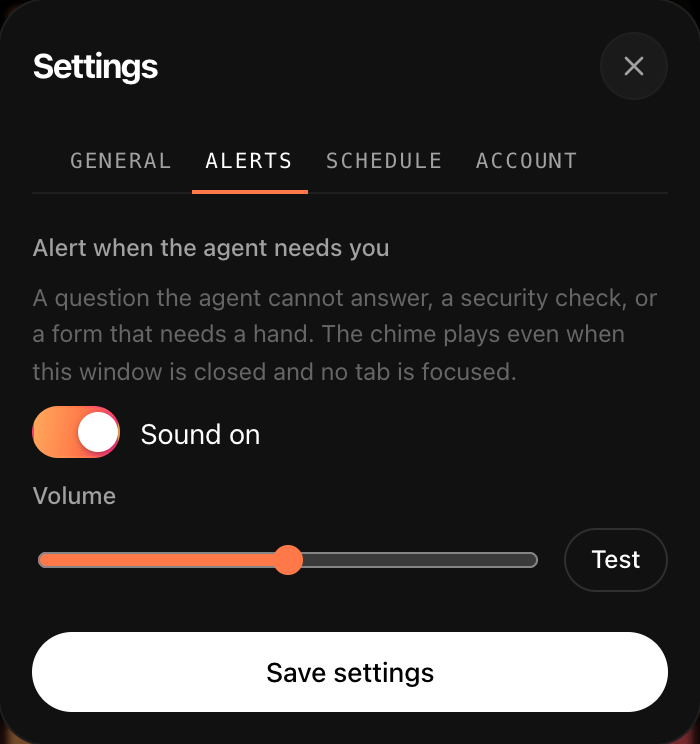
Open Settings → Alerts. “Alert when the agent needs you” turns the chime on or off, with a volume slider and a test button. The chime plays even with the Agent closed and no tab in focus.
If Chrome or your computer blocks notifications, the chime still plays, and the questions are always waiting in the Agent under “Questions need your answer”.
Still stuck?
Write to [email protected]. Include what the Agent shows: the reason in the Agent, or the failed application in your report.
Try it on your own search.
Add the Agent to Chrome, connect your account and set it up once. Verify your phone to unlock 10 free credits, no card needed.