Security and privacy

What we hold,
and what we don't.

The Aplies Agent keeps your CV file on your computer and never asks for your LinkedIn password. Your CV's text goes to Aplies' AI service so it can read your details, and your profile and saved answers are backed up to your account, encrypted at rest. This page sets out what is kept where, and how to delete it.

Where your data lives

What is stored, and where?

What the Agent and your Aplies account keep, and where, in one table.

Your CV file
In the Agent on your computer, with a sealed backup copy in your browser so a reinstall can bring it back.
Never uploaded to Aplies; it goes only to the employer forms that ask for it. The backup copy is encrypted. The Agent's own copy sits in Chrome's storage for the extension, like any extension's data.
Your CV's text and the details read from it
Sent to Aplies' AI service to pick out your details, then backed up to your Aplies account while the Agent is connected.
Encrypted at rest. It is not end-to-end encrypted: Aplies' server opens it to send it back to your Agent.
Your settings and saved answers
In the Agent, and in the same encrypted backup on your account.
Includes your salary figures and every answer you typed for a form.
Your applications
In the Agent's Application Report, every attempt; and on your dashboard on aplies.com, every application that reached the submit step.
In the Agent, in this browser's storage. On the dashboard, behind your Aplies sign-in, with the credits each one was charged.
Your account
On aplies.com: your email and phone number, your plan, credits and payments, your recent sign-ins, and your messages to support.
Behind your Aplies sign-in.
Your LinkedIn password
Nowhere.
The Agent never asks for it. It works inside the LinkedIn session you are already signed into.
Passwords for company sites
Nowhere.
The Agent never types a password or creates an account on an employer's site.
Your CV

Is my CV uploaded to Aplies?

The file isn't; its text is. The Agent pulls the text out of your CV on your computer, then sends that text to Aplies' AI service to pick out your name, contact details, experience and skills. The file itself stays in the Agent and goes only to the employer forms that ask for it.

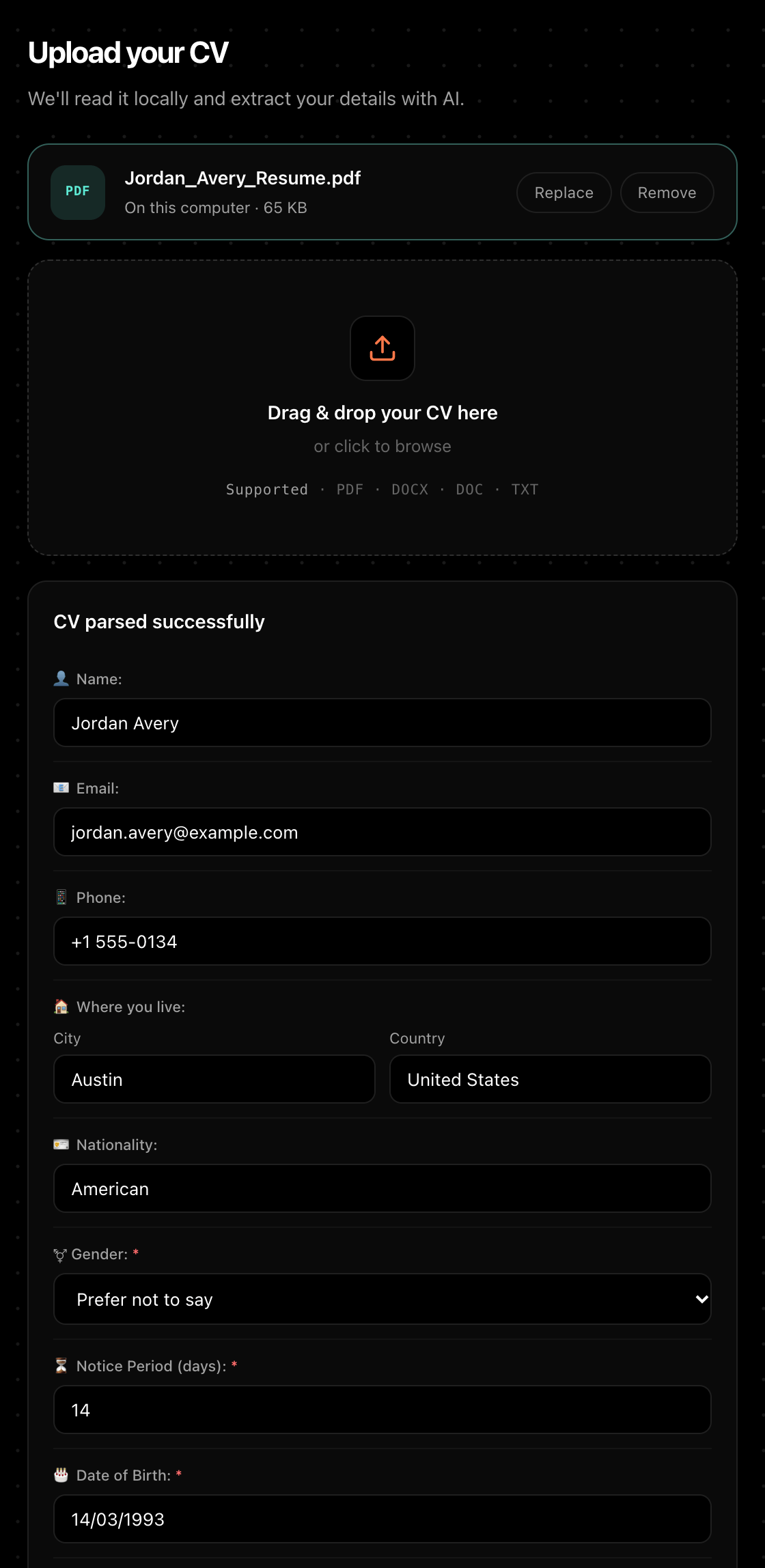
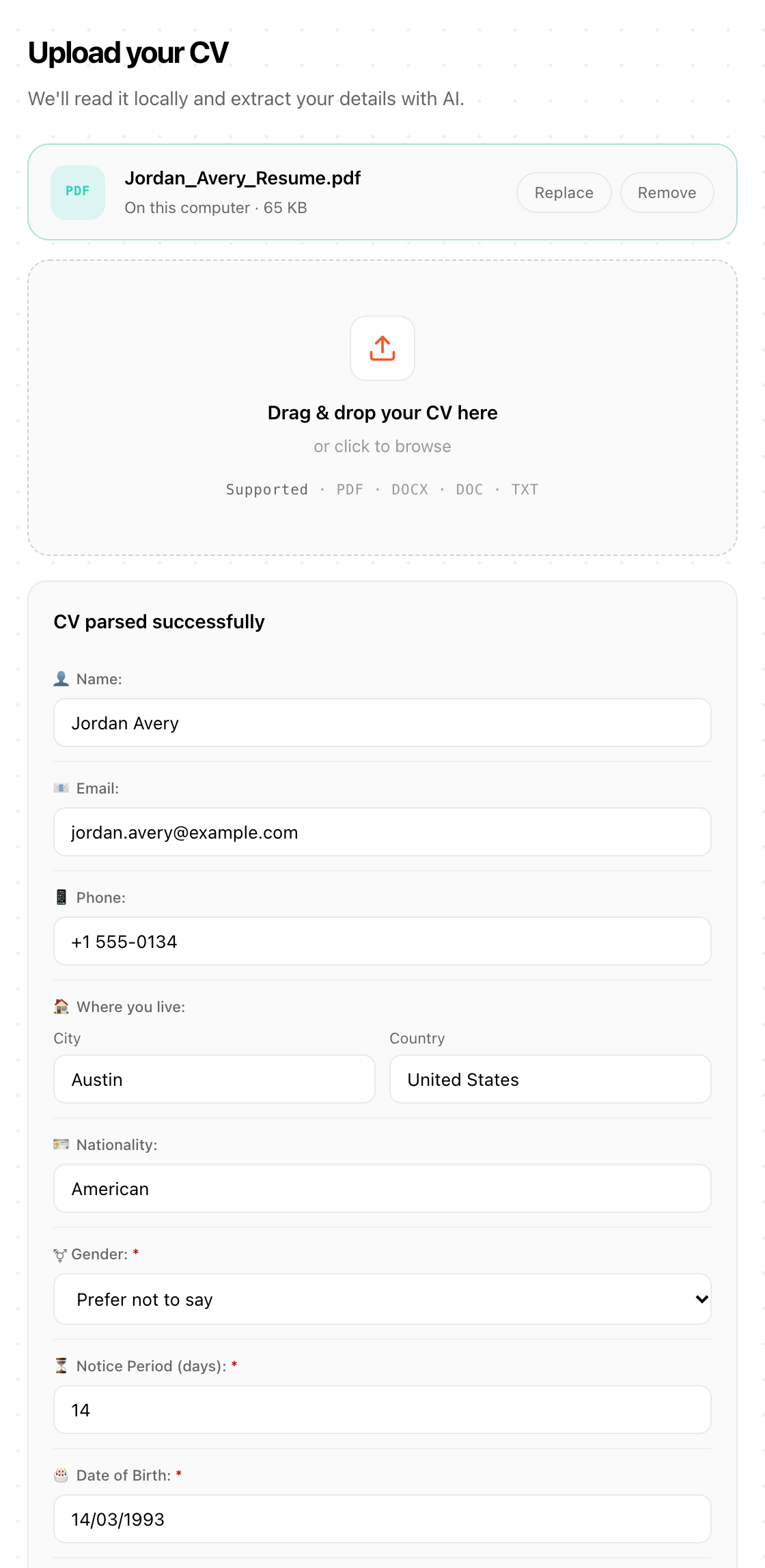
  • You check what it read before it applies: setup shows the details as fields you can correct, plus the full text it pulled out.
  • Gender is never guessed from a name. Date of birth, gender, nationality, phone and notice period come from what you confirm in setup.
  • Remove the CV, or press “Clear all data”, and its sealed copies can no longer be opened, so a reinstall won't bring it back.
Aplies Agent setup, Upload your CV: Jordan_Avery_Resume.pdf kept on this computer, and the details read from it shown as editable fields.

Setup after reading a CV: the file stays on this computer, and the details it read are fields you can correct.

The AI

What does the AI see?

What it is sent depends on the task:

  • To read your CV: the CV's text.
  • To score a job: the job, the title you're searching for and details from your CV.
  • To answer a form: the question, the job and details from your profile and CV.

These requests go through Aplies' own server to the AI providers Aplies uses, Groq and NVIDIA. If you add your own HuggingFace token in the Agent's settings, which is optional, the Agent can also send them from your browser to HuggingFace, under your account there.

The Privacy Policy says Aplies does not sell your personal information and does not use your CV or your applications to train models.

Privacy Policy

Who else handles your data?

  • Employers: the applications you send them, with your CV file where the form asks for it.
  • LinkedIn: the Agent applies inside your own LinkedIn session, as you.
  • Payment providers, when you buy a plan or credits.
  • An email delivery service, for messages about your account.
  • WhatsApp or Telegram, when you verify your phone there or write to support there.
  • The services that host and carry aplies.com, and store its encrypted backups.
  • A sign-in provider, if you sign in with one instead of a password.

The Sub-processors page lists the services Aplies uses, by category.

Sub-processors

Your accounts

What keeps your accounts safe?

In Chrome

  • No job site is open to the Agent when you install it. Chrome asks you for LinkedIn access during setup.
  • Access to other sites is asked for only if you turn on company websites, once, by Chrome.
  • It works in its own background tabs: one for LinkedIn, and one for each company-site application, closed afterwards unless the job needs you.
  • It talks to aplies.com over HTTPS.

On LinkedIn

  • It never asks for or stores your LinkedIn password.
  • It never solves a security check. A CAPTCHA or verification stops the run.
  • A LinkedIn warning (an account restriction, a notice about unusual activity, its Easy Apply limit, a sign-in or two-step check) ends the run. After a sign-in check or an account warning, only you can start it again; after its Easy Apply limit, a schedule starts a day later.
  • It stays under an hourly limit you set and a daily ceiling it never passes, both counted on a rolling clock, and works at a human pace with short breaks.

On aplies.com

  • Aplies emails you when your account is signed in from a new device.
  • Resetting your password signs out every session and every linked Agent, and Aplies emails you that it changed.
  • Settings → Security lists your recent sign-ins and can sign you out everywhere else.
  • Settings → Extension lists every Agent linked to your account. Revoke one and that browser is signed out.

Deleting

How do I delete my data?

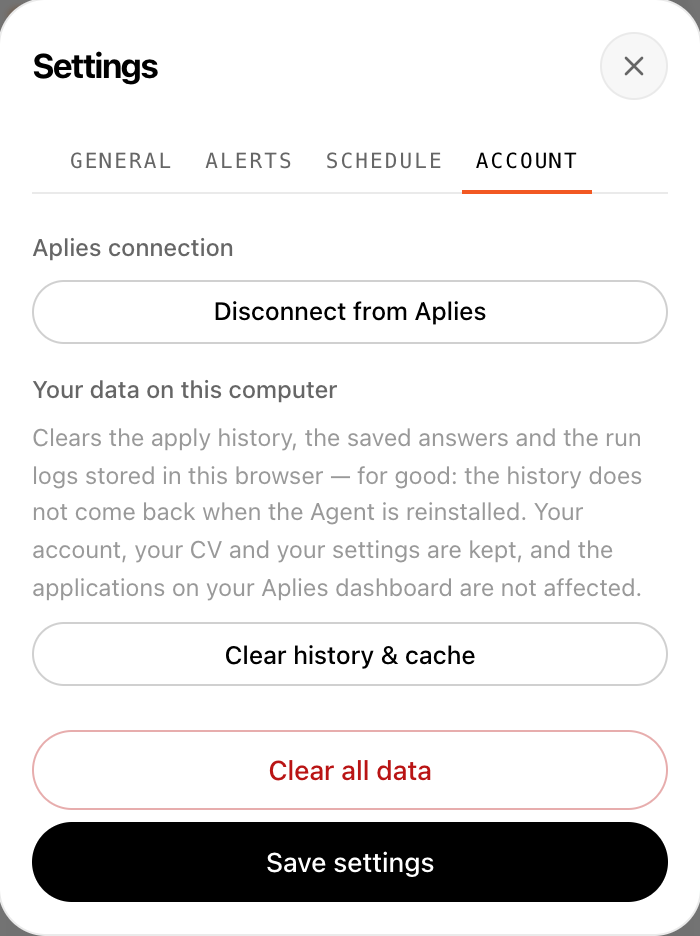
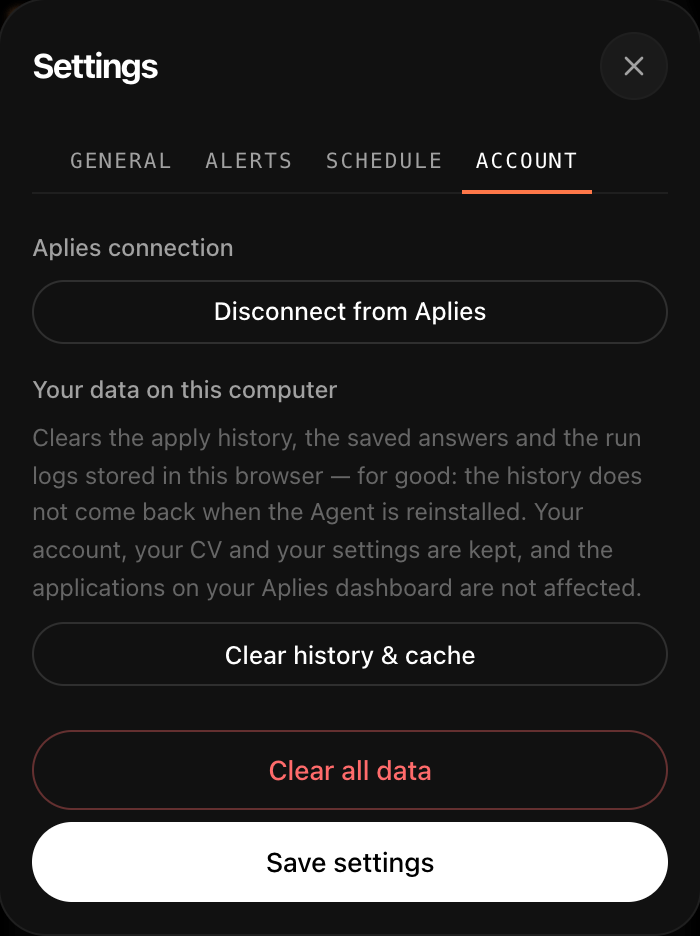
In the Agent, open Settings → Account:

  • “Clear history & cache” removes the apply history, saved answers and run logs from this browser, and the history won't come back after a reinstall. Your account, CV and settings stay, and your dashboard is not affected.
  • “Clear all data” clears what the Agent keeps on this computer and signs this browser out. The CV's sealed copies can no longer be opened, so a reinstall won't bring it back.
  • “Disconnect from Aplies” unlinks this browser from your account.

On aplies.com, go to Settings → Security → “Delete account”. For 30 days you can bring the account back by signing in on the Restore account page. After that, your data is deleted as the Privacy Policy describes.

Aplies Agent settings, Account tab: disconnect the Aplies account, clear history and cache, or clear all data.

Settings → Account in the Agent.

What we don't claim

Aplies holds no security certification: no SOC 2 report and no ISO 27001 certificate. This page describes how the product works today; it is not an audit.

Check what it read. Then let it apply.

Setup shows what the Agent read from your CV before it applies, and its Application Report keeps every question and the answer it gave.