For job seekers

Every form asks the same questions.
Answer them once.

Aplies is a Chrome extension that applies to LinkedIn jobs for you. Give it your CV, the titles you want and where you'd work. It searches, fills each Easy Apply form and submits it, and when it has to ask you something, it keeps your answer for the next form that asks.

5 free credits to start · No card · Desktop Chrome

Who it's for

Is this your search?

You're applying to a lot of roles, most of them on LinkedIn. None of it is hard. It's the same work over and over: the same CV, the same notice period, the same salary question in slightly different words.

Aplies takes that part. You decide what to look for and how close a match has to be. The Agent does the searching, the forms and the record.

How it fits

What the Agent does for a wide search

Every title, every place, newest first

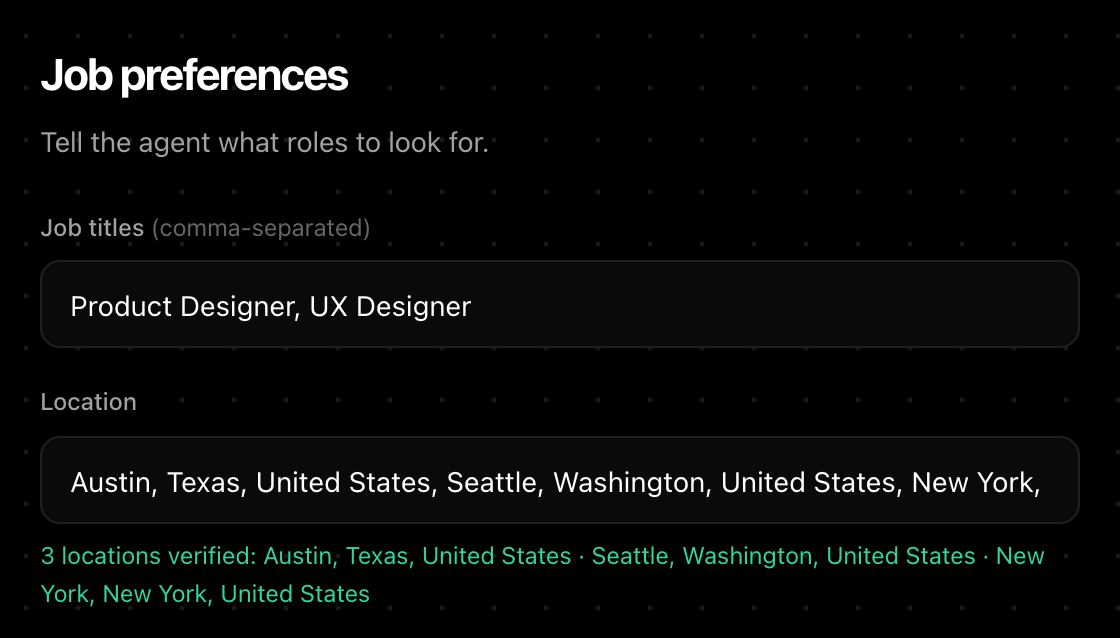
Type your job titles separated by commas, as many as you like, and the places you'd work, each checked when you press Next. Press Start and the Agent opens its own LinkedIn tab in the background and searches each title, place by place: the last 24 hours, then the past week, then any time.

  • You don't open LinkedIn first. You only need to be signed in to it in Chrome.
  • Every job gets a match score out of 100. Only jobs at or above your minimum are opened.
  • When everything has been searched, it stops and suggests how to widen the search.
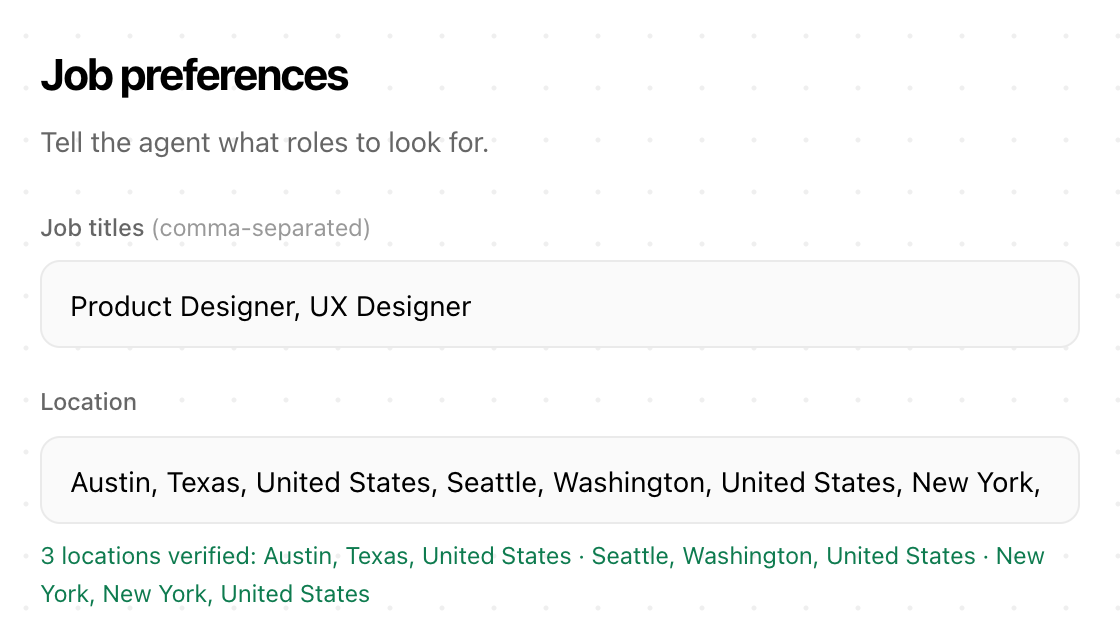
Aplies Agent setup, Job preferences: the job titles Product Designer and UX Designer, and three verified locations — Austin, Seattle and New York.
Setup, step 3: titles and places.

It asks once, then remembers

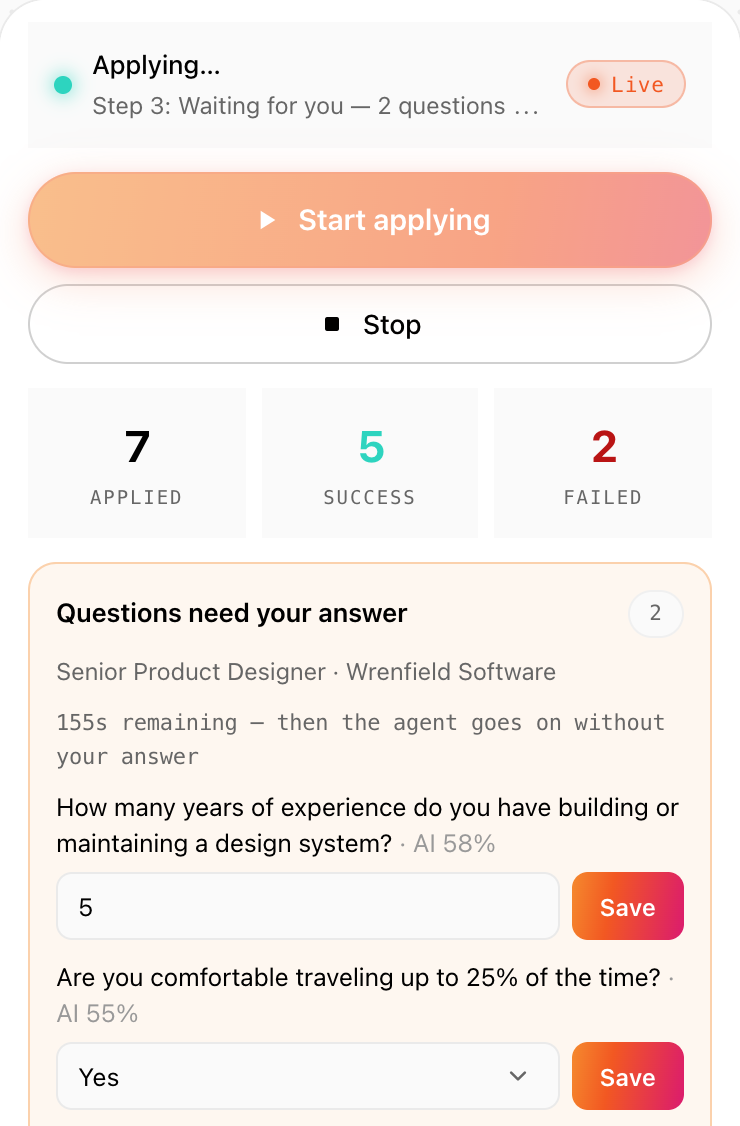
Every AI answer carries a confidence; a required LinkedIn box still empty at submit can get a plain default such as “1”. When it's less than 80% sure, it asks you (on company sites, only for required questions) with a chime, a Chrome notification, a count on its toolbar icon and a card on the page. What you type is saved and used the next time a form asks the same question, on LinkedIn and on company sites.

  • You have up to 3 minutes, less if you're away from the computer.
  • If no answer comes, ordinary questions go out with the Agent's own best answer. For a personal fact or a required answer only you can give, it keeps waiting and reminds you. Skip leaves that job, not submitted and not charged.
  • Your saved answers are backed up to your account.
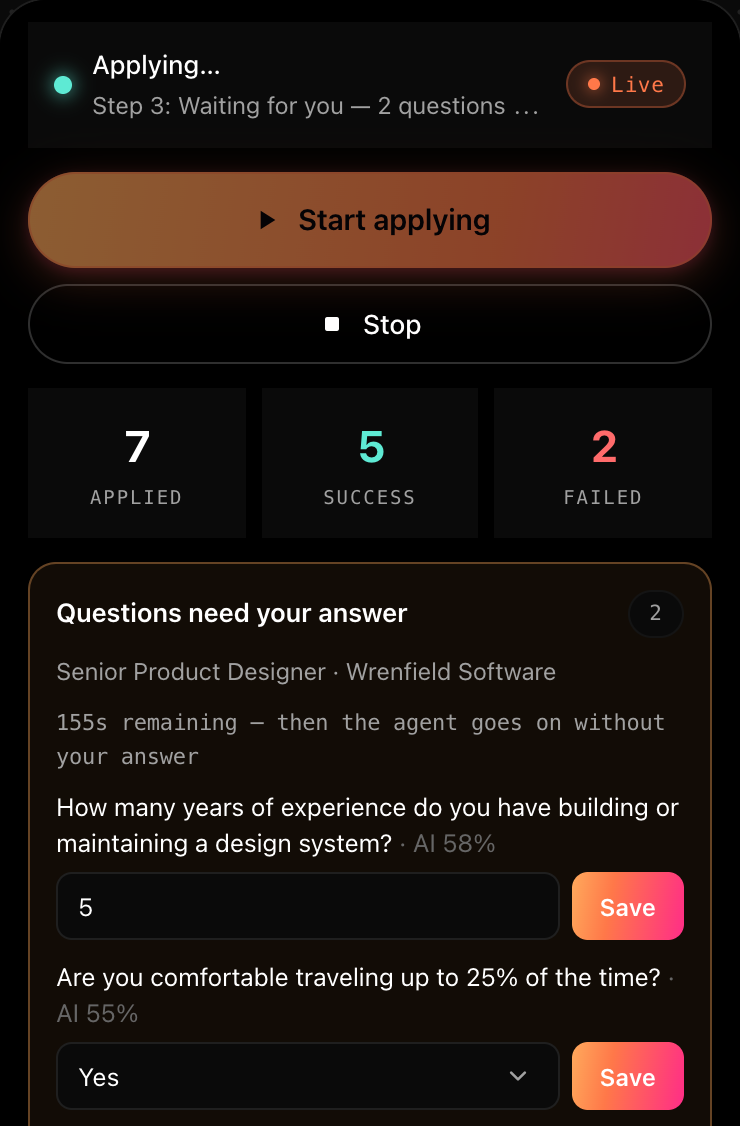
The Aplies Agent popup, “Questions need your answer”: two questions with the Agent's suggested answer and how sure it is, a Save button for each, and the seconds left before it goes on without your answer.
The popup's question panel. The same questions appear in a card on the page.

Runs on a schedule while Chrome is open

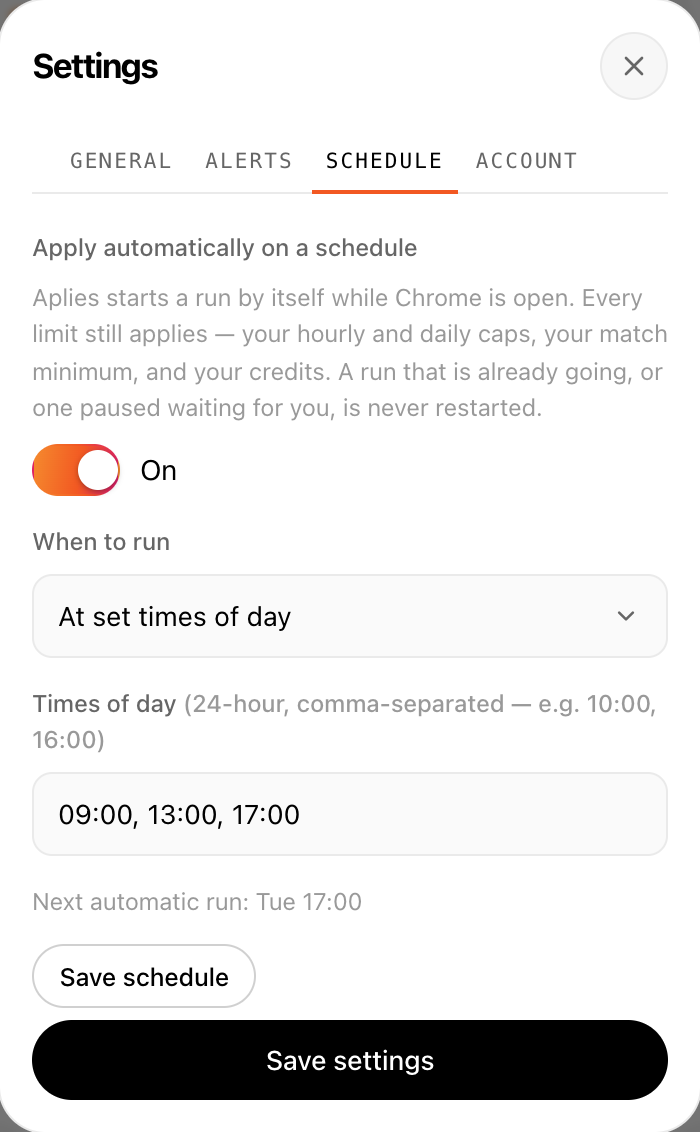
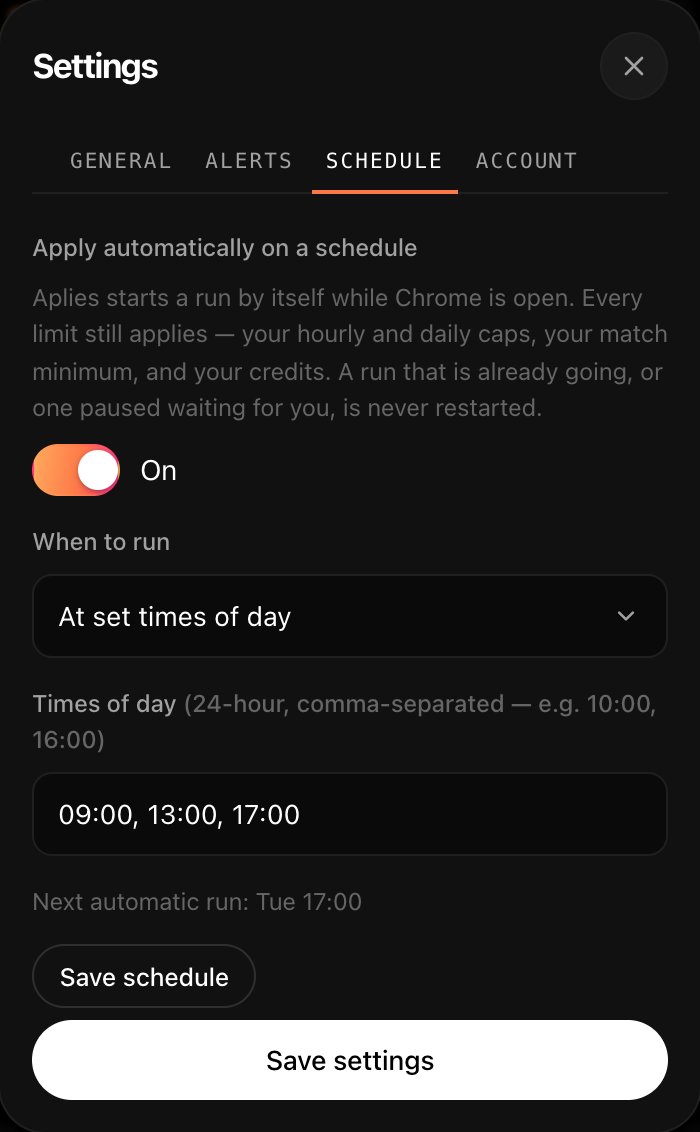
In Settings → Schedule, choose “Every few hours” or “At set times of day”. Runs then start by themselves while Chrome is open, with every limit and credit rule still in force. Nothing runs while Chrome is closed.

  • The schedule is off until you turn it on.
  • A run that's waiting for you, for a sign-in, a security check or a LinkedIn warning, isn't restarted by the schedule.
  • After a daily limit is reached, the schedule holds.
Aplies Agent settings, Schedule tab: “Apply automatically on a schedule” switched on, set to run at 09:00, 13:00 and 17:00, with the next automatic run.
Settings → Schedule.

Read back what was said

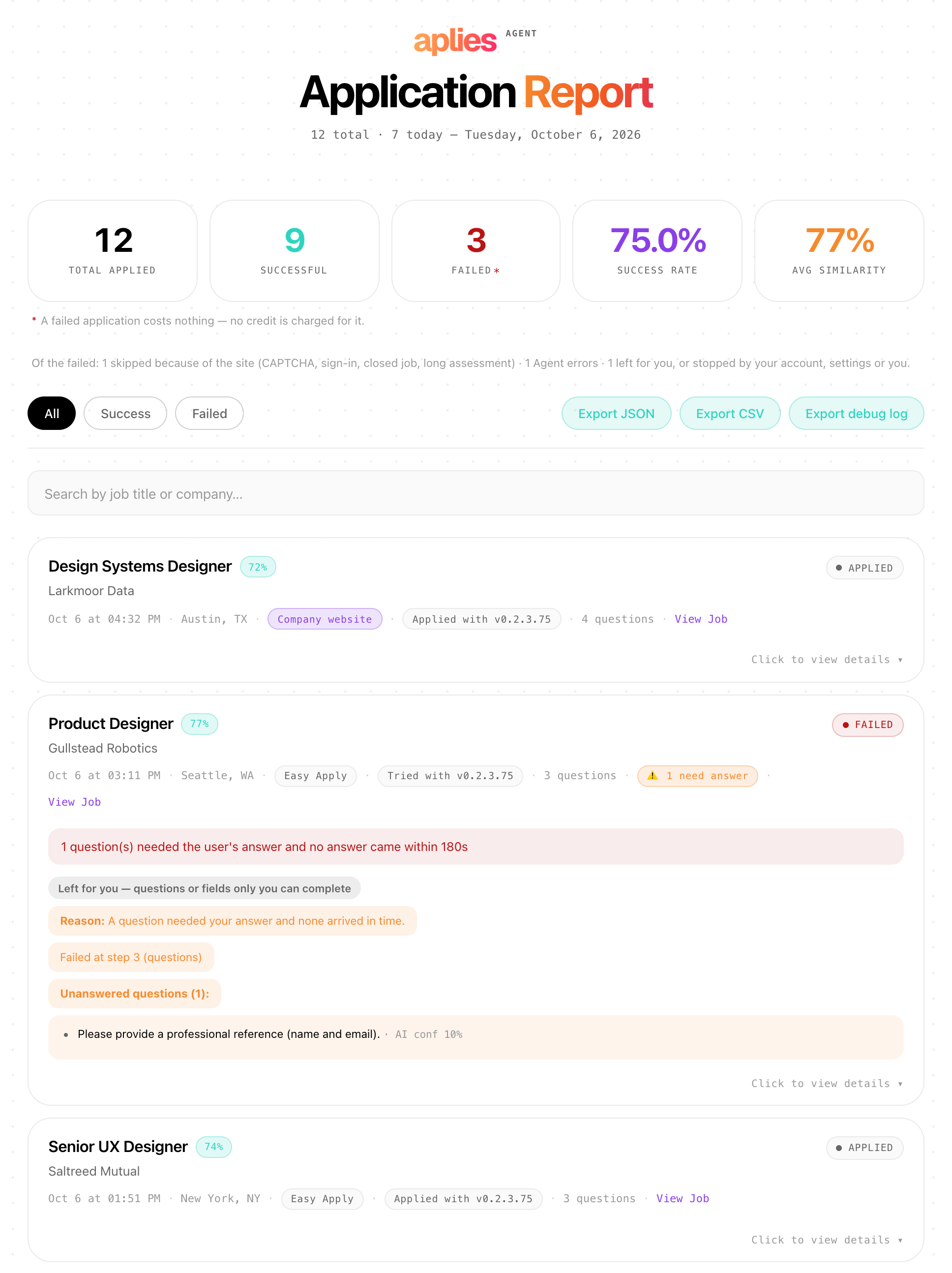
The Application Report keeps every attempt, failures included: the job, the company, the link, each question and the answer given, and how sure the Agent was. Correct an answer there and it's used next time. Export it as a CSV that opens in any spreadsheet.

  • A failed application carries the reason it stopped.
  • Your dashboard on aplies.com lists your applications and what each one was charged.
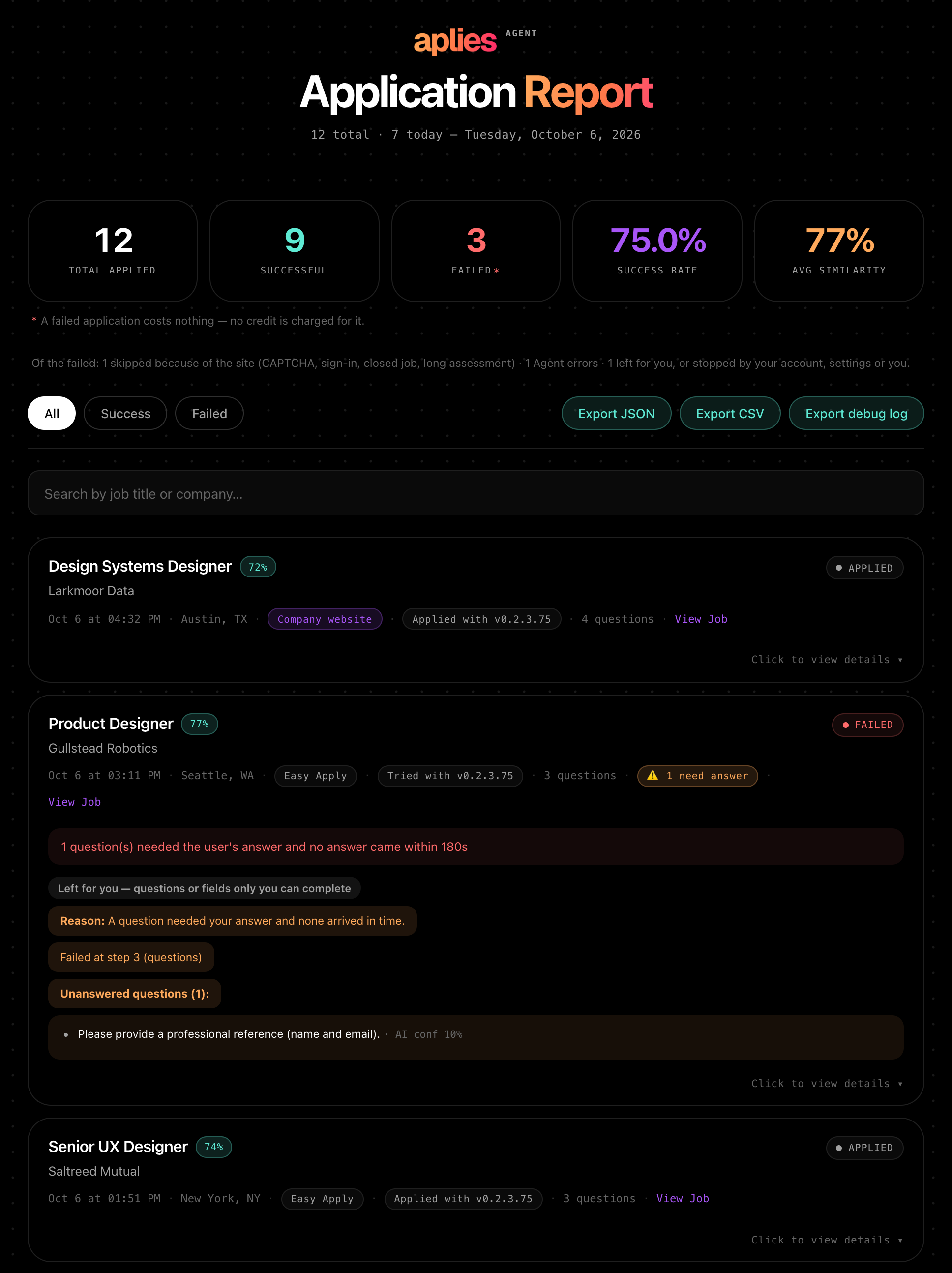
The Aplies Agent's Application Report: totals for applied, successful and failed, the note that a failed application costs nothing, filters, export buttons and the three newest applications.
Popup → Report.
Settings

Which settings suit this search?

Each one is in the Agent's setup or its Settings, and you can change it later.

Job titlesSetup → Jobs
Every title you'd accept, separated by commas.Each title is its own search, so a long list is a wide search.
Min job match %Setup → Jobs
Start at the default, 60.High enough to skip jobs that don't fit, low enough to keep the search wide. Jobs below it are never opened.
Max applications / hourSettings → General
The default, or lower if you'd like it slower.The default is also the most it allows. The Agent never goes past it, counted over a rolling hour, and it stays under a daily ceiling it never passes.
When to runSettings → Schedule
At set times of day when you're usually at the computer.Runs happen only while Chrome is open, and a question you answer in time is one you won't be asked again.
Where to applySetup → Welcome
“LinkedIn Easy Apply only”, the default.A company-site application costs 2 credits. Turn company sites on in Settings → General when you want employers' own sites too.
Before you start

What should you know first?

LinkedIn is where it searches

It searches LinkedIn and nothing else. It reaches employers' own career sites only through a LinkedIn job's Apply button, and only when you turn that on.

It submits on its own

There's no approve step: after a short pause, it submits. Set the match minimum where you'd be glad to apply, and read the report after your first runs.

It keeps a pace

It stays under your hourly limit and a daily ceiling it never passes, both counted on a rolling clock. It takes short breaks and ends long sessions by itself.

LinkedIn warnings end the run

A warning from LinkedIn, such as an account restriction or its Easy Apply limit, ends the run, and it waits for you to press Start again. A security check or a sign-in is different: it never solves one, it waits for you to, then carries on.

What it costs

What does it cost to try?

Nothing to start. Verify a phone number on WhatsApp or Telegram and your account unlocks 5 free credits, with no card. They last 30 days from unlocking, and one number unlocks free credits for one account.

1credit for an Easy Apply application
2credits for a company-site application

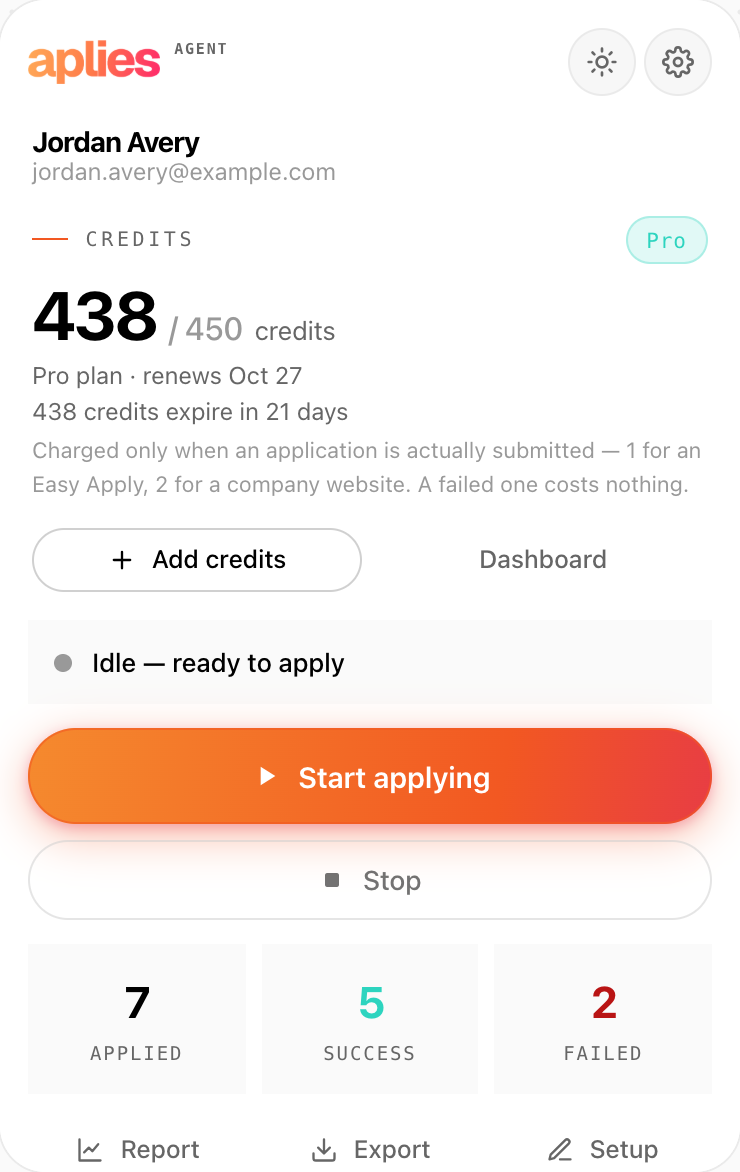
A credit is reserved just before the Agent submits and charged when the application goes through. If it stops before submitting, it costs nothing.

See plans and pricing
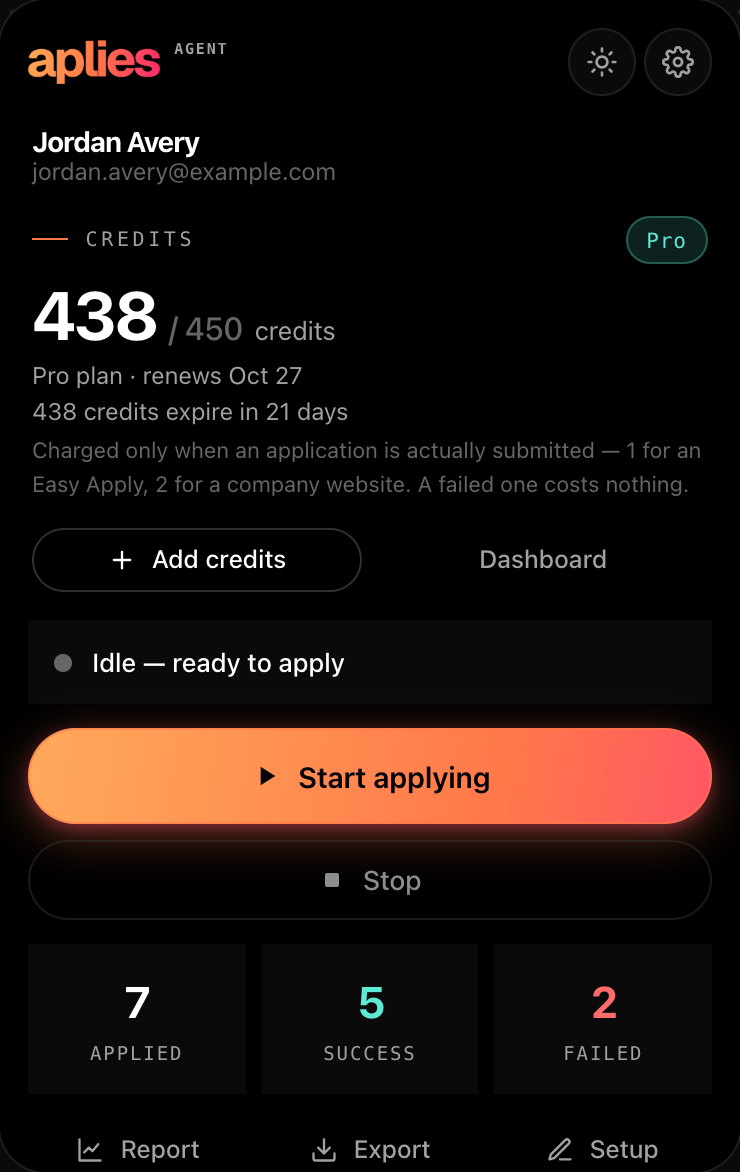
The Aplies Agent popup, connected and idle: the credit balance on the Pro plan, and the rule that a credit is charged only when an application is actually submitted.
The Agent's popup states the same rule.

Answer once. Let it apply.

Add the Agent to Chrome, connect your account, and give it your CV, your titles and your places. You pay only for the applications it submits.