How it works

From install to application,
in nine steps.

Aplies is a Chrome extension that searches LinkedIn for the jobs you choose, fills each application from your CV and submits it. Here is every step in the order it happens: the first five are yours, done once; the last four are the Agent’s, on every run.

Your stepThe Agent's step
  1. 01

    Your step

    Add the Agent to Chrome and connect your account

    Sign in on aplies.com, open Install and press “Add to Chrome”. Pin the Aplies icon, open it and press “Connect with Aplies”: a tab opens on aplies.com, where you press “Authorize Aplies Agent” to link the Agent. There is nothing to copy.

    • Chrome on a desktop computer, signed in to LinkedIn
    • Verify your phone on WhatsApp or Telegram to unlock 10 free credits. No card.
    • It can’t apply without a connected account with credits
    How to install
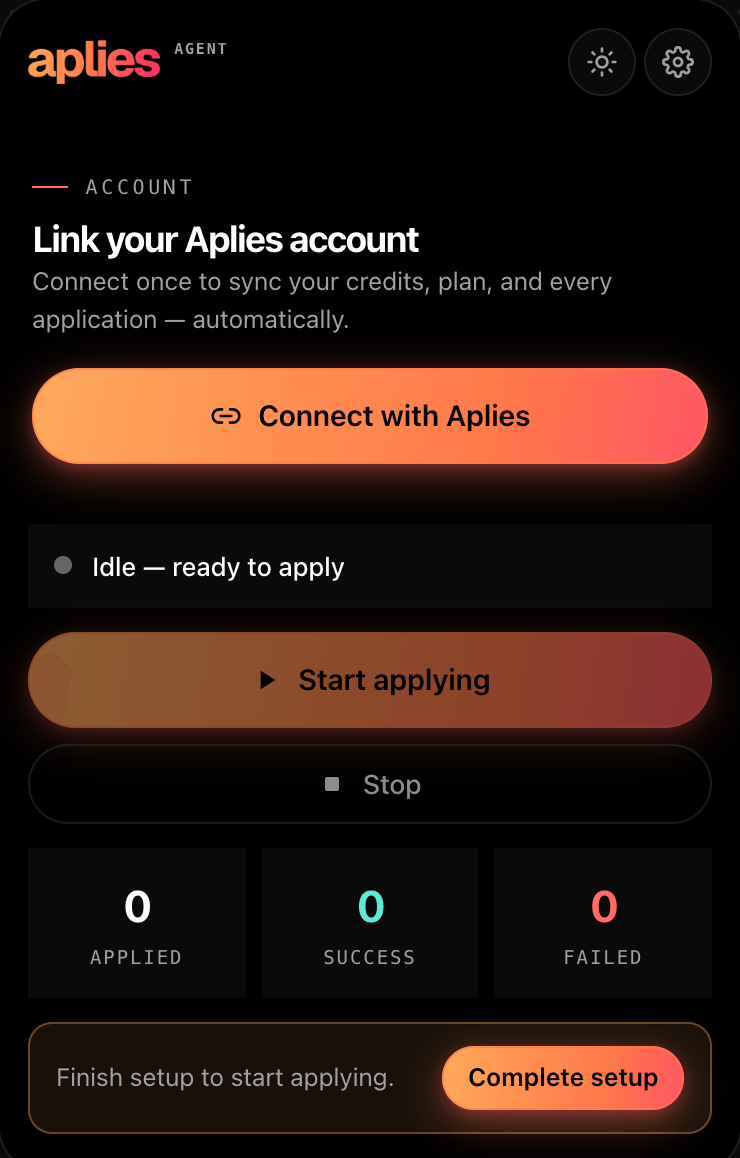
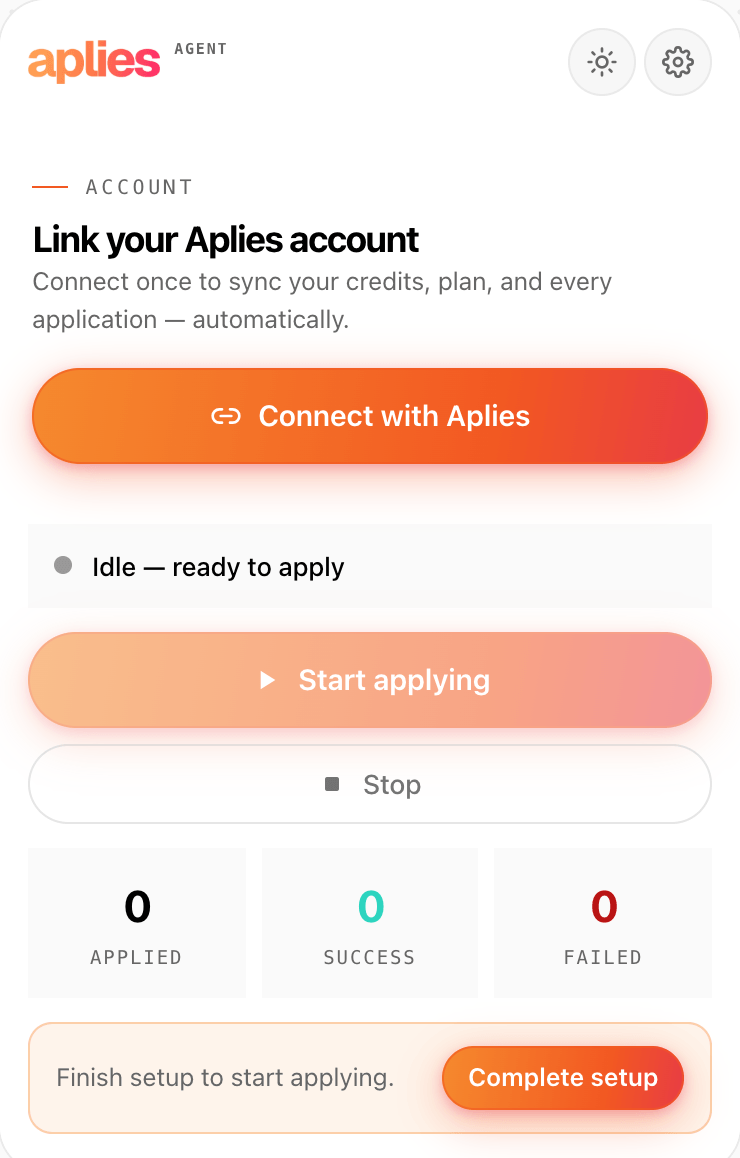
    The Aplies Agent popup before it is connected: “Link your Aplies account” and the “Connect with Aplies” button.
  2. 02

    Your step

    Choose where it applies

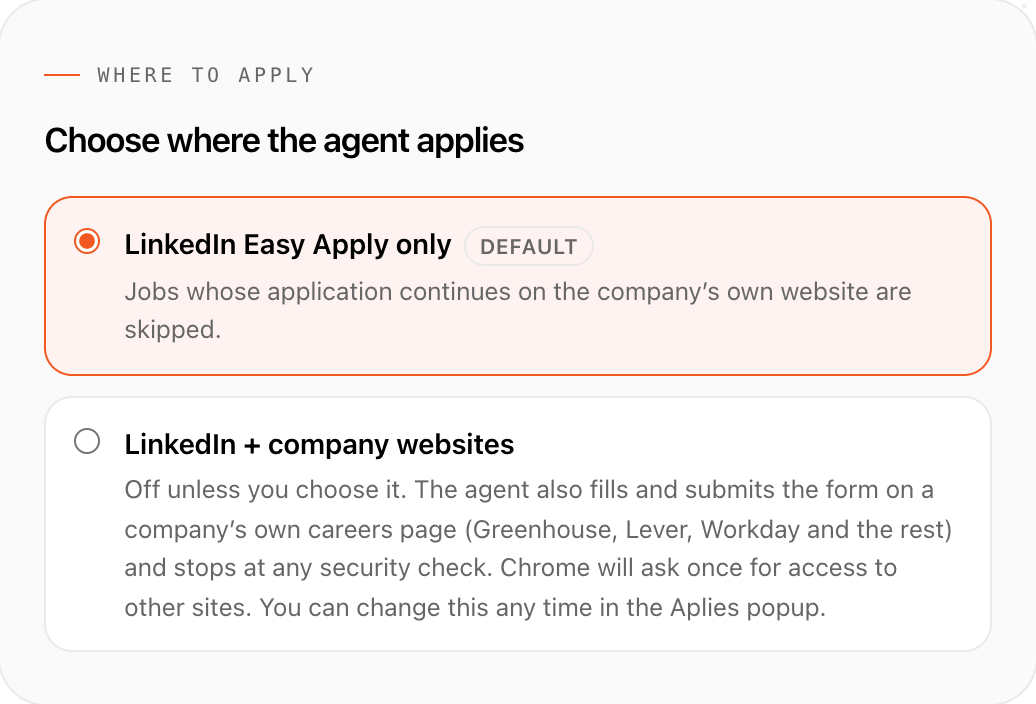
    Setup opens on “Where to apply”, with “LinkedIn Easy Apply only” preselected. Choose “LinkedIn + company websites” and it also follows a job’s Apply button to the employer’s own careers page. Chrome then asks once for access: LinkedIn always, other sites only if you chose company websites. You can change this later in the Agent’s Settings.

    • Company websites stay off unless you turn them on
    • Greenhouse, Lever, Ashby, SmartRecruiters and Workday by name; any other careers site through a general engine
    • It never creates accounts: at a sign-in wall, usual on Workday, it stops and leaves the tab for you
    Where it applies
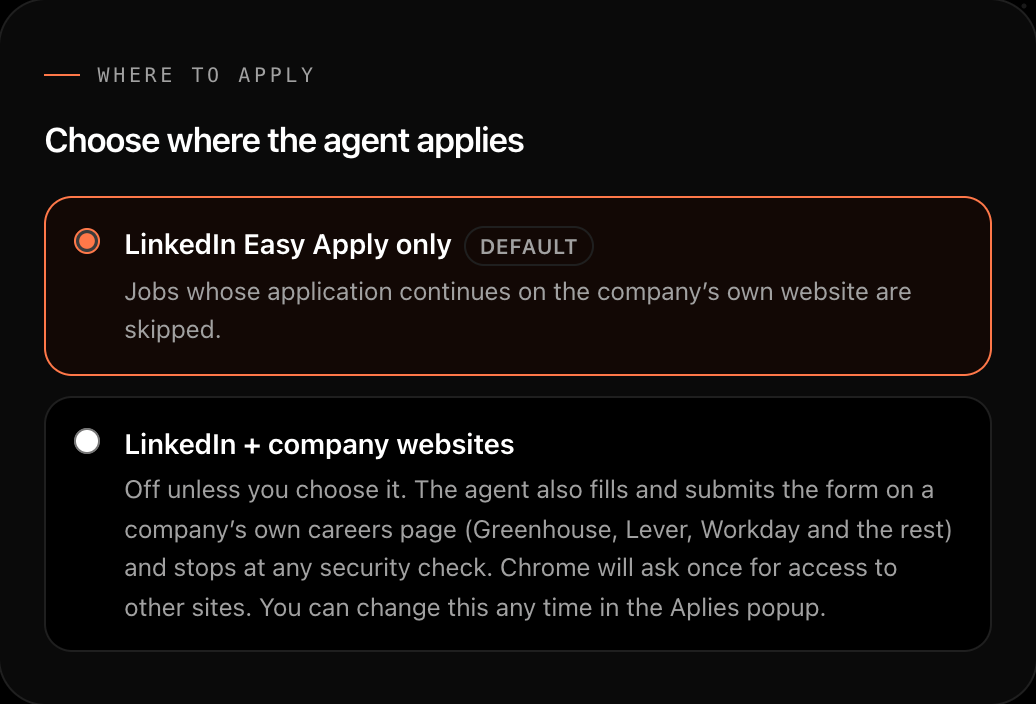
    Aplies Agent setup, “Where to apply”: “LinkedIn Easy Apply only” is selected by default, and “LinkedIn + company websites” is off unless you choose it.
  3. 03

    Your step

    Add your CV and check what it read

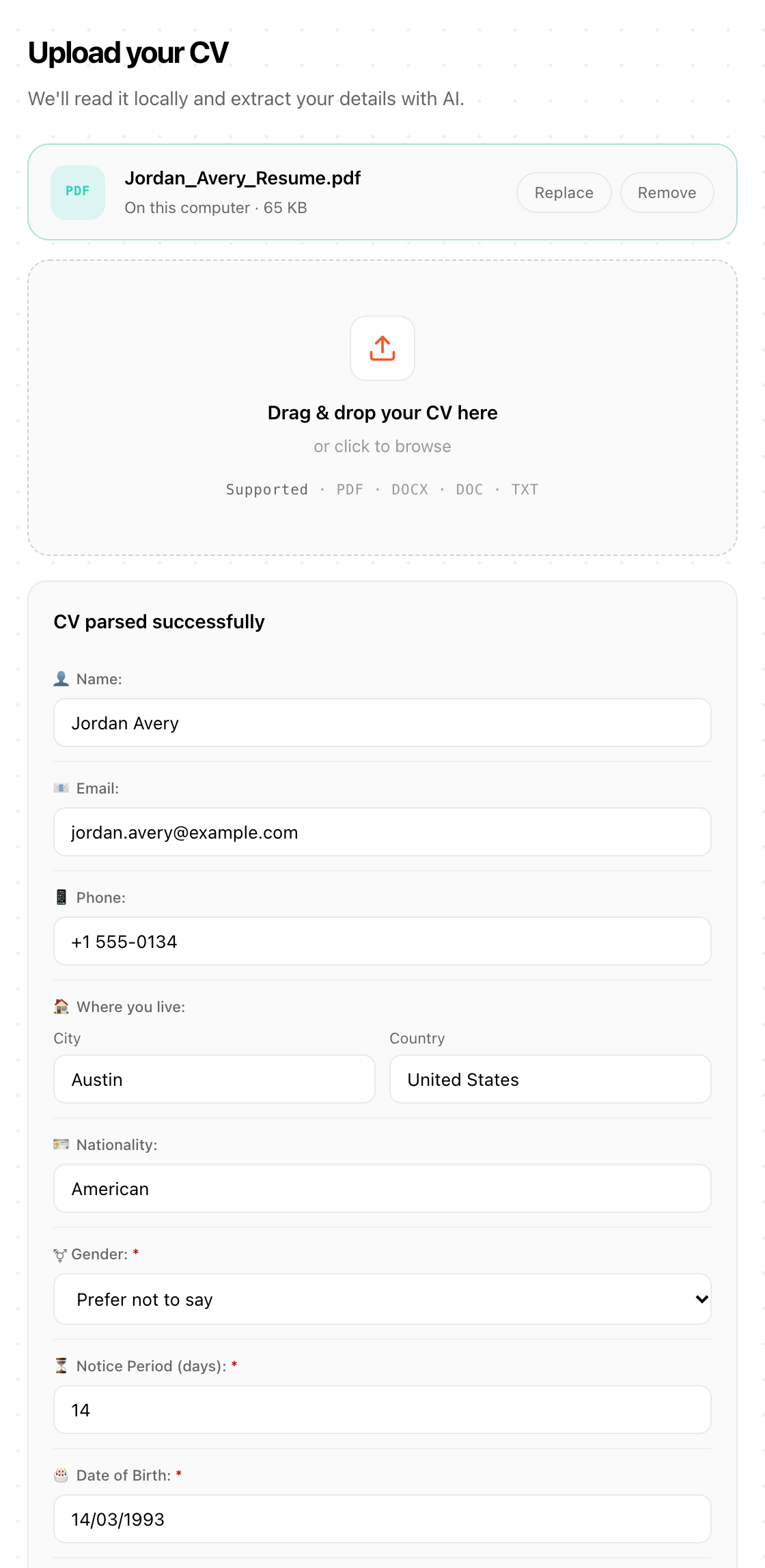
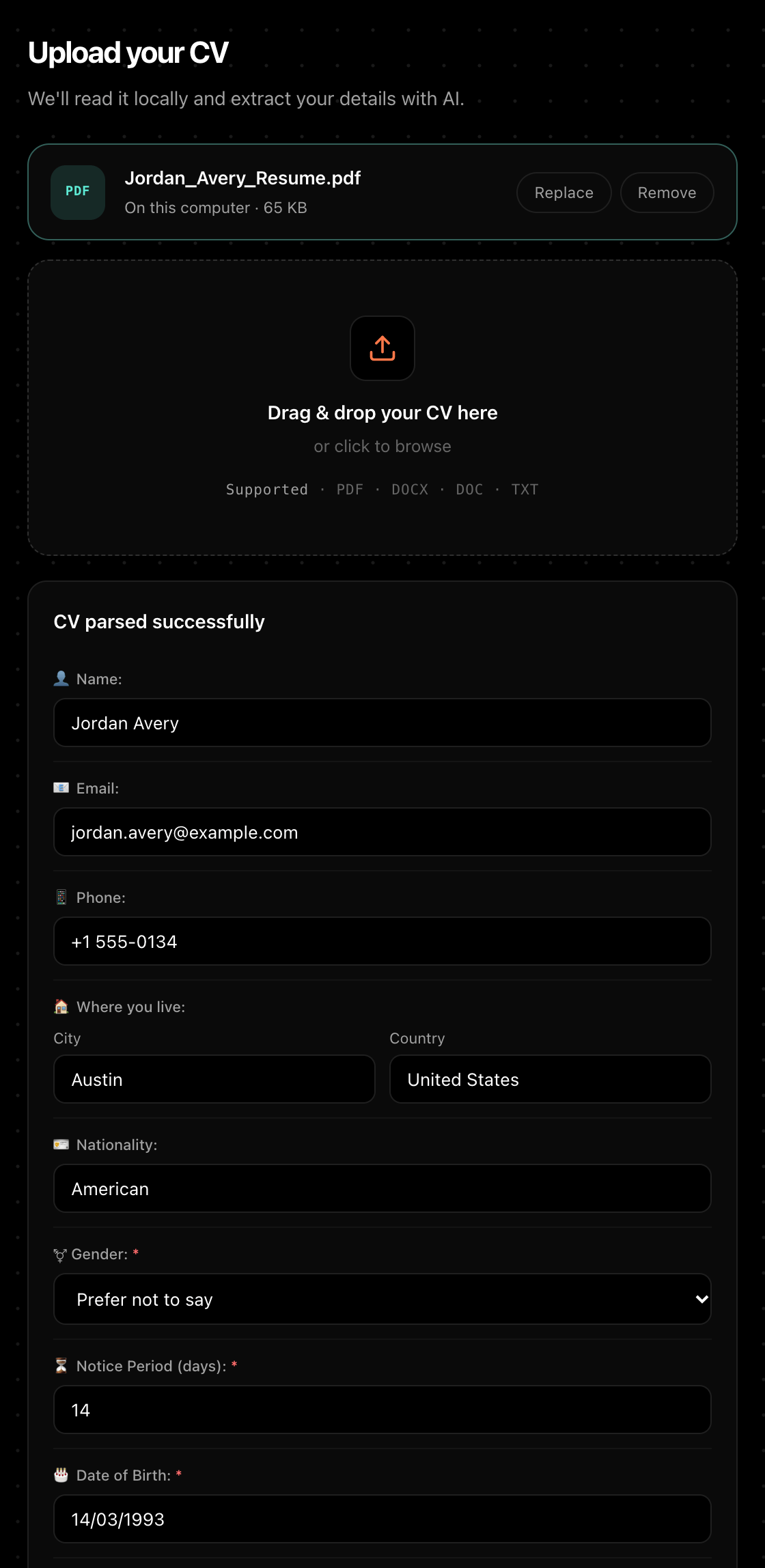
    Add your CV as a PDF, Word (.docx) or plain-text file, up to 8 MB. The text is pulled out on your computer and sent to Aplies’ AI service to pick out your details; the file itself is never uploaded to Aplies. Setup then shows those details as fields you can correct, with the full text it read below them.

    • Date of birth, gender, notice period and phone are required here, so forms get your answer, not a guess
    • A scanned CV with no text layer can’t be read: paste the text instead. An old .doc can be attached but not read
    • The file stays in the Agent on your computer and goes only to the employer forms that ask for it
    What is stored where
    Aplies Agent setup, “Upload your CV”: Jordan_Avery_Resume.pdf kept on this computer, and the details read from it as editable fields: name, email, phone, city, country, nationality, gender, notice period and date of birth.
  4. 04

    Your step

    Say which jobs to look for

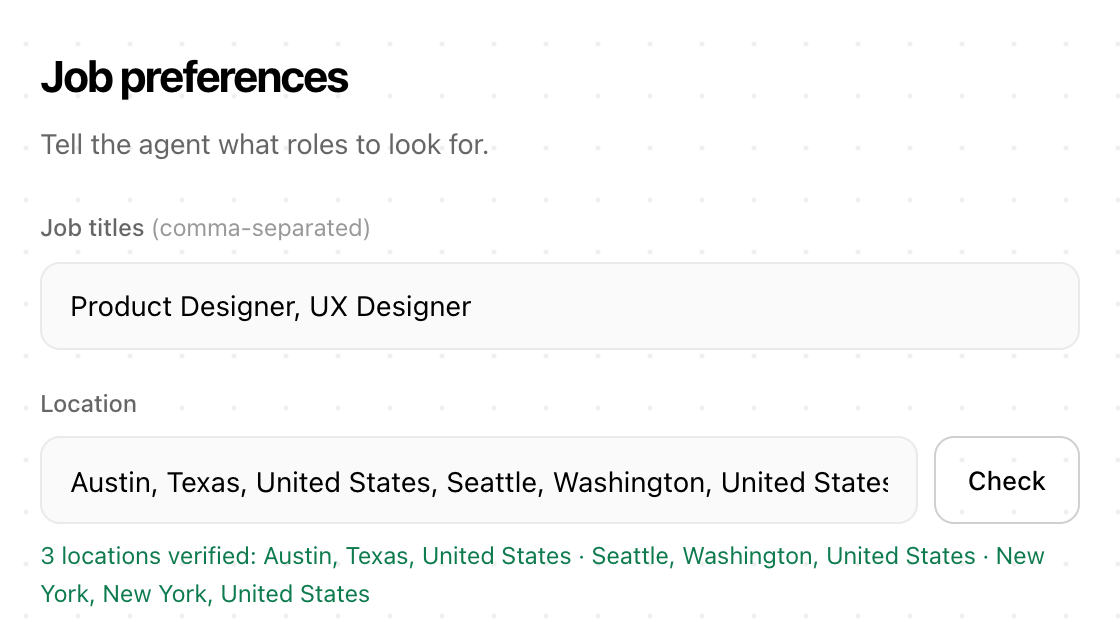
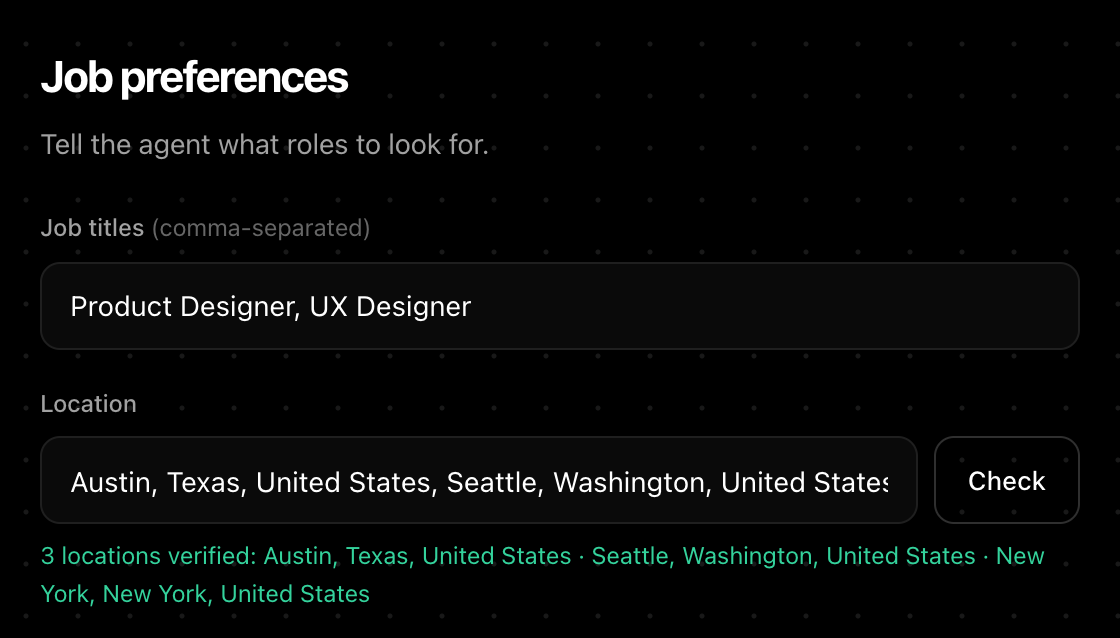
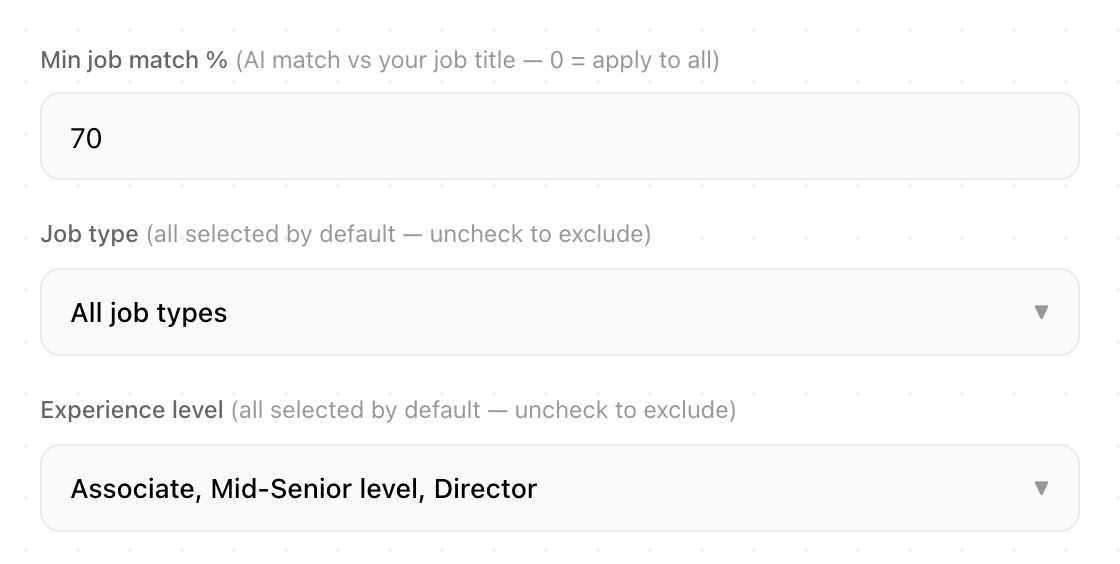
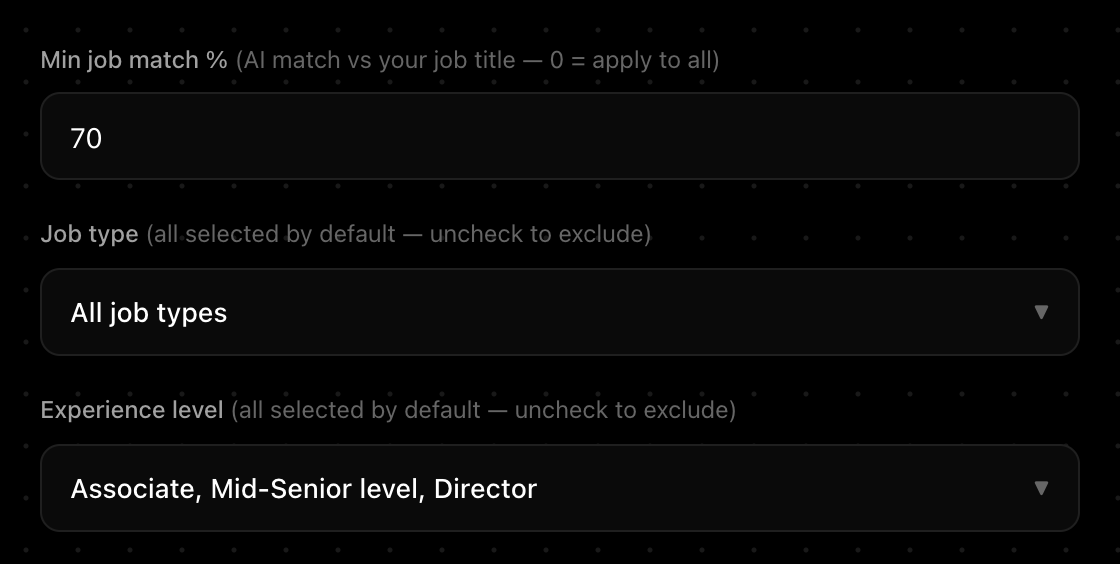
    Type your job titles, separated by commas, as many as you like, and the places you want; each place is checked when you add it. Choose the workplace (On-site, Hybrid, Remote) and experience levels, then set “Min job match %”: jobs that score below it are never opened.

    • The minimum starts at 60; set anything from 0 to 100, and 0 applies to all
    • Every workplace type and experience level is selected until you narrow it
    • You also set an hourly and a daily limit, under a daily ceiling it never passes
    Aplies Agent setup, “Job preferences”: the job titles Product Designer and UX Designer, and three checked places: Austin, Seattle and New York.
    Aplies Agent setup: “Min job match %” set to 70, every job type selected, and the experience levels Associate, Mid-Senior level and Director.
  5. 05

    Your step

    Enter your salary

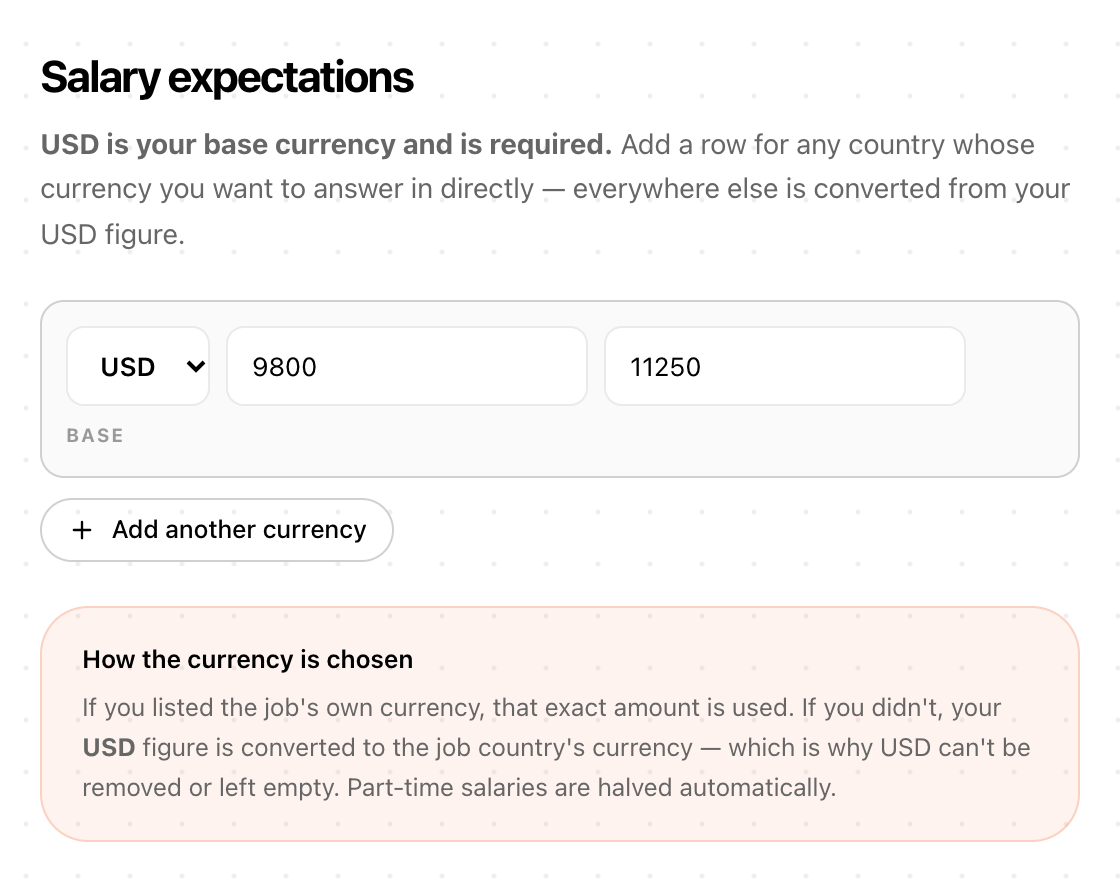
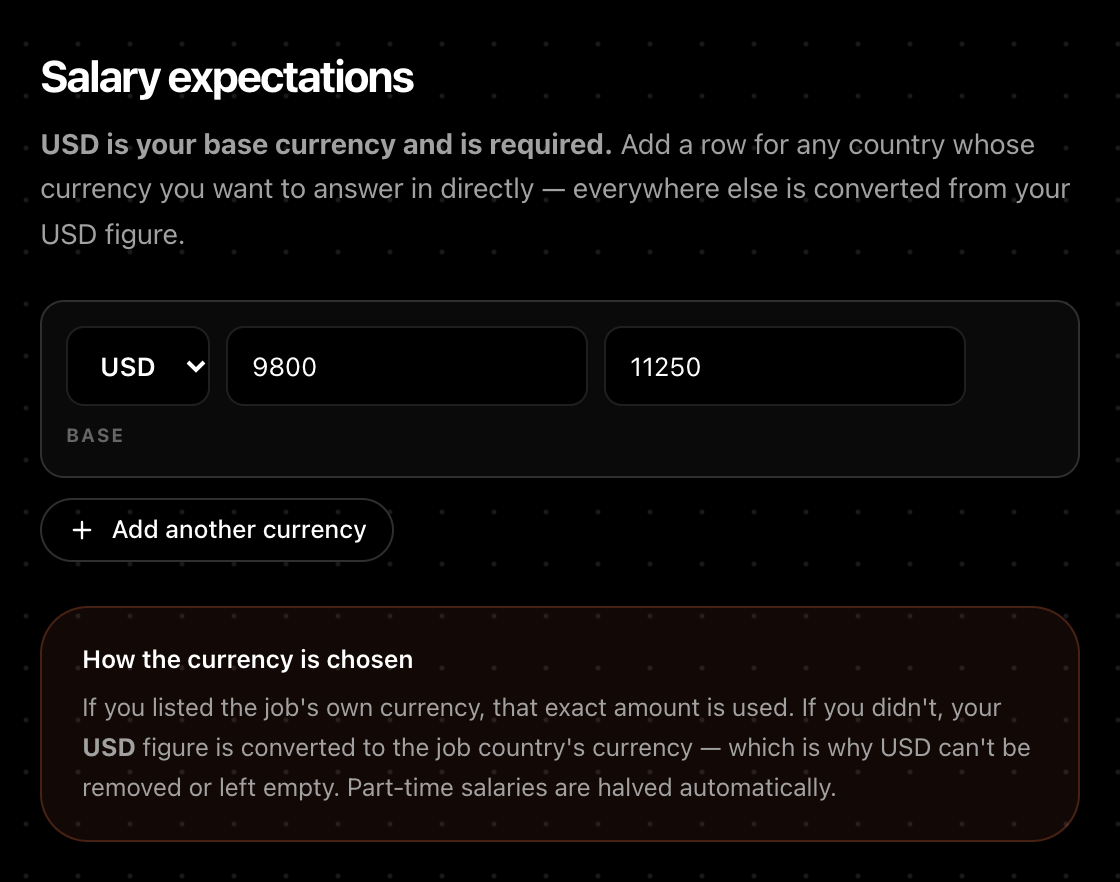
    Enter your current and expected salary in US dollars. Both are required: they are the base. Add your own figures in other currencies if you like. When a form asks in a currency you haven’t added, it converts your US-dollar figure for you.

    • Rates are built in, not live, so a converted figure is approximate
    • Part-time roles are halved
    • Pay rates and unusual formats go to the AI with your figures, or come back to you
    Aplies Agent setup, “Salary expectations”: US dollars as the required base currency with current and expected salary filled in, and an “Add another currency” button.
  6. 07

    The Agent's step

    It fills the form and submits it

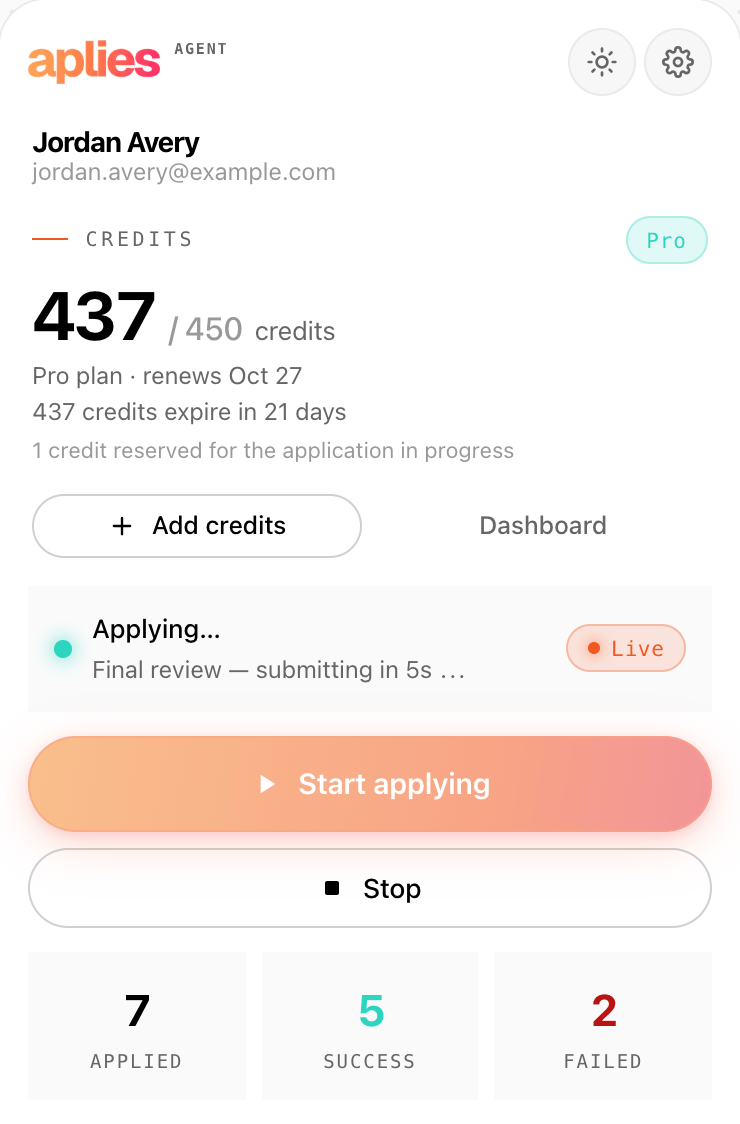
    It works through each LinkedIn Easy Apply form, up to 10 steps: contact details, CV, screening questions, review, submit. It uses the CV LinkedIn already holds if it matches yours by name; otherwise it uploads your file. On the review step it unticks “Follow <company>”. Then it submits on its own after a short pause. There is no approval step.

    • If the form rejects an answer, it reads the error, corrects it and tries once more, then stops and records the form’s reason
    • On company sites it attaches the cover letter you saved; it fills a summary box from your CV
    • With company websites on, it fills up to 10 pages of the employer’s form in a background tab, uploads your CV and submits
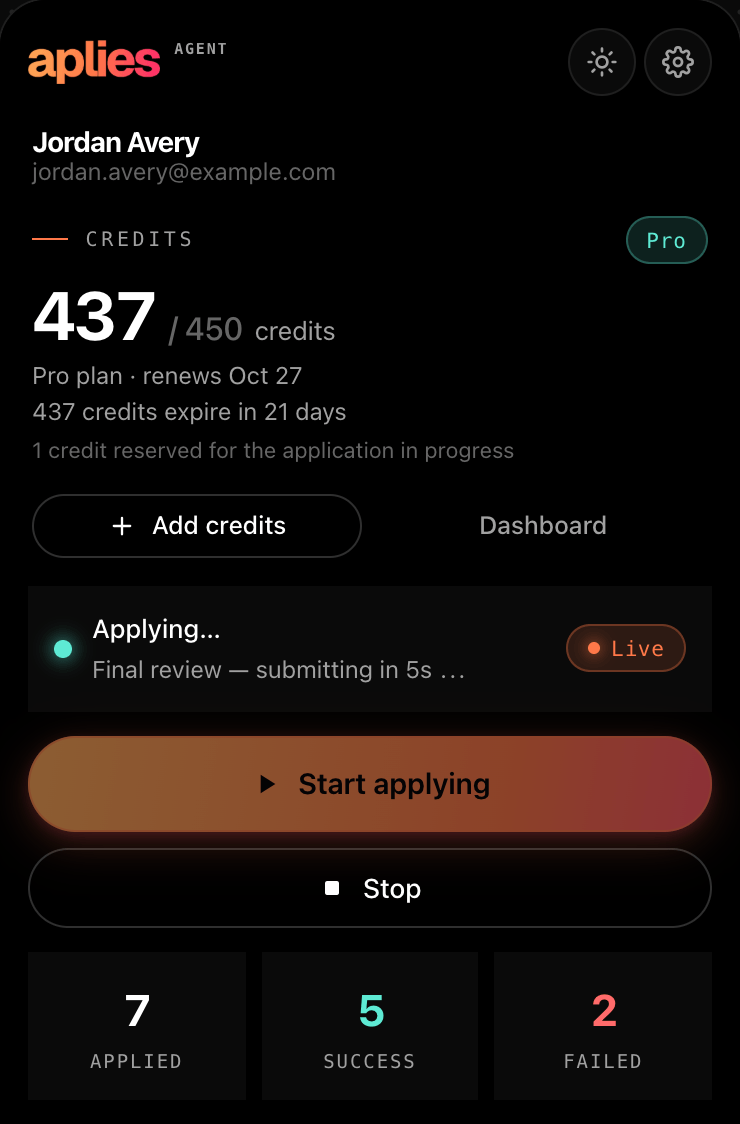
    The Aplies Agent popup during a run: “Final review — submitting in 5s” with the Live chip, and 1 credit reserved for the application being submitted.
    Final review: the credit for this application is reserved, and it submits when the countdown ends.
  7. 08

    The Agent's step

    When it isn’t sure, it asks you

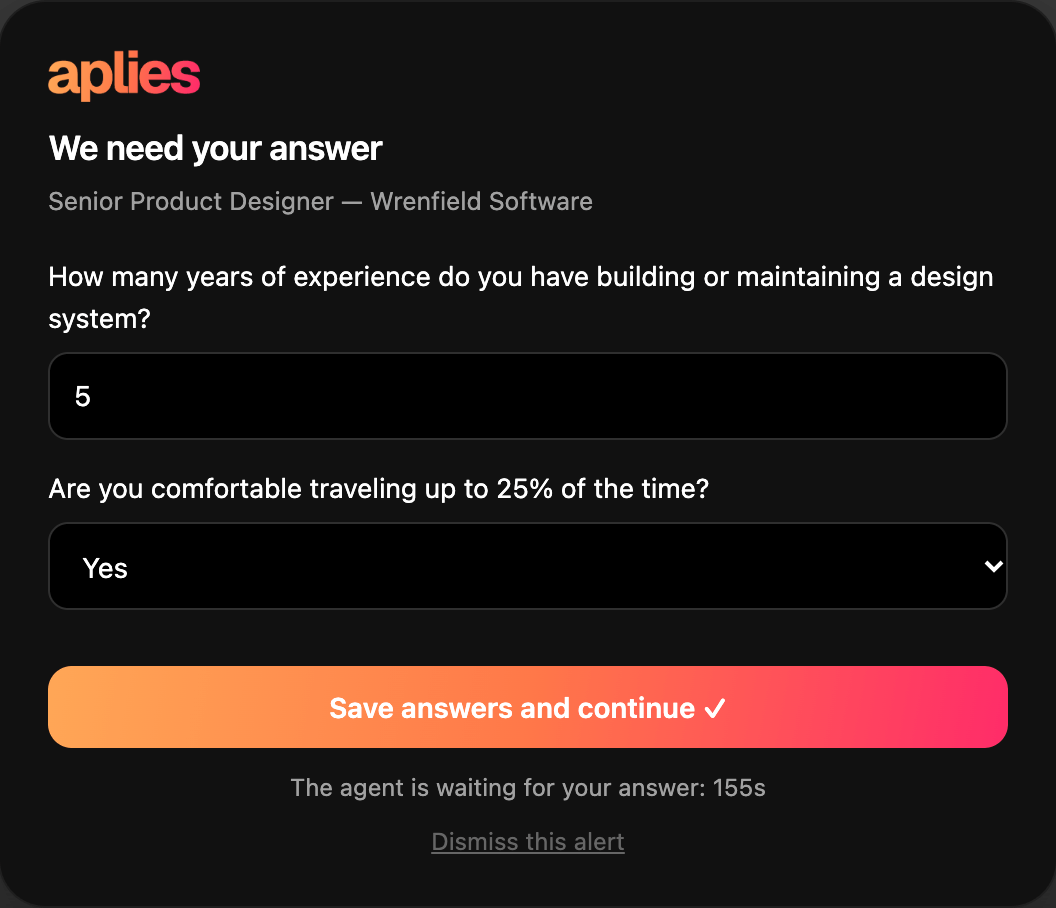
    Every answer it writes carries a confidence. At 80% or more, it is filled in. Below that, it asks you: a chime, a Chrome notification, a count on the toolbar icon and a card on the page, “We need your answer”. You can also answer in the popup. On company sites it asks about required questions; unsure optional fields are left as they are.

    • You have up to 3 minutes. If you’re away (screen locked, or no input for a minute), it stops waiting sooner
    • No answer? Ordinary questions go out with its own best answer. If a personal fact or a blank required answer is still open, that job is dropped, not submitted and not charged, and tried again on a later run
    • Every answer you type is saved and reused the next time a form asks the same question
    The Aplies question card on a job page: “We need your answer”, two questions with suggested answers filled in, “Save answers and continue”, and the countdown while the Agent waits.
  8. 09

    The Agent's step

    It keeps the record, and charges only for what it submitted

    Every attempt goes into the Agent’s “Application Report”, failures included: the job, company and link, every question and the answer given with its confidence, the method, and why a failed one stopped. Correct an answer there and it is used next time. Export it as CSV for any spreadsheet, plus a JSON backup.

    An Easy Apply costs 1 credit and a company-site application 2 credits. The credit is reserved just before the Agent submits and charged when the application goes through. Anything that stops before submitting costs nothing, however often; a submission that fails with a reason isn’t charged either.

    • Your dashboard on aplies.com lists your applications and the credits charged for each
    • If no result comes back after it submits (say, Chrome was closed), it is charged and marked unconfirmed, and support can review it
    • Settings → Account in the Agent clears its history and saved answers, or all its data, from this computer; your dashboard keeps its record
    How credits work
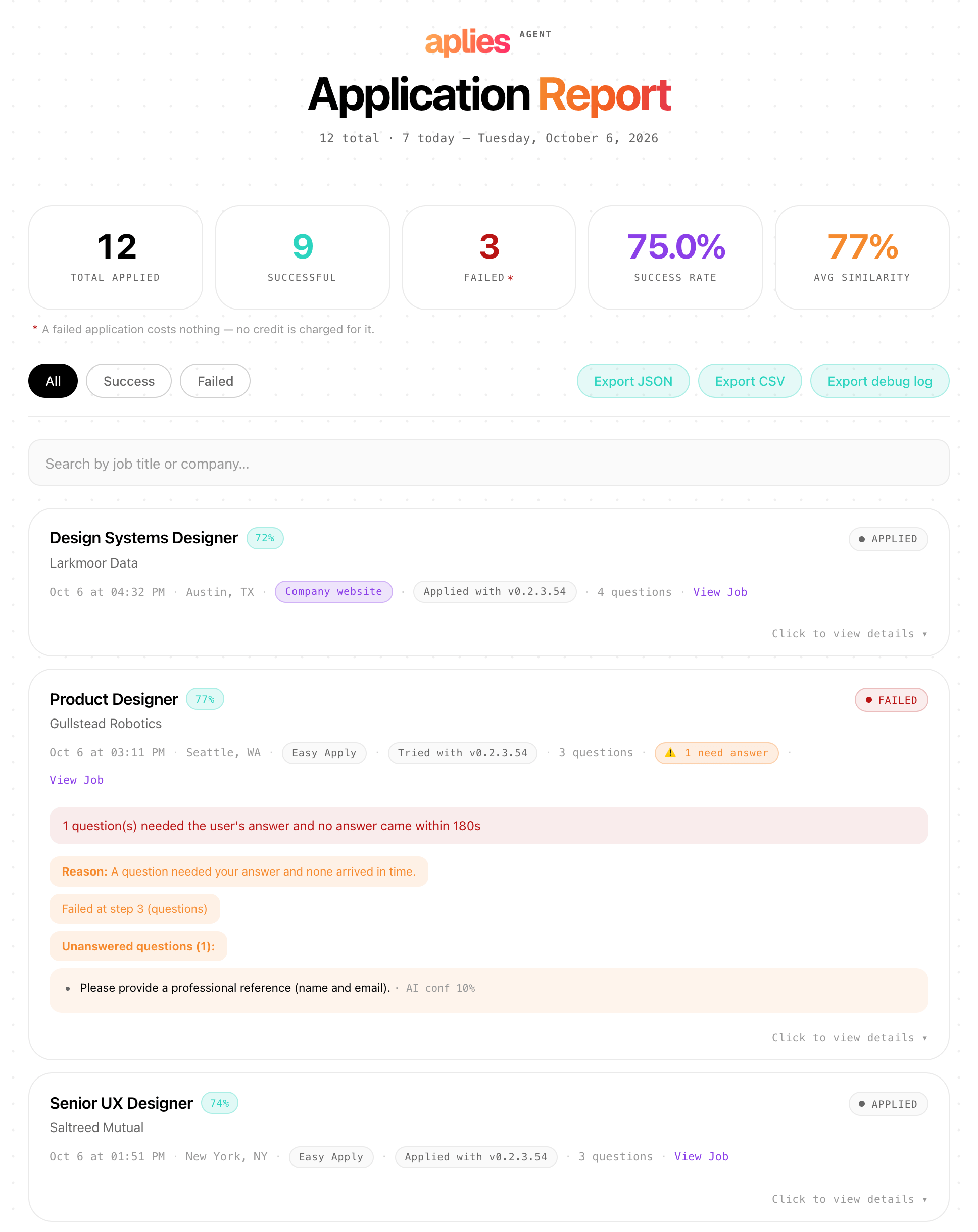
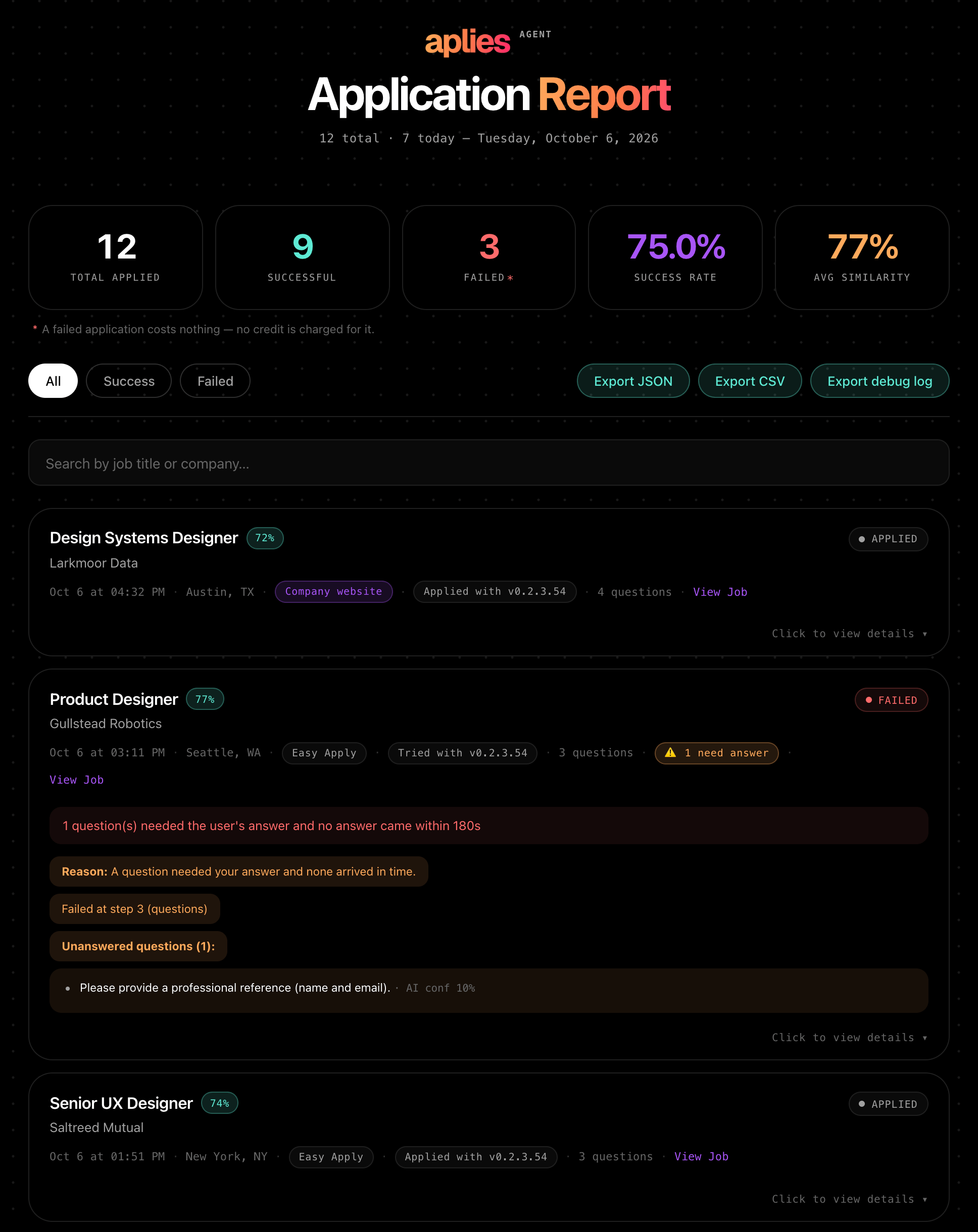
    The Aplies Agent “Application Report”: 12 applied, 9 successful, 3 failed, the note that a failed application costs nothing, and the newest applications with match score, method and Agent version.
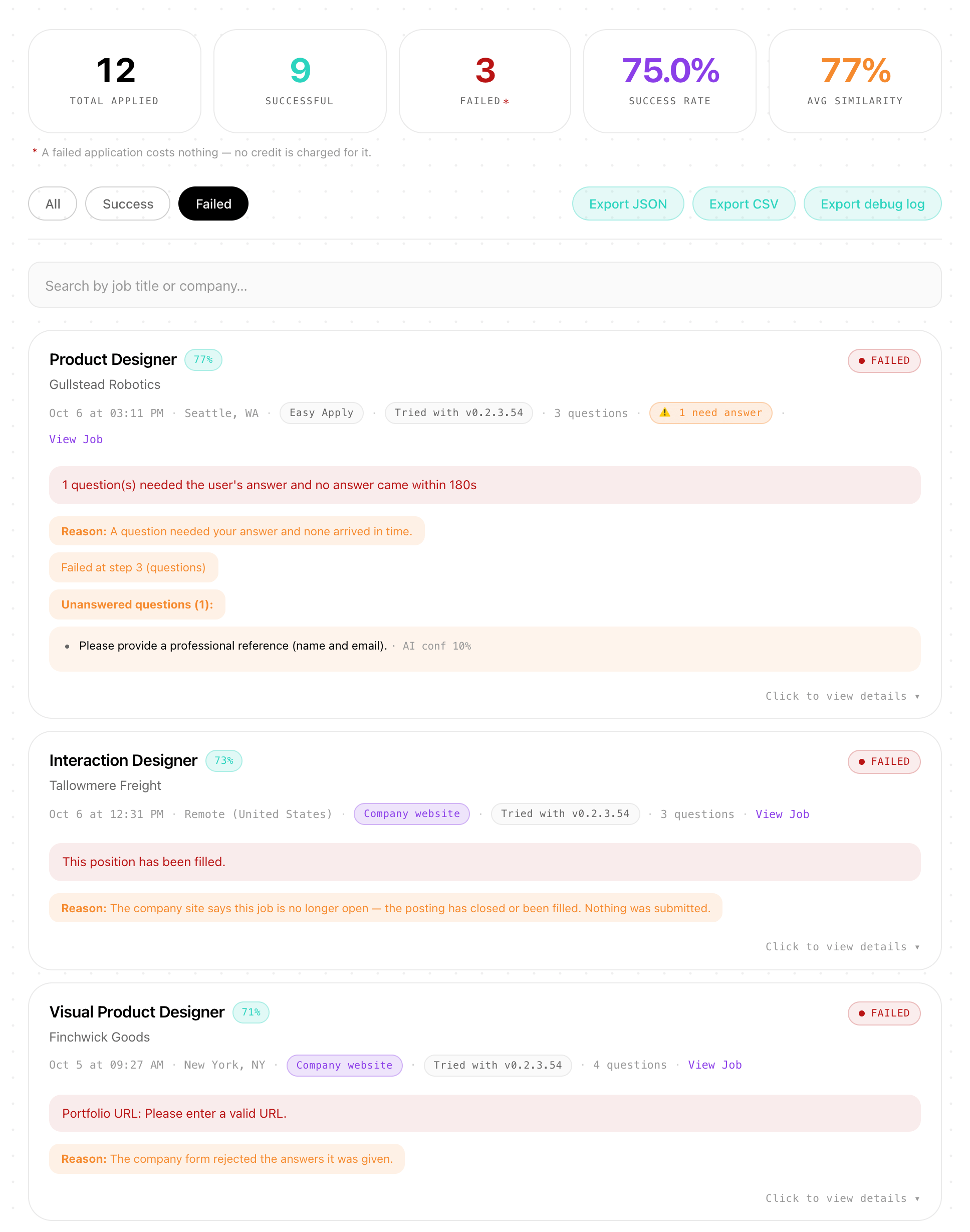
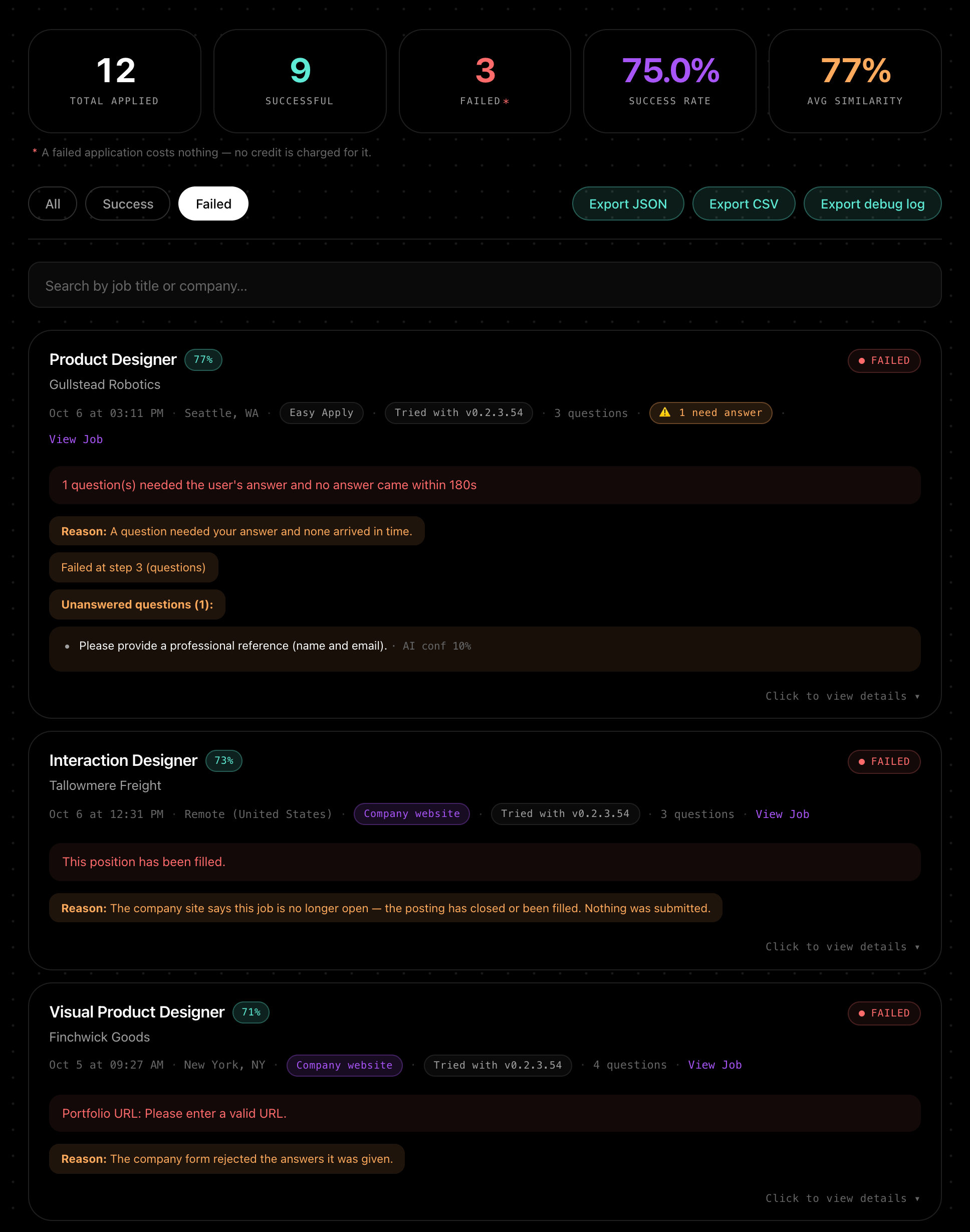
    The report filtered to failed applications, each with its reason: a question nobody answered in time, a position already filled, and a company form that refused an answer. None of them charged.
When a run stops

Why does a run stop?

When a run stops, the popup says why. These are the usual reasons.

Everything is searched
Every title, place and time window has been tried. It stops and suggests how to broaden: more titles, wider places, fewer filters.
LinkedIn shows a check or a warning
A CAPTCHA, a verification, an account warning, its Easy Apply limit or a sign-in check ends the run; it waits for Start, or a schedule a day after the limit.
A limit is reached
Limits count on a rolling clock, not from midnight. At your hourly limit it waits for a free slot; at your daily limit, or the daily ceiling, the run stops.
Credits run out
Applying pauses at zero. Add credits on aplies.com, then press Start.
A long session ends
It works at a human pace, takes short breaks and ends long sessions on its own.
You press Stop
It stops. An application that hadn’t been submitted costs nothing.

Or let it start on a schedule

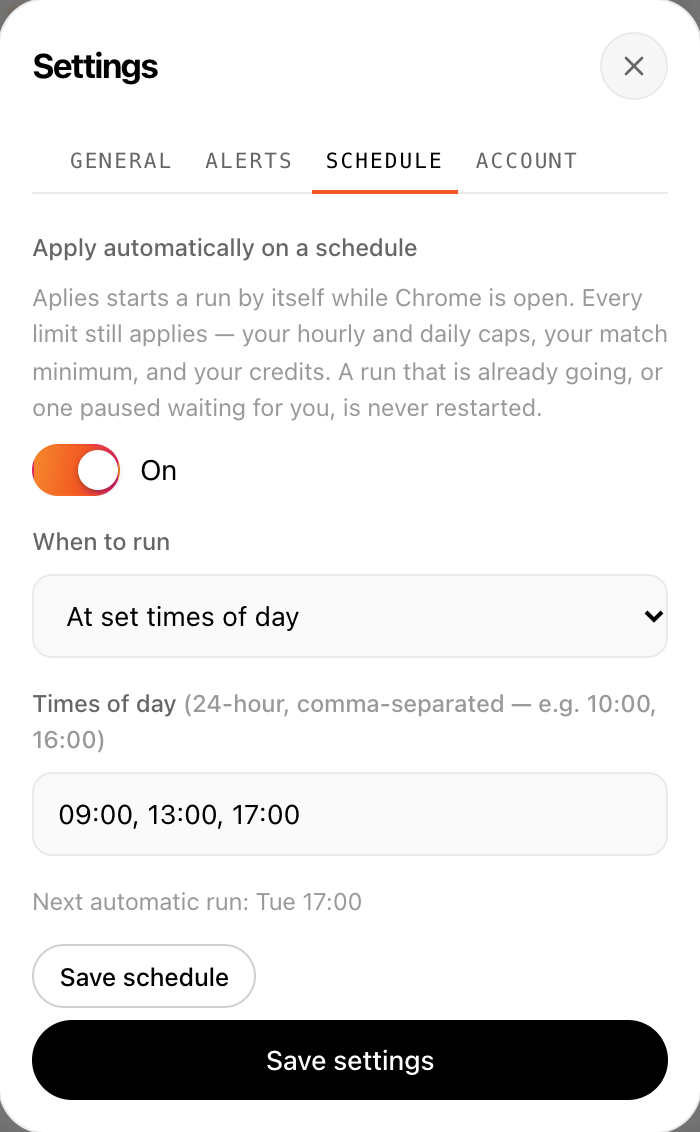
Settings → Schedule starts runs by itself: “Every few hours” (every 1 to 24 hours) or “At set times of day”. It is off until you turn it on, and runs only while Chrome is open. A scheduled run won’t start while the last one is waiting for you, and every limit and credit rule still applies.

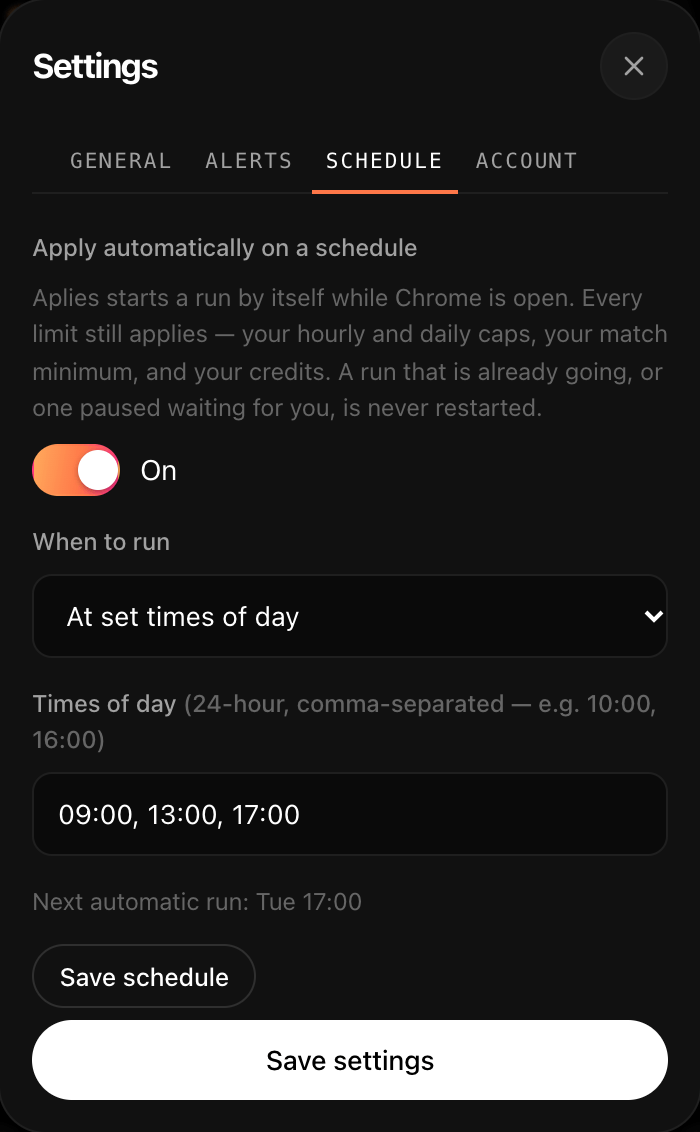
Aplies Agent settings, Schedule tab: “Apply automatically on a schedule” switched on, set to run at 09:00, 13:00 and 17:00, with the next automatic run shown.
The boundaries

What it will never do.

The same rules on every run, whatever your plan.

  • Ask for your LinkedIn password.

    It works inside the LinkedIn session you are already signed into. It never asks for your password and never stores it.

  • Solve a security check.

    On LinkedIn, a CAPTCHA or verification stops the run. On a company site it skips that one job, charges nothing and carries on.

  • Create accounts on company sites.

    It never creates an account or types a password on an employer’s site. At a sign-in wall it stops, leaves the tab open for you and tells you.

  • Make up personal facts.

    Date of birth, gender, nationality, phone and notice period come from your setup. If a form needs one it doesn’t have, it asks; if you don’t answer, it drops that job instead of guessing.

  • Guess your gender or identity.

    Gender comes from what you set (“Prefer not to say” is fine), never from your name. Race, ethnicity, veteran status, disability and sexual orientation get the form’s “decline to answer” option or are left blank.

  • Invent links, or answer “0 years”.

    It only uses links that are in your CV or profile, and never builds a profile URL from your name. It avoids answering “0 years” to an experience question.

  • Lean “Yes” on legal questions.

    On skills and qualifications it answers “Yes” unless your CV says otherwise. That never applies to legal status, immigration, criminal history, clearance or professional licences. Work authorisation is answered from your nationality and where you live; anything ambiguous comes back to you.

  • Charge for what it didn’t submit.

    If it stops before submitting, it costs nothing, however often that happens.

Set it up once. Then press Start.

10 free credits when you verify your phone. No card. Chrome on a desktop computer.