Install
Add the Agent to Chrome.
Set it up once.
The Aplies Agent is a Chrome extension for desktop and laptop computers. Sign in, press “Add to Chrome”, connect your account, and the setup wizard walks you through the rest. 10 free credits when you verify your phone, no card.
Installing starts from your account: sign in, or create a free account, to continue.
How do I install it?
Sign in
Sign in on aplies.com, or create a free account. Installing starts from your account.
Add to Chrome
Press “Add to Chrome” on this page. The Agent’s page on the Chrome Web Store opens; add it there and confirm in the box Chrome shows.
Pin it
Click the puzzle-piece icon at the top right of Chrome, then the pin next to “Aplies Agent”, so the icon stays in your toolbar.
Connect your account
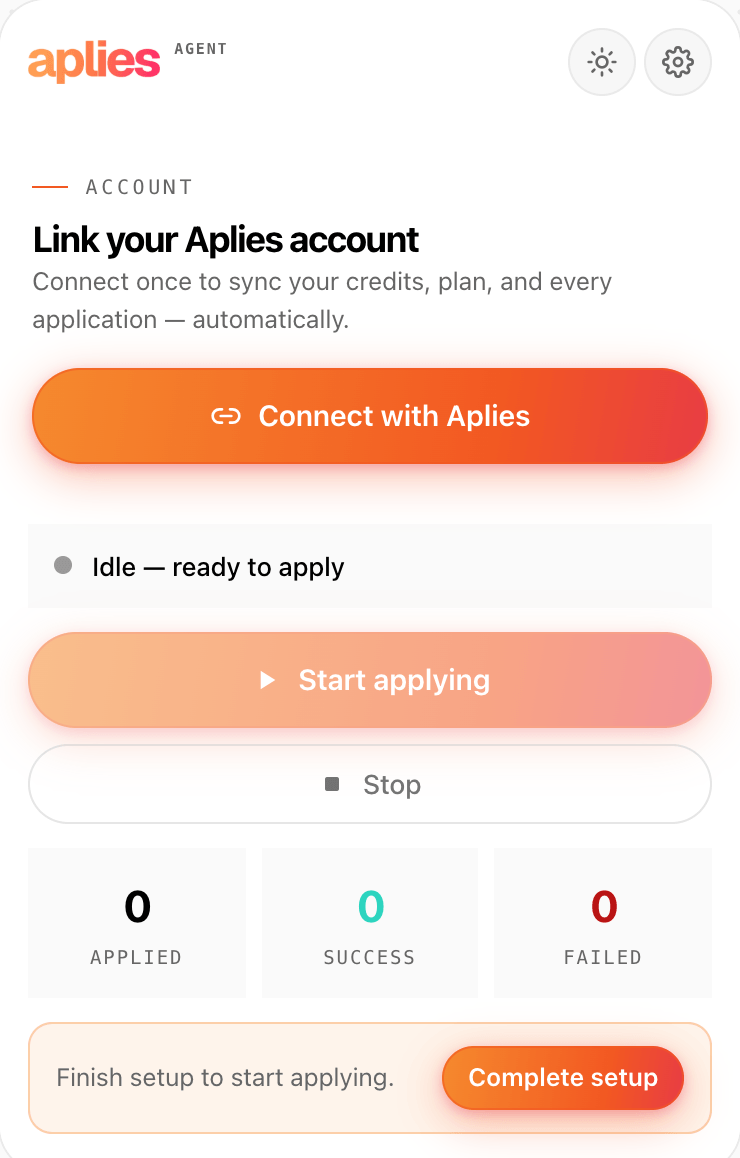
Open the Agent and press “Connect with Aplies”. A tab opens on aplies.com and links the Agent to your account.
Run the setup
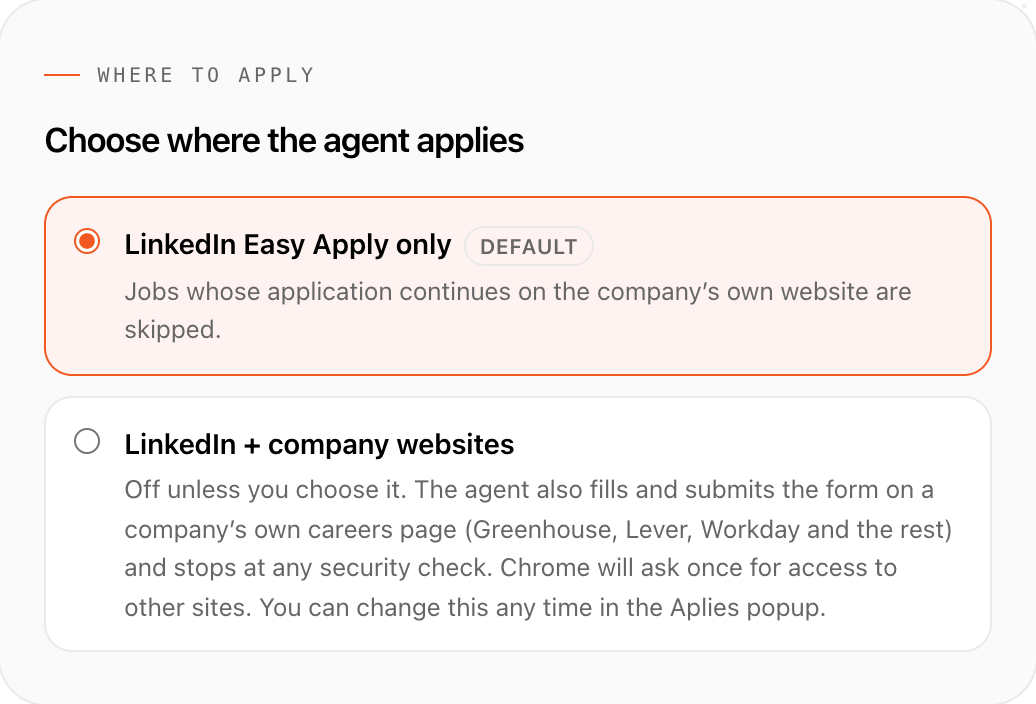
The setup wizard asks where to apply, reads your CV, and takes your job titles, places, match minimum and salary. Chrome asks for LinkedIn access along the way.
Press Start
The Agent opens its own LinkedIn tab in the background and starts applying.
See every step
What do you need?
Chrome on a computer
Chrome on a desktop or laptop. The Agent doesn’t run on phones or tablets.
LinkedIn, signed in
Signed in to LinkedIn in the same Chrome. The Agent works inside that session and never asks for your LinkedIn password.
An Aplies account
Free to create. It holds your credits, your plan and the record of every application. 10 free credits unlock when you verify your phone on WhatsApp or Telegram.
Your CV as a file
PDF, Word (.docx) or plain text, up to 8 MB. A scanned CV needs its text pasted in.
What does Chrome ask for, and why?
Chrome shows what an extension can do before you add it, and asks again before the Agent can reach any job site.
- Its own basics, and aplies.com
- Nothing that reaches a job site. It asks for:
- Storage: your CV file, settings, saved answers and record stay on your computer
- Tabs: it opens its own LinkedIn tab, and closes a company-site tab when it is done. Chrome words this as “Read your browsing history”
- Notifications and a chime: it tells you when it needs you
- Alarms: its timers and your schedule
- Idle state: only whether the computer is active, idle or locked, so it stops waiting for an answer when you are away
- aplies.com: your account, your credits and the record
- Scripting: it runs its own scripts in a tab, and only on sites it has access to
- Required. It is how the Agent searches, reads job pages, fills Easy Apply forms and shows match scores. You allow it with “Grant access”; without it, the Agent can’t open a job page.
- Other websites
- Access to https websites, asked once, so it can follow a job’s Apply button to whichever careers site it leads to. Plain-http careers pages are refused.
When you add it
In setup
Only if you turn on company websites
You can take back its site access in Chrome’s settings for the extension, or remove the Agent to take back everything.
If something looks off.
I don’t see “Add to Chrome”.
Installing starts from your account. Sign in, or create a free account, and the button appears on this page.
The Aplies icon isn’t in my toolbar.
Chrome tucks new extensions behind the puzzle-piece icon at the top right. Click it, then the pin next to “Aplies Agent”.
The Agent says it isn’t connected.
Open it and press “Connect with Aplies”. A tab opens on aplies.com, where you press “Authorize Aplies Agent” to link the Agent. If a connection ended, the Agent says why, and the same button connects it again.
It says it can’t open a job page.
Chrome hasn’t granted LinkedIn access. Open the setup, press “Grant access”, and allow it in the box Chrome shows.
Do I need to open LinkedIn first?
No. When you press Start, the Agent opens its own LinkedIn tab in the background. You do need to be signed in to LinkedIn in the same Chrome.
How do I update it?
You don’t need to. Chrome installs updates from the Chrome Web Store by itself.
Does it work in other browsers?
It is built and tested for Chrome on a desktop computer, and Chrome is the browser we support.
How do I remove it?
Right-click the Aplies icon and choose “Remove from Chrome”. To clear what the Agent keeps on this computer first, use Settings → Account → “Clear all data” in the Agent. Your account on aplies.com stays until you delete it there.
Where does my data live?
On your computer, the Agent keeps your CV file, settings, saved answers and its record. Your Aplies account holds your credits, your plan and a record of every application; your profile details and saved answers are backed up there, encrypted at rest.
Start with free credits.
Verify your phone to unlock 10 free credits, no card. After that, you pay only for applications the Agent submits.